
TALENT REPRESENTATIVE: How do I add, remove, or manage talent on my roster?
This article is for Talent Representatives and explains the different ways to manage your talent roster on Casting Networks. We'll cover adding new talent (by creating a profile or sending an invite), removing talent, hiding profiles, and viewing former clients.
Adding Talent to Your Roster
You can add talent to your roster in two ways: by creating a profile for them directly or by inviting them to create their own profile.
Create a Profile for Talent
Click Talent in the global navigation bar.
Click Add Talent.

Select Create a profile for talent.
Click OK.
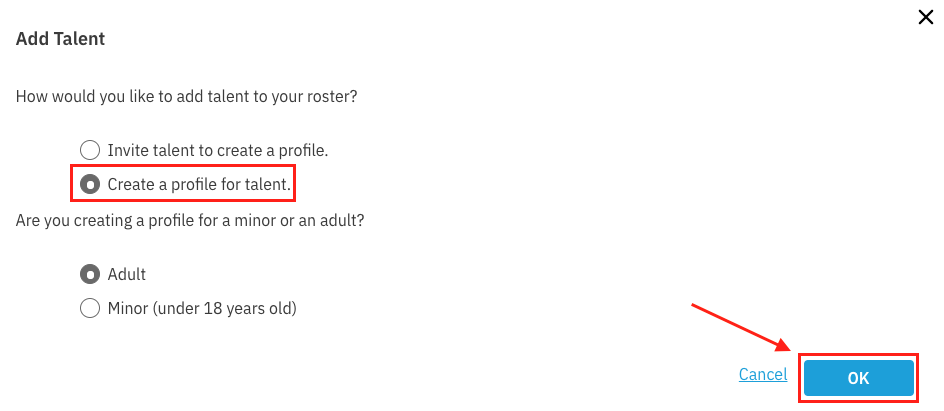
Fill in the required information, including the talent’s working location, ethnicity, age range, and email address.
Once the profile is created, you can upload two photos, 1 video clip, and 1 audio clip. An email will be sent to the talent letting them know a profile has been created for them. They can then log in if they have an existing account or can register if they are new to the platform.
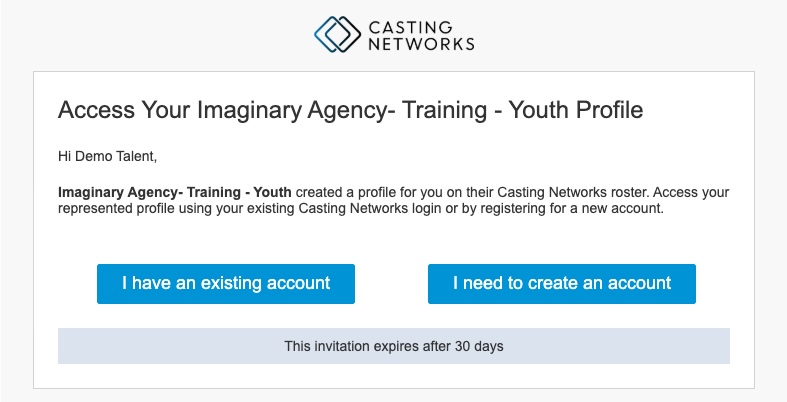
Invite Talent to Join Your Roster
Click Talent in the global navigation bar.
Click Add Talent.
Select Invite Talent to create a profile.
Click OK.
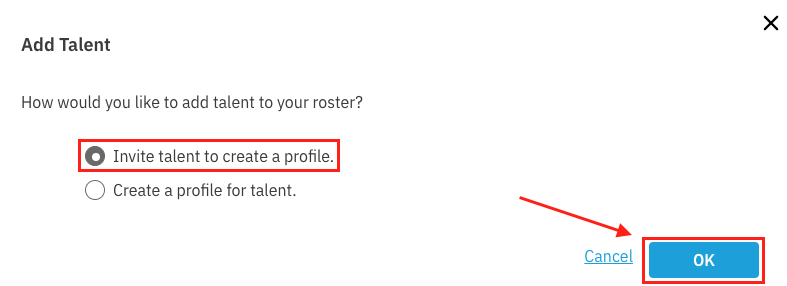
Add the talent's Name and Email.
Select + Add Invite (See the FAQ section for details on adding multiple talent).
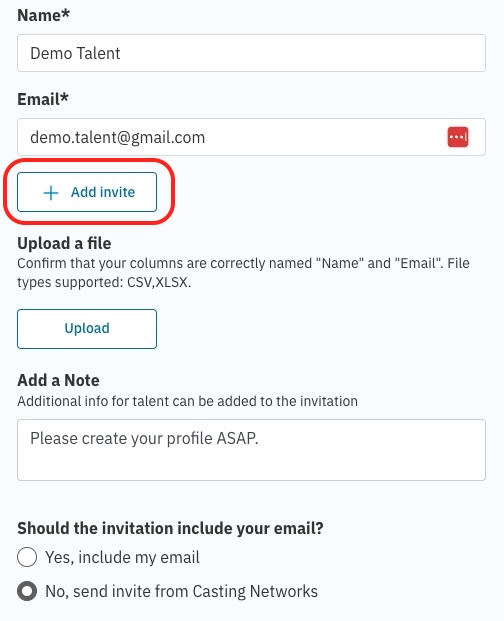
You can add a note and choose whether to include your email.
Click Send.
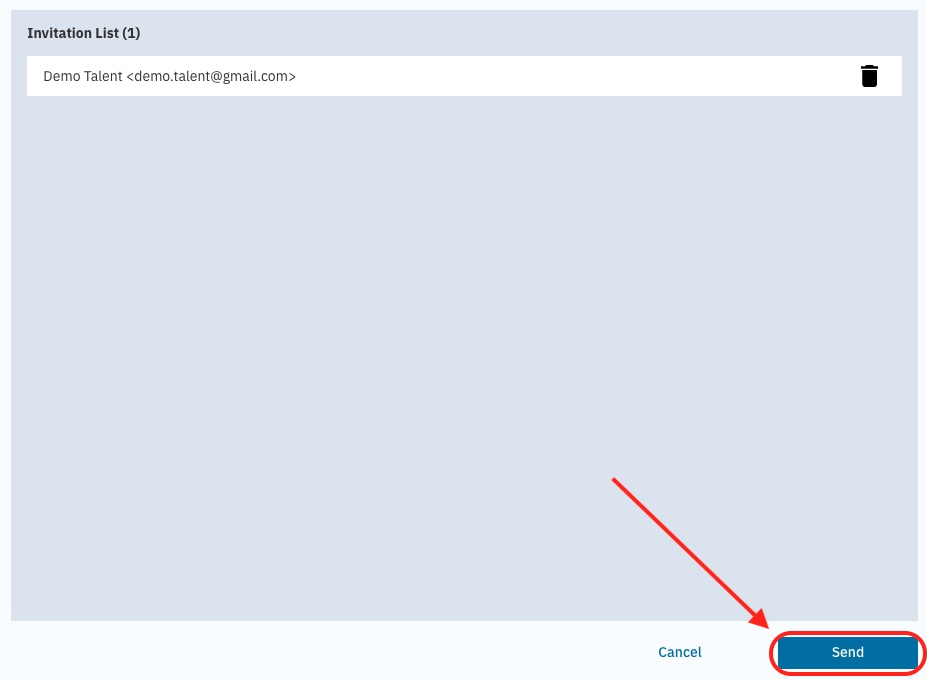
The talent will receive an email invite. When they accept, they can either create a new Casting Networks account or copy information from an existing account.
Removing Talent From Your Roster
Go to the Talent section of your account.
Locate the talent you wish to remove.
Click the overflow menu (⋮) to the right of the talent’s photo.
Choose Remove from Roster.
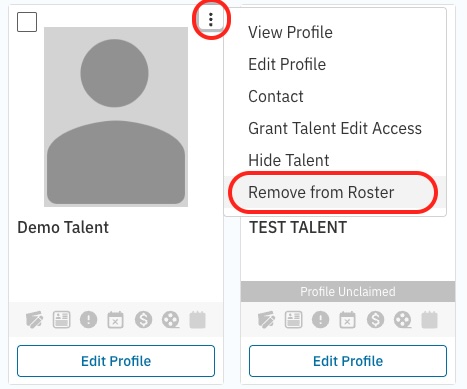
Once removed, the talent's profile will be designated as a "Former Client." You can find them later by filtering your roster.
Hiding and Unhiding Talent Profiles
You can hide talent profiles on your roster. Hidden profiles will not appear in your active roster or in casting searches, depending on the option you choose. You can find these profiles later using the "Profile Status" filter.
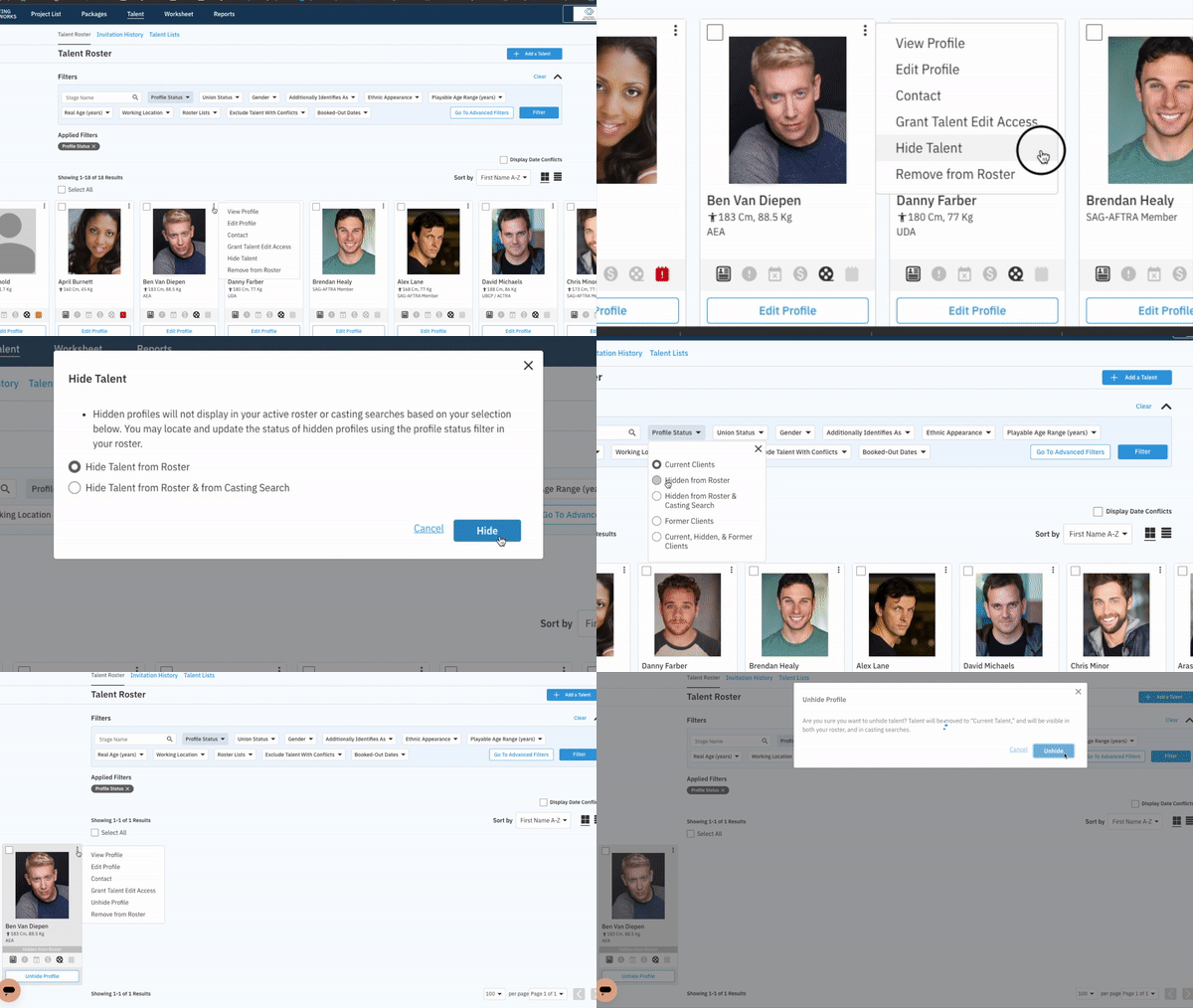
How to Hide a Talent Profile
Go to the Talent tab.
Select the overflow menu (⋮) in the upper right corner of the talent’s photo.
Select Hide Talent.
Choose either "Hide from Talent Roster" or "Hide From Talent Roster & From Casting Search."
Select Hide.
How to Unhide a Talent Profile
Go to the Talent tab.
Under Filter, select "Profile Status."
On the drop-down, select either "Hide from Talent Roster" or "Hide From Talent Roster & From Casting Search."
Select Filter.
Find the talent you want to unhide and select the overflow menu (⋮) on their photo.
Select Unhide Profile.
Select Unhide.
Viewing Former Clients (Dropped Talent)
To view talent you have previously removed from your roster:
Go to Talent in the global navigation bar.
Click Filter.
Change the "Profile Status" dropdown to Former Clients.
This will display all profiles previously removed from your roster.
If you (or someone at your company) removed the talent, you will see an option to reactivate the profile.
If the talent removed themselves from your roster, you must contact them directly to be re-added.
Frequently Asked Questions (FAQ)
How do I invite multiple talent at once?
You have two ways to invite multiple talent:
Upload a File: This is the fastest method.
Create a spreadsheet (CSV, XLS, or XLSX) with one column titled "Name" and another "Email."
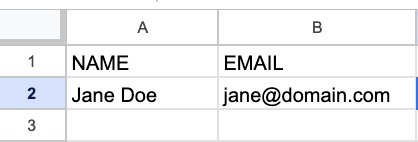
On the invitation page, click the UPLOAD button to import your entire list at once.
Add Manually: On the invitation page, enter a talent's Name and Email and click Add Invite. You can repeat this process to add as many talent as needed to a single invitation before clicking Send.
What should I do if it says a talent's email is already taken?
The combination of a talent's name and email must be unique. If you are notified that a talent is already in your roster, you can select View Profile to see their existing profile. If you need to invite a talent with the same name and email (for example, to represent a different persona), you can slightly amend the talent's name on the invitation (e.g., "John D. (VO)" instead of "John D.").
How do I remove someone from an invitation list before I send it?
To remove a talent from an invitation list before sending, click the trash icon (🗑️) to the right of that talent's name and email.
What does it mean if an invitation is expired?
Talent invitation requests expire after 30 days. You can resend an expired invitation at any time from the invitation page.
How can I see which talent accepted my invitation?
Click Talent in the navigation bar and choose Invitation History. This page shows a full history of your talent invitations and their status (Pending, In Roster, or Expired). Those successfully added will be listed as In Roster.