
TALENT: How Do I Navigate the Casting Billboard®?
This article is for Talent on Casting Networks. It explains how to save your preferred search filters on the Casting Billboard® so you can easily find roles that match your criteria without having to re-enter your preferences each time. We'll cover how to save, manage, and use these filters, including the Open Call filter. We will also review the submission workflow.
How to Save a Search Filter
The filters on Casting Billboard® help show you roles that are a good fit. By default, your Casting Billboard® is filtered by your age range, gender appearance, and location. You can further filter by project type, role type, and more. Saving your search filters allows you to easily find roles with your set preferences every time.
Follow these steps to save a search:
Click on ‘Casting Billboard’ from the main navigation.
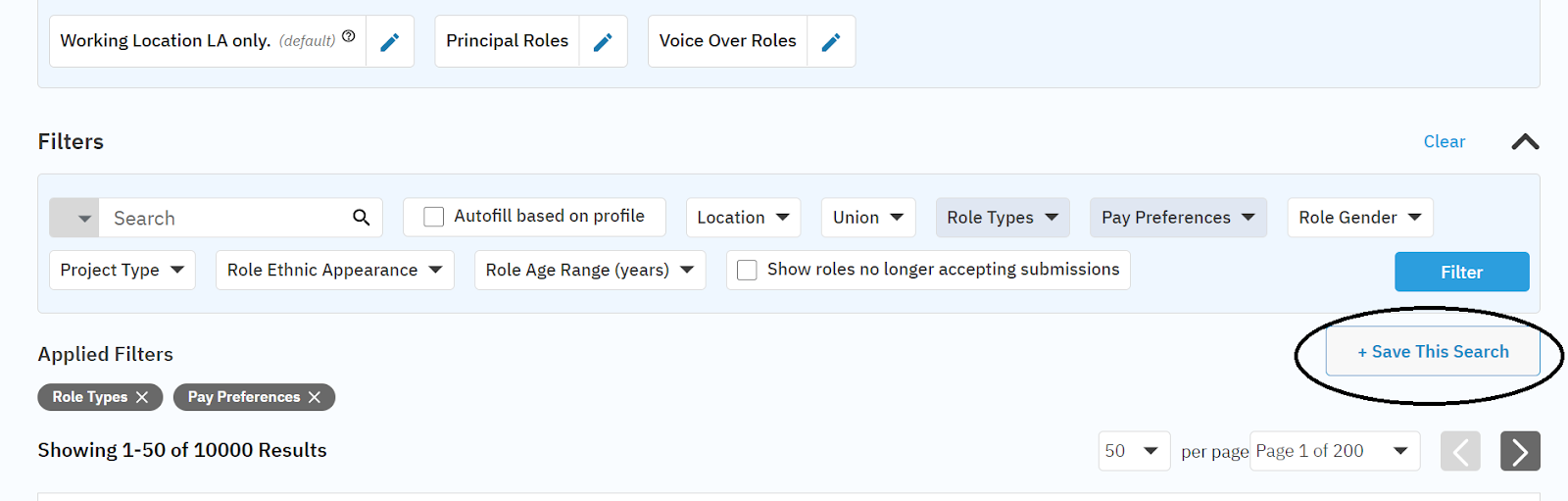
Select your preferred criteria from the dropdown tabs and click the ‘Filter’ button.
Click on ‘+ Save this Search’.
Name your search and click ‘Save’.
Your new search will be available under the ‘Saved Search’ tab, next to the Casting Billboard tab.
How to Manage Saved Searches
Once you have saved a search, you can manage it to better suit your needs.
You can select any particular search as your 'Default' search. This will be the first view you see when you visit the Casting Billboard®.
You can also edit, rename, and delete your searches under the ‘Manage Saved Searches’ section.
Using the Open Call Filter
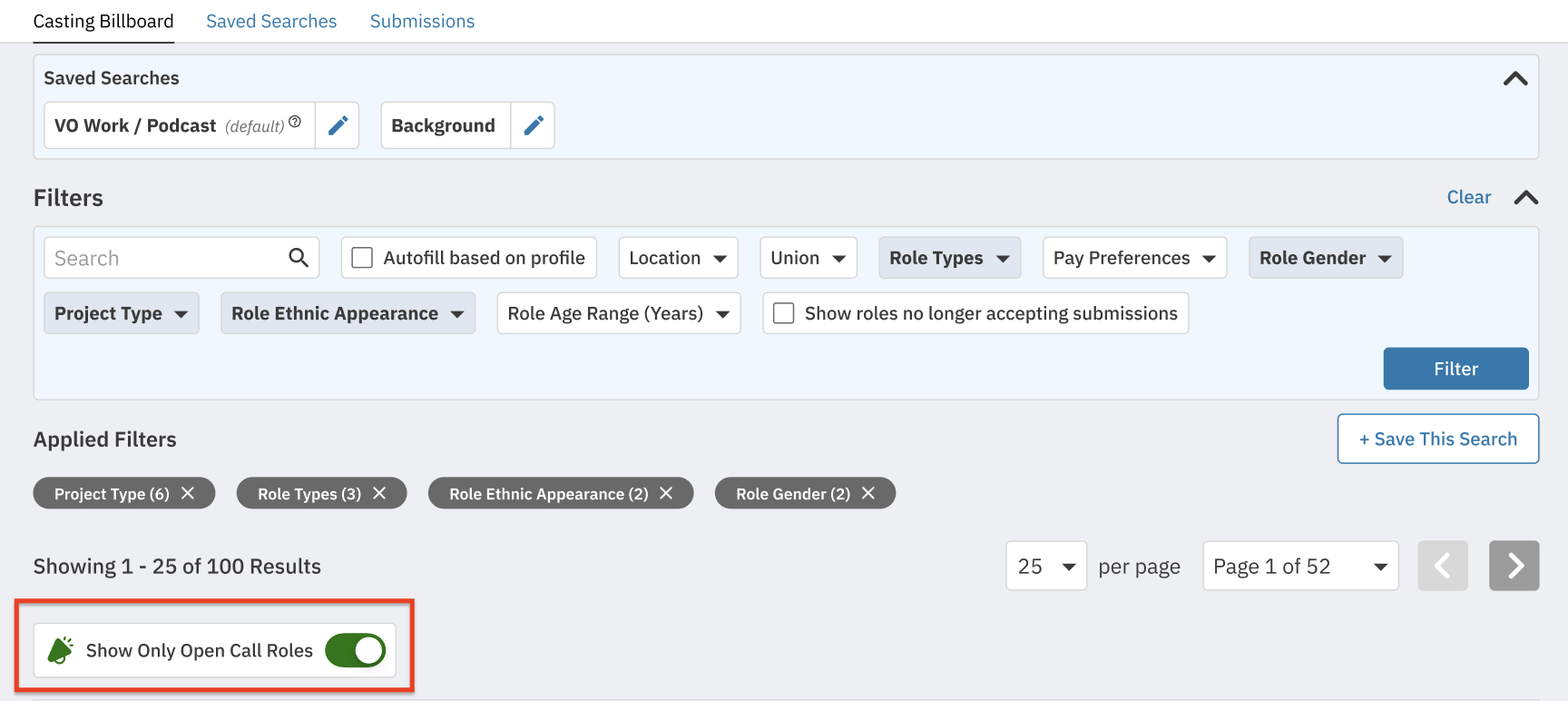
You can use the Open Call filter to see only open call projects on the Casting Billboard®.
Toggle on the Open Call feature within the filters to activate it.
Please note: Saved Searches cannot be created using the Open Call toggle button.
Notifications are not currently an available option for the Open Call search filter. These opportunities can only be viewed directly on the Casting Billboard®.
For more information on how to submit to an Open Call click here.
Requirements for Submitting
Please note, in order to submit to roles on Casting Billboard®, you must have the following:
A Premium Membership
A personal profile (not managed by an agent or representative)
How to Submit to a Role
To submit to a role posted to Casting Billboard®, please follow the steps below.
Click Casting Billboard in the global navigation bar.
Browse the available roles and projects. You can modify the results by clicking the Filter button.
Click a project or role name to see more details.
Click Submit to Role.
Customize your submission by choosing which media is shown to casting, uploading any requested media, and adding a submission note.
When you are ready, select Send Submission to send your application to casting.
Once your submission is finalized, you can find the project information in the Your Submissions section of your account.
For more information on what to do once you've submitted see here.
Removing a Submission
Go to Your Submissions.
Click on the role from which you would like to unsubmit.
Scroll to the bottom of the Role Details page and click Unsubmit.
Please note: If you do not see the option to unsubmit, it means the casting director has already reviewed your submission.
Frequently Asked Questions (FAQ)
Why are my filters reset when I leave the Casting Billboard®?
Standard filters are reset when you navigate away from the Casting Billboard® main page. To keep your preferred filters active for future visits, you must save them using the ‘+ Save this Search’ feature described above.
When I try to submit, why does it say I need a personal profile?
To submit to roles on Casting Billboard®, you need both a personal profile (one not managed by an agent or manager) and an active Premium Membership. If you see this message, you can create a personal profile by clicking Yes, create this personal profile on the pop-up window.
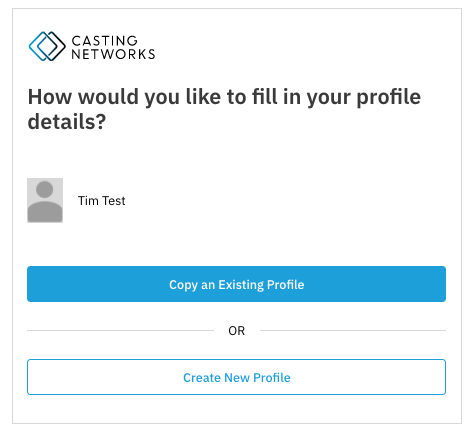
You will then have the option to Copy an Existing Profile (to transfer credits, stats, and information) or Create New Profile from scratch. Once your personal profile is created and you have an active Premium Membership, you will be able to submit to roles.
When I try to submit, why is it asking me to upgrade to a Premium Membership?
An active Premium Membership is required to submit to roles posted on Casting Billboard®. If you are trying to submit without an active membership, you will be prompted to upgrade.
To upgrade, click the Premium Membership link and then choose Select Your Membership. You can toggle between paying annually or monthly with the switch in the upper right-hand corner.
For current pricing and membership details, please click here.
If you already have an active Premium Membership and are still unable to submit to roles, please reach out to our Support Team for assistance.