PROJECT CREATORS: How do I leave a note on a talent's submission/profile?

Edited

This article explains how to leave notes on submissions to keep your casting process organized. You can leave a permanent note on a talent's profile or a note specific to the project you are working on.


Leaving a Permanent Note

To leave a note that stays on the talent's profile regardless of the project:

  1. Click the Project Title.

  2. Click Submissions.

  3.  Click the notes icon underneath a talent’s photo. 

    A simple, icon shown as a grey square with small tabs across the top, set against a white background.

  4. Choose a note type (color) for your note. You can color-code your notes (red, yellow, green, or black) or stick to one color for everything. 
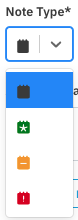
    A screenshot showing a drop-down menu titled "Note Type*". The current selection is a dark gray icon that looks like a simplified shopping bag or pouch. The drop-down list below it shows four options, each represented by a similar icon:  A dark gray icon (currently selected and highlighted in blue).  A green icon with a white star inside.  An orange icon with a white minus sign inside.  A red icon with a white exclamation point inside.

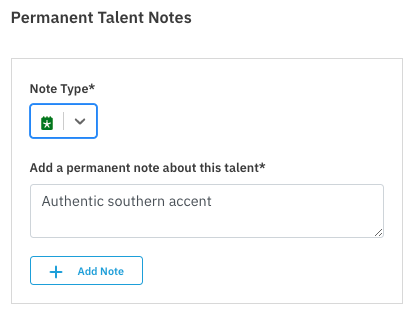
  5. Enter your note and click + Add Note

    A screenshot of a form titled "Permanent Talent Notes." The form has a required field for "Note Type" with a drop-down menu showing a green calendar icon, and a required text area field labeled "Add a permanent note about this talent." The text area contains the input "Authentic southern accent." Below the text area is a blue button that says "Add Note" with a plus icon.

Leaving a Project-Specific Note

To leave a casting note that only applies to this specific project:

  1. Click the Project Title.

  2. Click Submissions.

  3. Click the clapperboard with a pencil icon underneath a talent’s photo. 

    A dark gray, stylized icon showing a folded folder or document with a pencil or writing tool diagonally crossing over it, suggesting editing, updating, or documentation.

  4. Type in your note and select the + Add Note button. 
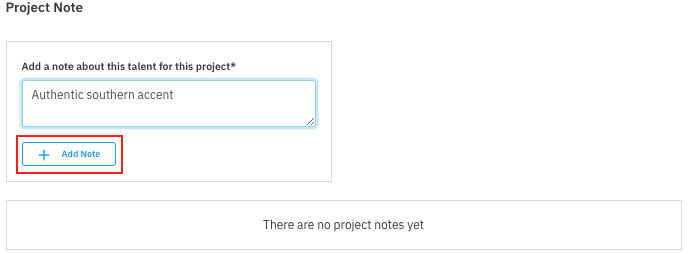
    A screenshot of a web form titled "Project Note." A text box contains the input "Authentic southern accent" with a label above it that reads: "Add a note about this talent for this project*". Below the text box is a blue button with a plus icon and the text "**Add Note**," which is highlighted by a red box. Below this section is a divider and a box containing the text, "There are no project notes yet."


Was this article helpful?

Sorry about that! Care to tell us more?

Thanks for the feedback!

There was an issue submitting your feedback
Please check your connection and try again.