
PROJECT CREATORS: How do I Review Submissions?
This article explains the workflow for reviewing talent submissions on your project. It answers how to differentiate between submission statuses and provides instructions on how to move talent between the "To Review," "Reviewed," and "Selected" folders.
What is the Difference Between "To Review," "Reviewed," and "Selected"?

Understanding the different folders in your submission view helps keep your casting process organized.
To Review
Submissions will first appear for each role in the To Review folder.
Submissions will remain in this tab unless you mark the talent as Selected or as Reviewed.
Reviewed
Reviewed submissions are typically those talent who you do not wish to move forward with.
The submissions will remain in the Reviewed tab unless later marked as selected.
Selected
Selected submissions are those talent you wish to schedule or contact.
You can mark a talent as selected by clicking on the numbers 1 - 6 under each talent’s submission.
You may move a talent out of the Selected tab by un-clicking the highlighted number that was originally selected. This will move the submission to the role’s Reviewed tab.
How Do I Indicate a Submission Has Been Reviewed?
There are two ways to move talent into the Reviewed folder without selecting them.

Bulk Action: While viewing talent in the To Review tab, you will see a button toward the bottom labeled Mark These as Reviewed (The number of talent you are marking as reviewed will appear in parentheses). After making any selects by choosing numbers 1-6 or CB, click this button to move any remaining talent on the page to Reviewed.
Individual Action: When viewing a talent’s details by clicking on their photo, there is an option to mark that individual talent as reviewed in the top right corner.
What Do the Numbers 1 Through 6 Indicate?
When any number (1 through 6) below a talent’s submission is clicked, the talent is marked as Selected. This action moves the talent from the To Review folder to the Selected folder.
The specific number you assign to talent is for your own organization; strictly speaking, no number has more technical significance than another.
Talent marked with CB (Callback) will be moved to the Selected tab as well.
Any selected talent, including those marked as a Callback Select, will be available to add to any request or schedule (audition or callback).
How Do I Re-evaluate Talent I Marked as "Reviewed"?
If you marked someone as "Reviewed" but want to take another look at them, follow these steps:
Click the Project Title.
Click Submissions.
Find the role you are looking for under Submissions, and click on the Reviewed tab.
Optional: Click the Filter button to search by the talent’s name or filter the Reviewed submissions to narrow the results.
Click on any number 1-6 or CB to move the submission to the Selected tab.
How can I Sort Submissions?
You are able to sort submissions by the following:
Random Order (default)
Time Submitted (Oldest First)
Time Submitted (Newest First)
Stage Name A - Z
To sort your submissions:
Click the project title.
Click Submissions.
Change the Sort By drop-down to your preference.
Can I look at Submissions in a List View?
Currently, submissions will only display in a grid view. We may implement different views for submissions in the future.
How to Filter Submissions
To locate the filter button:
Click the project title.
Click Submissions.
Select the filters to apply to your search then click the blue Filter button on the left above the talent submissions.
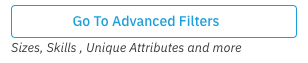
You can choose to auto-fill the filter based on the role information or you can filter the submissions by several common identifiers. You can also choose “Go To Advanced Filters” for additional options including a talent’s appearance, role preferences, and skills and assets.
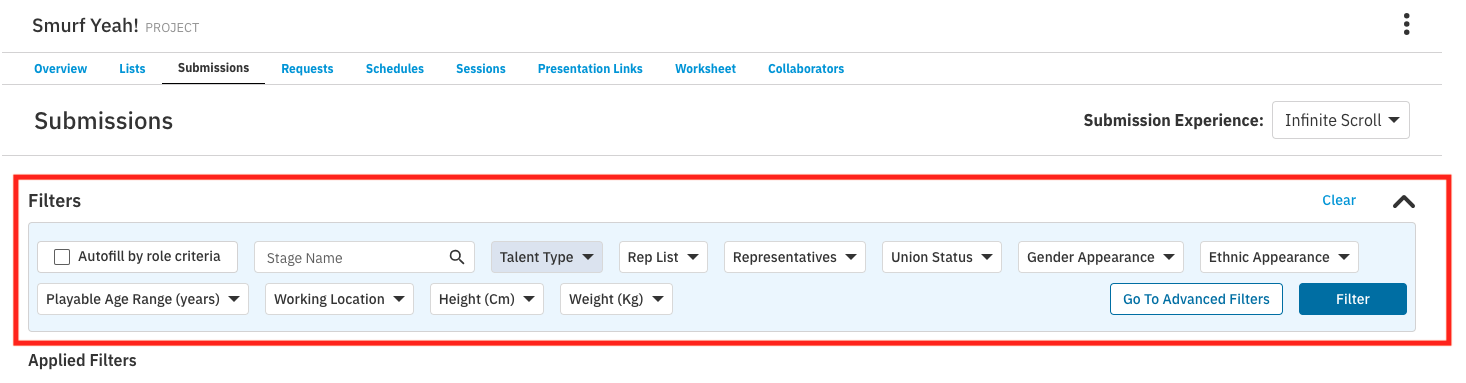
Basic search criteria includes:
Stage Name
Talent Type (Represented or Unrepresented)**
Rep List**
Representatives**
Union Status
Gender Appearance
Ethnic Appearance
Playable Age Range
Working Location
Height
Weight
** - This filter is only available to Enterprise Casting Directors
Filter Submissions by Represented or Unrepresented Talent
Please note: This option is only available to Enterprise Casting Directors
When you release a role to the Casting Billboard, talent can submit themselves to your project. This allows more talent to access your project and helps you get more submissions.
To filter your submissions by talent who were submitted by an Agent or Manager:
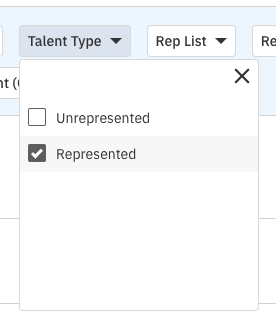
Navigate to the filter option TALENT TYPE.
Click the checkbox next to Represented.
Click the blue Filter button to view your results.
What does "Advanced Filters" mean?
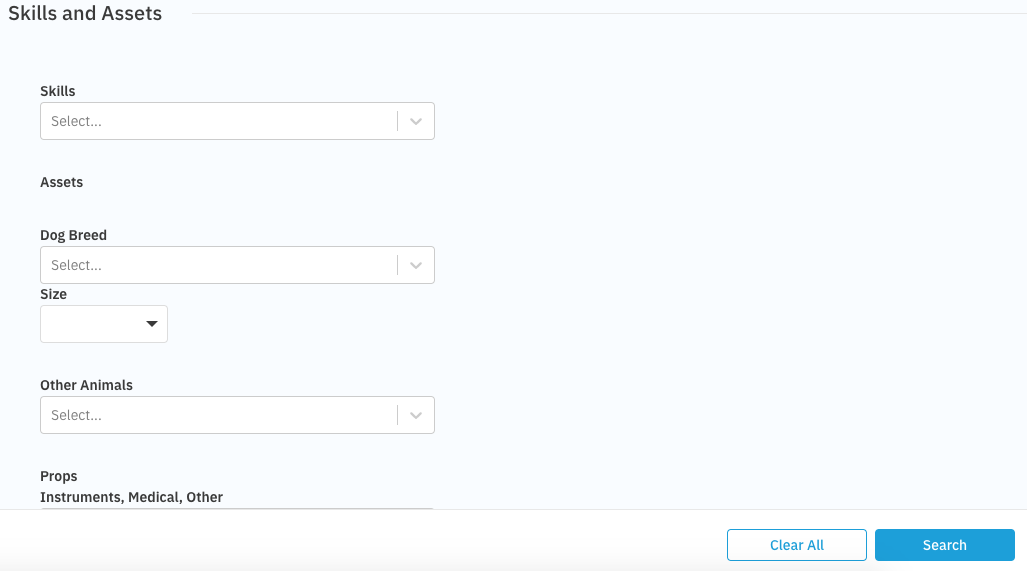
When you click on Go to Advanced Filters, you can filter by all basic search criteria as well as appearance details, skills, assets, and many other unique attributes.
For example, you are able to search by specific skills and/or assets:
Frequently Asked Questions
Can I change the status for a submission from selected to reviewed or vice versa?
Yes. When viewing your submissions, you can mark any submission as reviewed or selected at any time. If viewing the Reviewed tab, simply click any number 1-6 or CB to select the talent and move them to the Selected tab. When viewing the Selected tab, simply unclick any highlighted number or CB to move the talent’s submission back to the Reviewed tab.