
TALENT: How do I Review and Respond to Media Requests in My Alerts?
This article explains what to do when you receive a media request from a casting director. It covers how to reply, what to do if you need to change your response, and answers other common questions about media requests.
How to Reply to a Media Request
Log in to your Casting Networks Account.
Go to Your Alerts and select the Media Request you'd like to view. All Media Requests will be available on the "Your Alerts" page.
Take a moment to carefully review any instructions provided by the casting team. They might include extra sides or information as a hyperlink in the left-hand column of the request page.
After carefully reviewing both the instructions and sides, your next step is to choose either "Confirm" or "Decline" from the options presented on the right-hand column.
When Confirm is clicked, you'll have an opportunity to attach the files requested by casting. You can select files either from your Media Bank or Your Device.
Once your file(s) has been uploaded, you will have the option to rename a video or audio clip. You can do this by clicking on "Rename" located under the title of the respective video or audio clip before sending it. (Please keep in mind that once it is sent, you will no longer have the ability to rename it.)
Casting might offer a section where you can include any additional information relevant to the request. Typically, this step is optional, however, we recommend carefully reviewing the instructions to ensure you meet any specific requirements mentioned. (Note: The opportunity to add a note, if made available by Casting, will appear after you've uploaded your media content.)
Click "Send" to forward your media to the casting team. After your media has been successfully submitted, a green banner will appear, confirming your submission. You'll also notice an additional permanent banner confirming the date on which you responded to the request.
How to Change Your Response to a Media Request
If you've accidentally declined your request and wish to Confirm it and upload your media, you would click the Confirm button, enter your optional note, and hit Send. You will then have an option to attach your media. You can follow the same process if you wish to Decline the request after you have confirmed it. Click Decline, send your optional note, and hit Send.
How to Search for an Alert
On your "Alerts" page, you can search within a specific time frame for any alert. To search within specific dates:
Click Your Alerts in the top navigation bar.
Choose start and end dates in the Dates Received fields.
Click Search.
You will be able to view any alerts you received within that time frame.\
How to Archive an Alert
Go to the bottom menu bar and tap Alerts to access your auditions.
To archive a specific audition, swipe it to the left.
Tap the Archive icon .
How to Unarchive an Alert
Tap the Filter icon located in the upper right-hand corner.
In the Display section, change the selection from “Current” to Archive.
Tap Apply Filters in the bottom menu.
Swipe left on the audition you wish to restore from the archive.
Tap the Unarchive button.
To navigate back to your main inbox, return to the filter icon and select Clear Filters.
Canceled Media Request
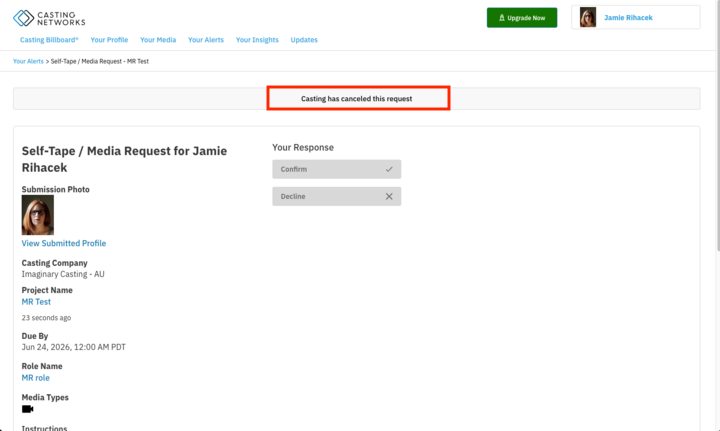
You may receive a notification that a media request has been canceled. This is completely normal — cancellations can happen for a variety of reasons, such as a project being discontinued or a change in direction. We recommend directing questions about a specific cancellation to your agent or to the casting director for clarity.
If a request is canceled, you will see a message at the top of the media request.
Frequently Asked Questions (FAQ's)
Does the media have to be in my Media Bank for me to submit it to a Media Request?
No. It's important to note that you have options when responding to a Media Request. You can either attach your media from your existing Media Bank or directly from the device you are currently using by selecting "From Device." This flexibility proves especially useful if a casting director requests specific media that you prefer not to upload onto your profile.
Can I rename the audio clip or video reel I just uploaded to a Media Request?
Yes! To rename your audio or video attachment, click Rename beneath the media thumbnail, rename or edit the title, and click Save. Renaming the video or audio clip will only rename the file in a specific request and will not affect the name of the clip in your media bank. This extends to any document files you upload to the Media Request as well.
How many photos/videos/audio clips can I upload to a Media Request?
You can attach a maximum number of 10 media clips or photos to any request. There may be instructions from a casting director asking for a specific number of clips or photos, so make sure to look at the notes on any request.
How can I reference the project again from a Media Request?
When viewing a media request, the name of the corresponding project will appear at the top of your page. You can always click on the name of the project, or the name of the role, to view project and role details for your reference. If you submitted yourself to the project, you can also find details from Your Submissions in the top navigation bar.
I need to decline a media request, what do I do?
When you receive a media request, you are able to decline the request. On the request, select the Decline button and include a note. When you’re ready, click “Send Response”. Responses cannot be edited after being sent.
What does it mean that this request is inactive? Can I reply to the Casting Director?
While viewing a request, you may see a message saying “Sorry! This request is inactive.” Casting directors may choose to deactivate a request if they no longer need the requested information or may no longer be actively casting the project. Unfortunately, you won’t be able to reply to the casting director for any inactive request, but occasionally casting directors may reach out with a new request at a later date.
What if I need to see an alert from before January 2020?
Audition and Callback alerts received before January 2020 will not appear in "Your Alerts." If you need to reference an earlier alert, please contact our support team.