
TALENT REPRESENTATIVE: What does "Grant Talent Edit Access" mean?
This article explains how Talent Representatives on Casting Networks can share profile editing permissions with their talent. It answers how to invite talent to manage their own profiles and how to adjust automatic sharing settings.
Understanding "Grant Talent Edit Access"
By default, when you create a new profile for a talent on your roster, it is automatically shared with them so they can update and maintain it. However, the Grant Talent Edit Access feature is useful in specific scenarios:
Sending Reminders: You can click this option to re-send the notification email if the talent hasn't accepted the invitation yet.
Manual Access: If you have turned off automatic sharing, you use this feature to manually invite specific talent to edit their profiles.
Note: You can only grant edit access or send reminders if the talent has not yet accepted access. Once a talent accepts the invite to edit their profile, this option will no longer be clickable.
How to manually grant edit access
If you need to invite a talent to edit their profile or send them a reminder, follow these steps:
Locate the specific talent within your roster.
Click the overflow menu (the three vertical dots ⋮) associated with that talent.
Select Grant Talent Edit Access from the dropdown menu.
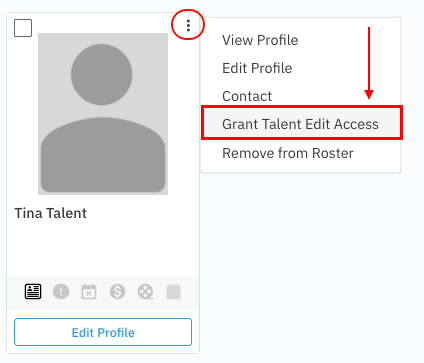
A pop-up window will appear. Here, you can edit the talent's email address if necessary.
Add a personal note for the talent (optional).
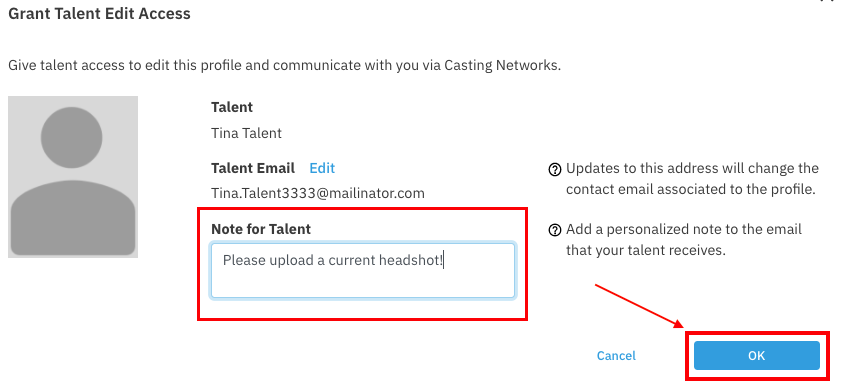
Click OK.
An email will immediately be sent to the talent with instructions on how to access and edit their profile.
Managing automatic profile sharing
We understand that every agency operates differently. While profiles are shared automatically by default, you may prefer to keep profile maintenance internal.
Default Setting: Profiles created by you are automatically shared with talent.
Custom Setting: You can request to turn off automatic sharing. In this case, profiles stay private to you unless you manually use the steps above to Grant Talent Edit Access.
If you prefer that profiles created by you are not automatically shared with your talent, please contact our support team. We would be happy to update this setting for your account.