
CASTING DIRECTORS: How do I set up and customize an Open Call on Casting Networks?
This article explains how Casting Director users on Casting Networks can set up and customize an Open Call. It provides step-by-step guidance, including requirements for getting access, creating roles for an Open Call, and adjusting settings.
What is an Open Call on Casting Networks?
Open Call is a feature that allows Casting Directors to publicly post available roles on Casting Networks so that talent can submit directly without an invitation or a previously existing Casting Networks Account.
Create an Open Call Role
You will see an Open Call tab on your Casting Networks account within each project.

Create your project using the standard project creation workflow. For detailed instructions, see the help center section on Creating and Publishing Projects.
Add role(s) to your project.
Make sure each desired role is available on the Casting Billboard for direct talent submissions. If you do not release a role to the Casting Billboard, it cannot be made into an Open Call role.
Publish your project.
Go to the Overview tab for your project.
For each role you wish to release as an Open Call: Click the overflow menu (three dots) next to the desired role.
Select "Add to Open Call."
A confirmation pop-up will appear; confirm your selection.
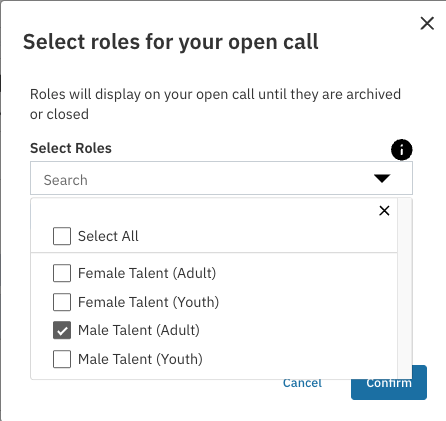
Note: Roles must be added individually to Open Call.
After adding an Open Call Role
The Overview tab will display a green tag next to roles designated for Open Call.
The Open Call tab will show new options to customize your Open Call.
Customizing Your Open Call
Basic information will be visible: Project Title, Project Type, Audition Type, Union Affiliation, Project Rate, and a Unique URL provided for external sharing.
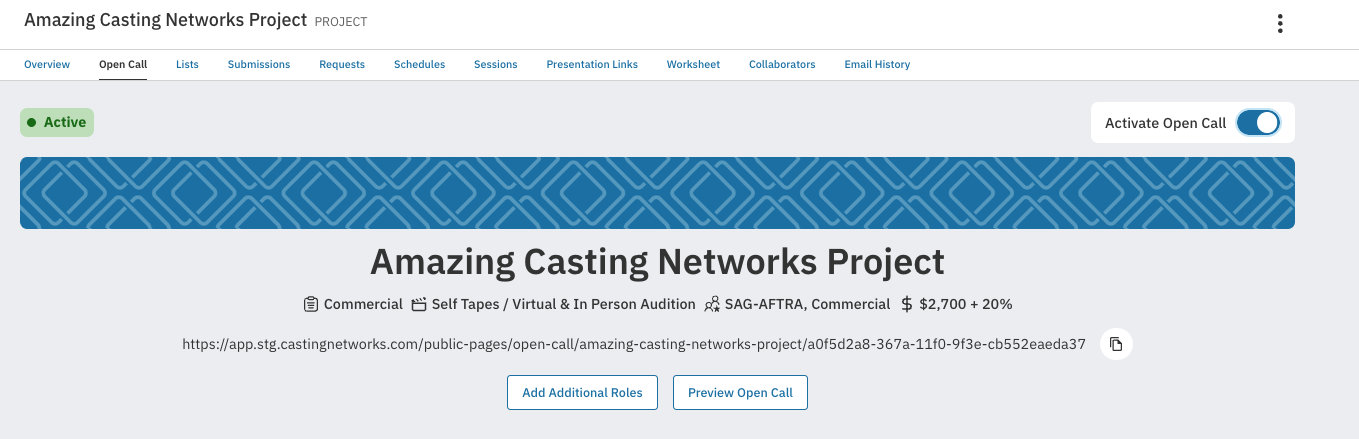
Additional Editing Options:
Add Additional Roles (already on the Billboard)
Preview Open Call (if not activated, displays We're sorry, this Open Call is now closed.)
Project Synopsis: Show or hide
All Roles settings: Toggle Role Rate, Dates and Locations, Submission Information
Individual Role settings: Same options as above, applied to individual roles
Creative Team: Show or hide listing
Removing a Role from Open Call
There may be situations where you need to remove a role from your Open Call. To do this, follow the steps below:
Navigate to the Overview tab of the relevant project.
Find the role you wish to remove from the Open Call.
Click the overflow menu (three dots) next to the desired role and select Disable Open Call.

After disabling the role’s Open Call status, the green Open Call tag will no longer appear for that role in the Overview tab.
Alternatively, if you no longer wish to receive any submissions for the role (regardless of Open Call status), you can select Close Submissions from the overflow menu. This will prevent any additional submissions.
Note: Disabling the Open Call for a role does not close the role entirely—it only removes the Open Call feature for that specific role. If the role was also released to the Casting Billboard or to Representatives, it will remain open to those audiences until you explicitly close the role or the entire project. Ensure you use the appropriate action depending on whether you want to remove only the Open Call feature or close submissions entirely.
Actions and Their Effects
Action | Where to Find | Effect |
|---|---|---|
Add to Open Call | Overflow menu next to role | Makes role an Open Call |
Preview Open Call | Open Call tab | View talent's submission experience |
Show/hide Synopsis | Open Call tab | Manage project synopsis visibility |
Edit Role settings | Individual role line | Adjust settings for that one role |
Edit All Roles | Open Call tab | Adjust settings for all roles at once |
Copy Open Call URL | Open Call tab | Share project externally |
Disable Open Call | Overflow menu next to role | Removes Open Call status from the role, but the role stays open elsewhere for submissions |
Close Submissions | Overflow menu next to role | Prevents further submissions for the role |