
CASTING DIRECTORS: How do I know when I am recording in FastCapture®?
This article explains the visual indicators that appear when a user is successfully recording in FastCapture® and how to use the full screen capturing feature to manage your session views.
Standard Recording Indicators
When you begin recording a session in FastCapture®, the interface provides specific visual cues to let you know the recording is active:
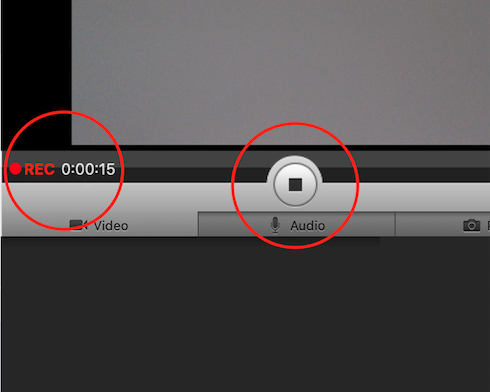
The red Record button changes to a black Stop button.
A Time Code Counter appears to the left of the button.
Full Screen Capturing
You can enable full screen capturing in your preferences if you prefer the video preview to occupy the entire display during a session.
Starting the Record: When recording begins while this feature is enabled, the video preview will take over the screen.
Stopping the Record: When the recording is stopped, the preview will return to the normal view.

In full screen capturing mode, the controls function the same way: the red Record button turns to a black Stop button with the Time Code Counter displayed to the left.