
CASTING DIRECTORS: How can I search for talent profiles on Spotlight and add them to my session in FastCapture®?
This article explains how to connect your Spotlight account directly to FastCapture® and the steps required to search for and import talent profiles into your session seamlessly.
What kind of account do I need to use this feature?
To utilize this feature, you must have an active professional Casting Director account on both Spotlight and Casting Networks.
Video Tutorial: Adding Spotlight Profiles to FastCapture®
Steps on how to search and add talent profiles from Spotlight into FastCapture®
Sign into FastCapture® and go to Preferences.
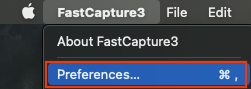
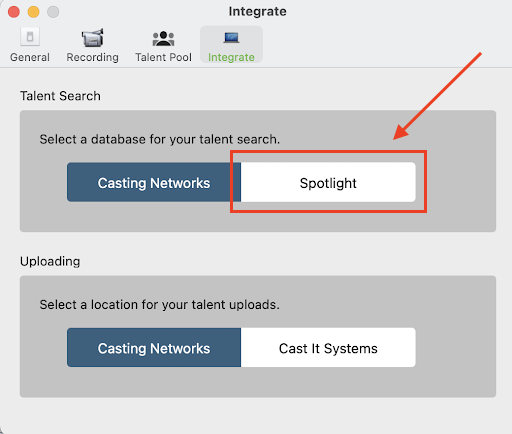
On the Integrate tab, change the Talent Search to Spotlight.
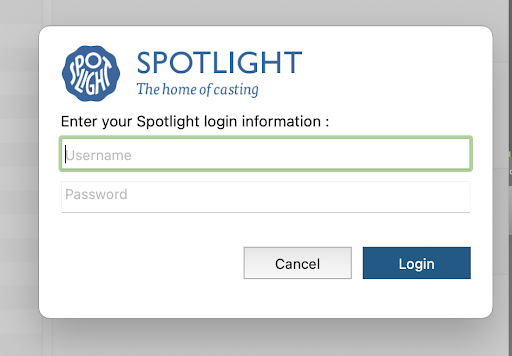
Enter your Spotlight credentials (username and password) then select Login.
Once your Spotlight credentials are entered and you log in, FastCapture® will search the Spotlight Database.
When a talent from Spotlight is selected, FastCapture® will create a "quick-add" profile placeholder which includes the talent's name, representation contact information, and a link to their Spotlight public profile URL.
Note: The talent will not be notified of the quick-add profile.
Please make sure that you seek the consent of Talent before you upload/use their data (i.e. audition videos) and let them know how their content will be used. For example, "Your audition will be uploaded to a casting system to be viewed by those involved in the project."
"**. Both "AMY" and the URL are circled in red. 2. **Bottom Section (Editing/Viewing Details):** Shows AMY's profile again, with the name **AMY** circled in red, and an input field for a comment or URL which contains the text **"[https://www.spotlight.com/629](https://www.spotlight.com/629)"**, also circled in red. This section also includes buttons like "Take Photo," "Size Sheet," and "Profile."](https://usw2.frontkb-cdn.com/attachments/11983720/1078849/34827325-4ede-4646-acc3-01041649d978.png)
The Spotlight public profile URL will be added as a Comment on the presentation. This will give the client a quick link to the talent's public profile.
"**, which is prominently highlighted with a **red oval**. * The pop-up also has **"Cancel"** and **"OK"** buttons at the bottom. * On the visible background profile, there is a small icon with the number **"1"** circled in orange, indicating the existing comment count for AMY's profile.](https://usw2.frontkb-cdn.com/attachments/11983720/1078849/725247b5-9df8-4597-a948-05c5c74e7c99.png)
How will Spotlight profiles look on the Casting Networks platform?
Spotlight profiles on Casting Networks will not have a photo attached to them. The URL of the Spotlight public profile will be available as a comment.