
CASTING DIRECTORS: How do I take a talent snapshot in FastCapture®?
This article explains how to capture a still image of a talent during a session using FastCapture®.
Taking a Single Snapshot
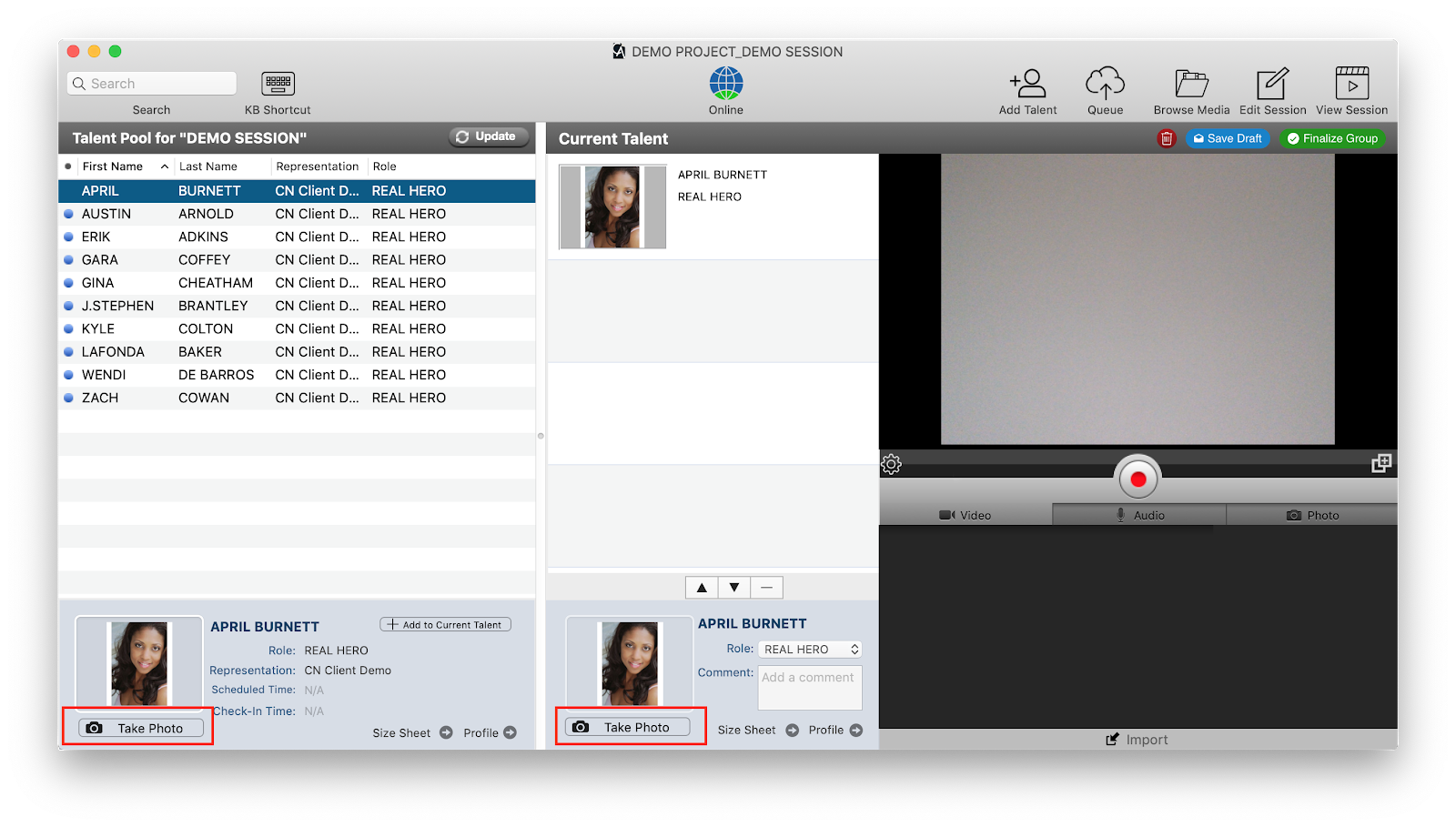
You can take a snapshot of the highlighted talent using the following steps:
Click the Take Photo button, located either at the lower left-hand corner of the FastCapture® window or at the bottom of the Current Talent field.
Alternatively, use the keyboard shortcut command+t.
Using Snapshot Helper for Groups
If you are auditioning multiple people in the Current Talent column and would like to take snapshots of them quickly, you can use the FastCapture Snapshot Helper feature.
Click on the gear icon under the video preview window.
Check the box next to Snapshot Helper.
Click the Take Photo button on the first talent on the list.
Once you take the first photo, the system will automatically select the second talent, and so on. This allows you to take snapshots of different actors in quick succession.