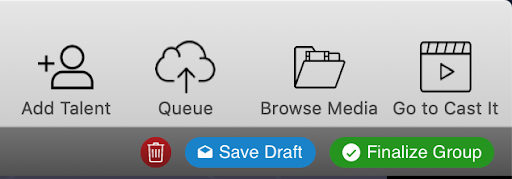
CASTING DIRECTORS: What do the icons mean at the top right of FastCapture®?
This article explains the functions of the icons located in the top right corner of the FastCapture® interface to help you navigate the software, manage talent, and view sessions efficiently.
FastCapture® Toolbar Icons
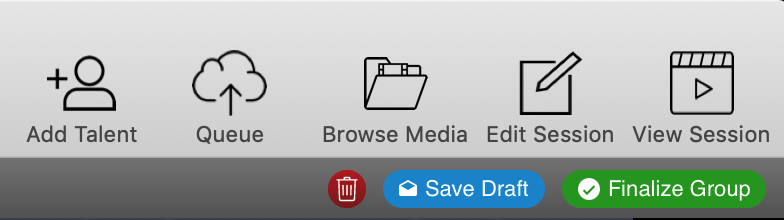
The toolbar at the top right of FastCapture® provides quick access to essential management tools. Below is a breakdown of what each icon represents, listed from left to right:
+Add Talent: Select this to add talent from a search, schedules, or sessions.
Queue: Select this to view your uploads queue and see progress for finalized groups or drafts.
Browse Media: Select this to playback or review footage from this FastCapture® file. (Note: You can browse media across all open FastCapture® files).
Edit Session/View Session: Select this to view your session on the Audition Session summary page of the website.
Go to Cast-It*: Select this to automatically open your default browser and sign in to your project on Cast-It.
*Only displays when FastCapture® is configured to upload to Cast It.