
CASTING DIRECTORS: How do I adjust the audio sync in FastCapture?
This article will provide the steps to fix those occasional audio and video sync issues that can pop up while using FastCapture This article will show you exactly how to use the built-in function to get your auditions perfectly synced before uploading them to Casting Networks.
Adjusting the Audio Sync in FastCapture
There will be times when using FastCapture that your audio may fall out of sync with your video. Do not worry, there is a built-in function within FastCapture that can adjust the audio sync issues.
Please be aware before you begin, these adjustments can only be done within FastCapture, and not on the Casting Networks website or any Presentation Links.
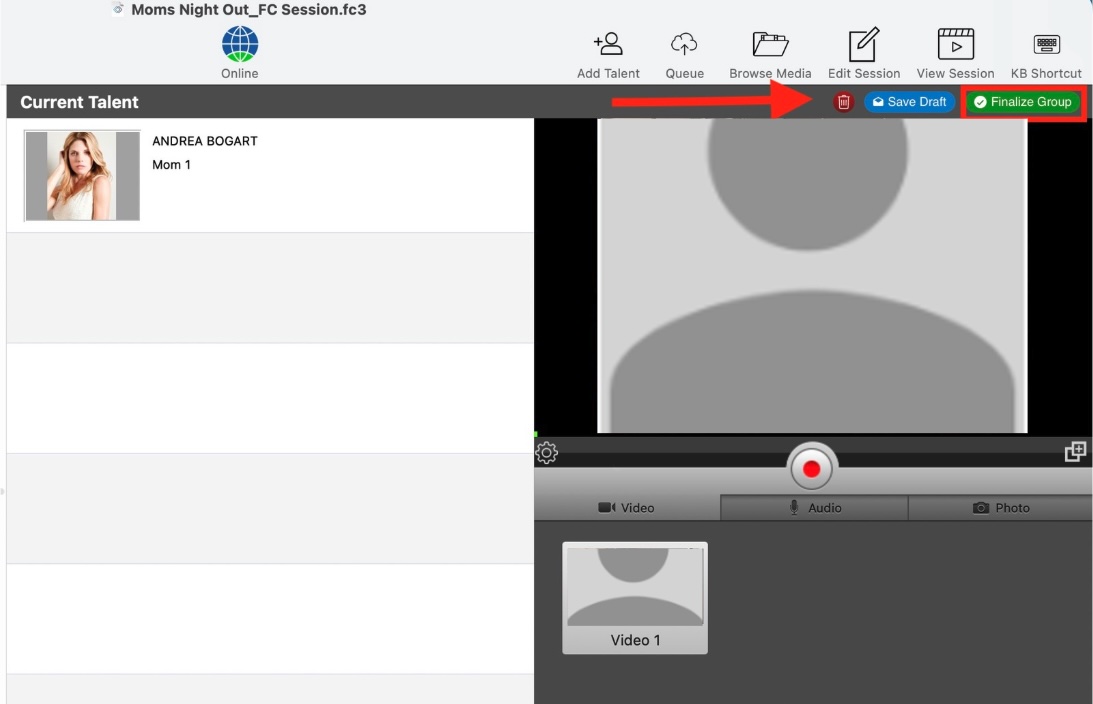
Once you have captured your audition tape(s), click the green Finalize Group button at the top right corner of the screen.
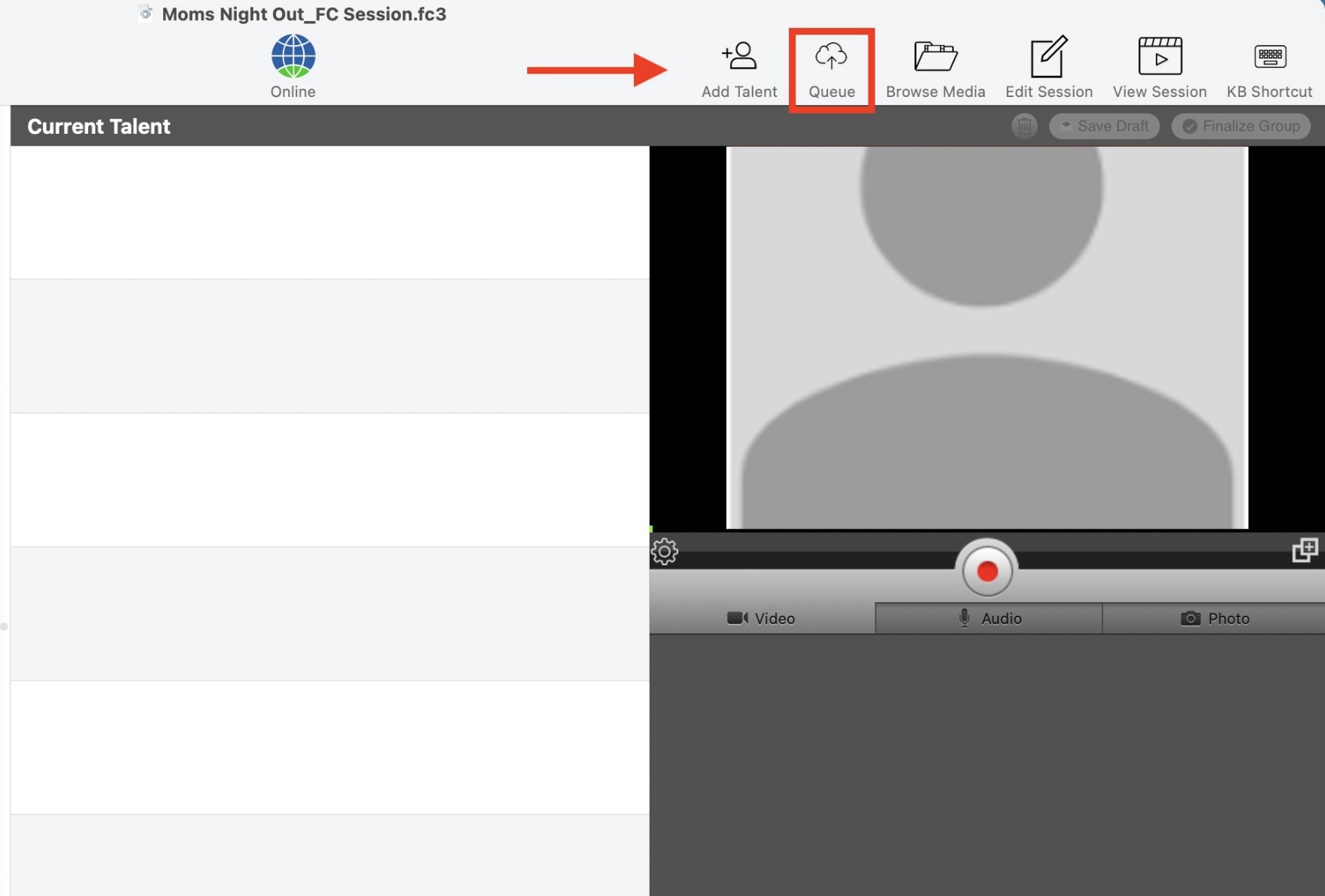
Navigate to the Queue page, located at the top right corner of your screen.
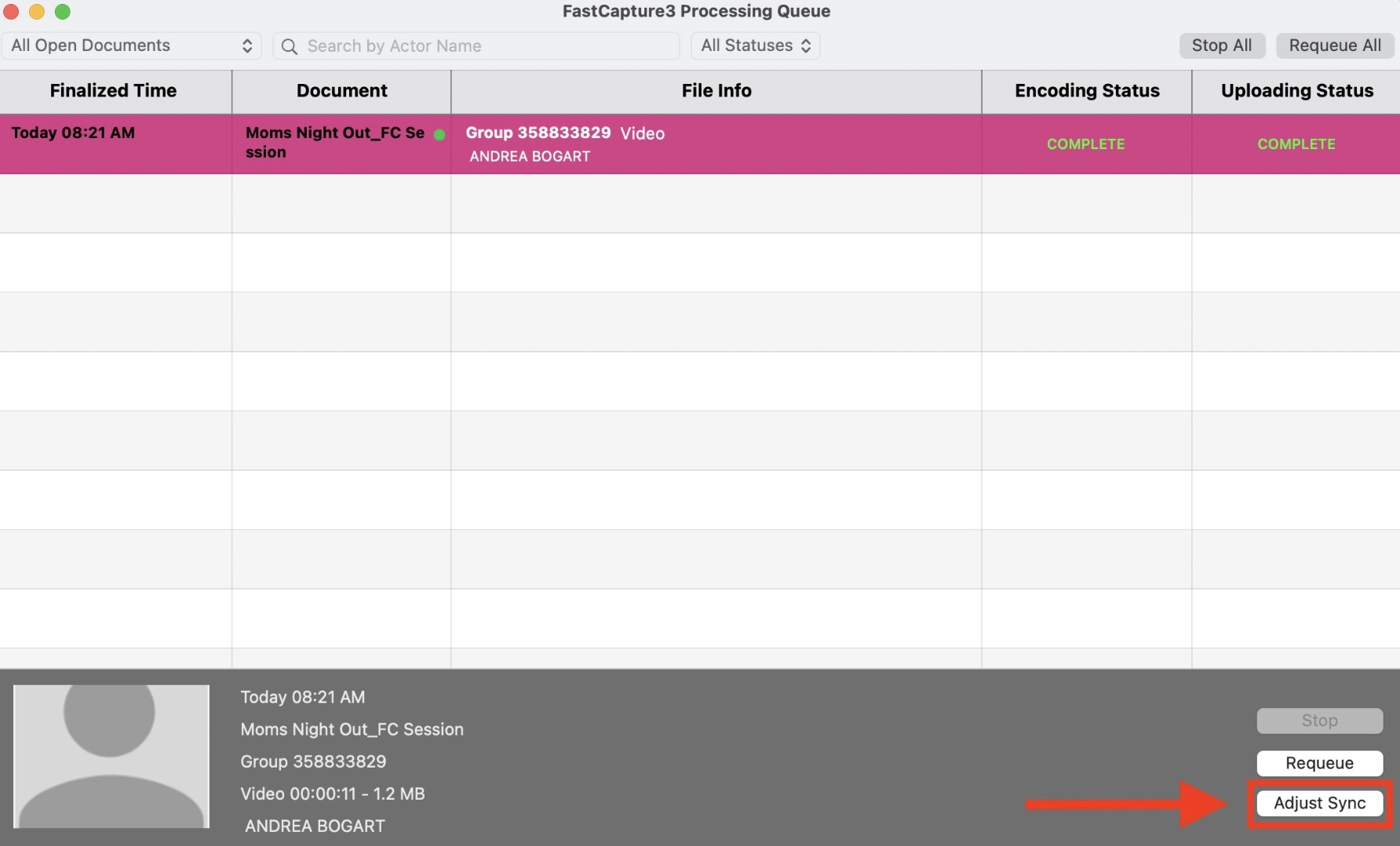
In the new window, click on the audition video that needs editing. This will highlight the talent.
Click the Adjust Sync button at the bottom right corner of the screen.
In the raw video window, use the Audio Offset minus “-” and plus “+” buttons at the bottom to align the audio.
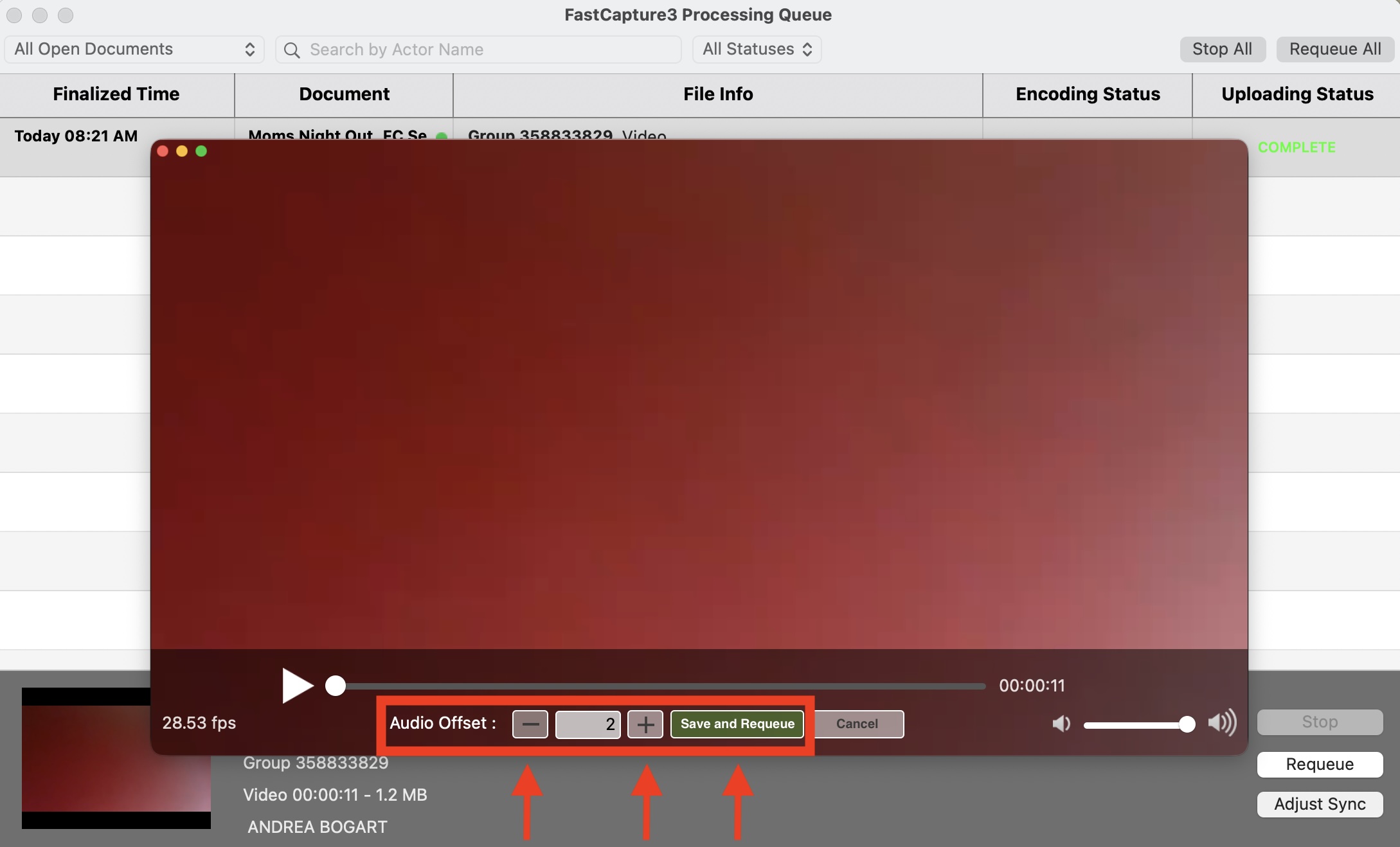
Once the audio is set correctly, click the green Save and Requeue button.
When the confirmation window appears asking "Are you sure you want to save and requeue?", click Ok.
Wait for the video to finish queueing completely in FastCapture before checking the file on Casting Networks.
FAQs
Can I adjust the audio sync after the video has been uploaded to Casting Networks?
No, the audio sync adjustment is an exclusive feature within the FastCapture application. You must make any adjustments before the video is fully processed and leaves the Queue.
What does "Requeue" mean in this context?
"Requeue" means the video will be placed back into the processing queue within FastCapture to be prepared again with the new audio sync settings you just applied. You must wait for it to process completely before accessing the final video.