
CASTING DIRECTORS: How do I import a Schedule into FastCapture?
This article provides step-by-step instructions on how a Casting Director can import a confirmed audition schedule from Casting Networks into the FastCapture application to start an audition session.
Prerequisites
Before you begin, please be sure that you have created a schedule in Casting Networks for your desired project.
Please Note: If no talent have confirmed their audition for the desired project, no talent will appear when importing a schedule into FastCapture.
Importing the Audition Schedule
Follow these steps to import your schedule into your open FastCapture project:
Once you have opened FastCapture and the desired project you are working on, please locate the Add Talent button at the top right-hand corner of the screen.

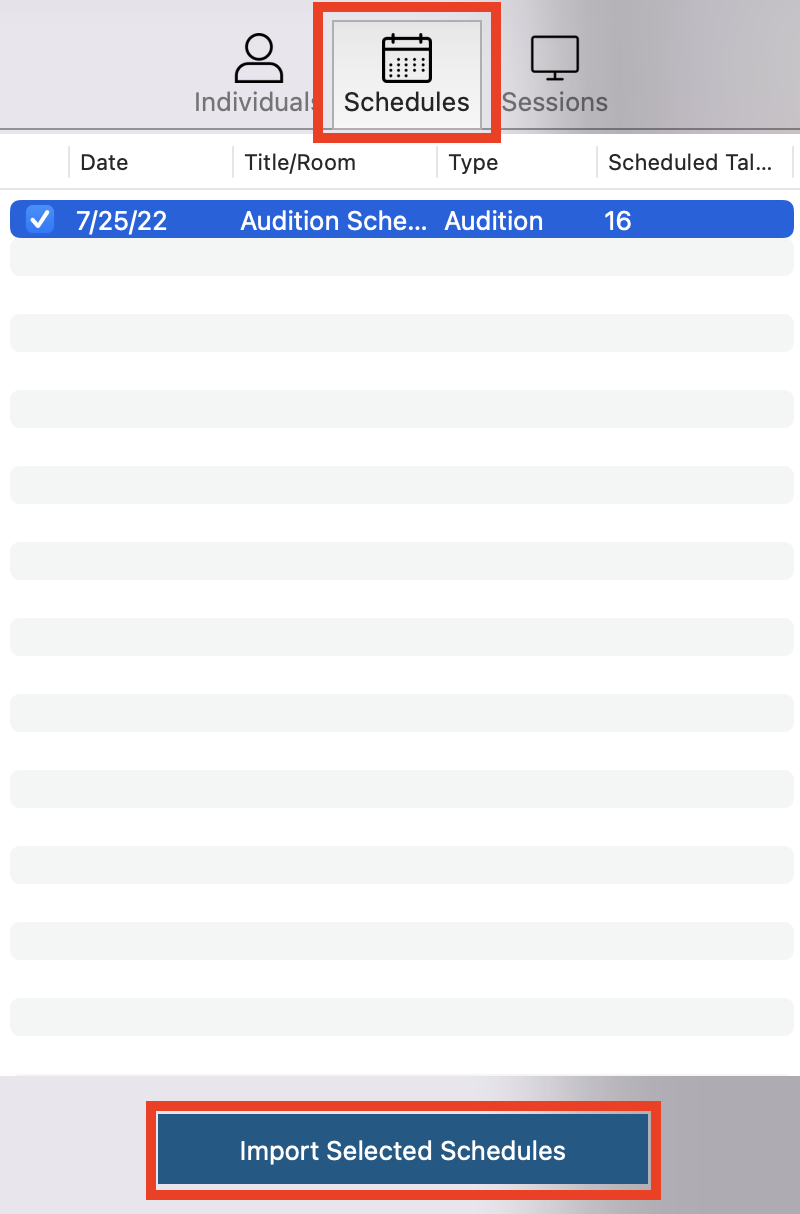
Click on the Add Talent button and a pop up will appear underneath. Once you see this, navigate to the **Schedules** tab (Middle Tab) to view all available schedules. All audition schedules you have created for this project in Casting Networks will appear here.
Select the desired schedule you wish to import and the button at the bottom of the pop up reading Import Selected Schedules will appear in blue. Click this button to import your schedule(s).
Your imported schedule will now appear in the leftmost column of your screen, the Talent Pool.
Schedule Order
The audition times you have selected for each talent in Casting Networks will not appear in FastCapture.
Talent will appear in the same order they were scheduled in. Example: Talent 1 (10:00am), Talent 2 (10:10am), Talent 3 (10:20am). These three talent will appear in your schedule in order of the time they were scheduled (Talent 1, Talent 2, Talent 3), but the times will not appear next to their names.