
CASTING DIRECTORS: How Can I Turn the Recording Delay On or Off in FastCapture?
This article will explain how to adjust the new recording delay setting. This feature allows you to turn a slight delay on or off when recording each take in FastCapture versions 3.0.262 and newer
Adjusting the Recording Delay Setting
The recording delay setting is a new feature available in FastCapture versions 3.0.262 and newer. Here are the simple steps to turn this function on or off:
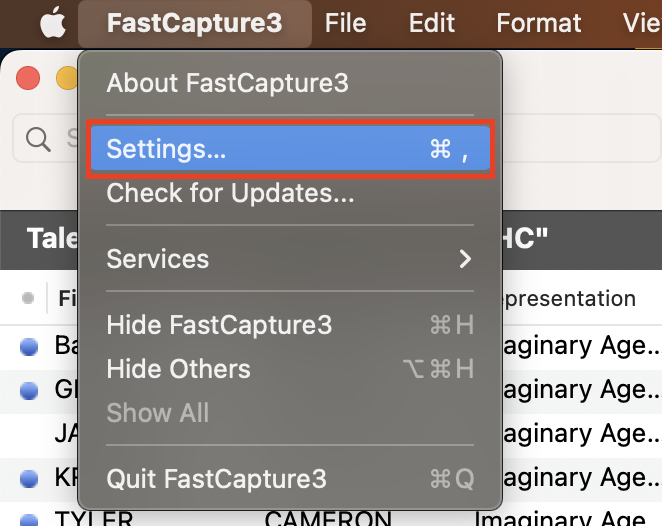
Click on FastCapture3 located in the toolbar at the top of your screen.

Select Settings from the dropdown menu.
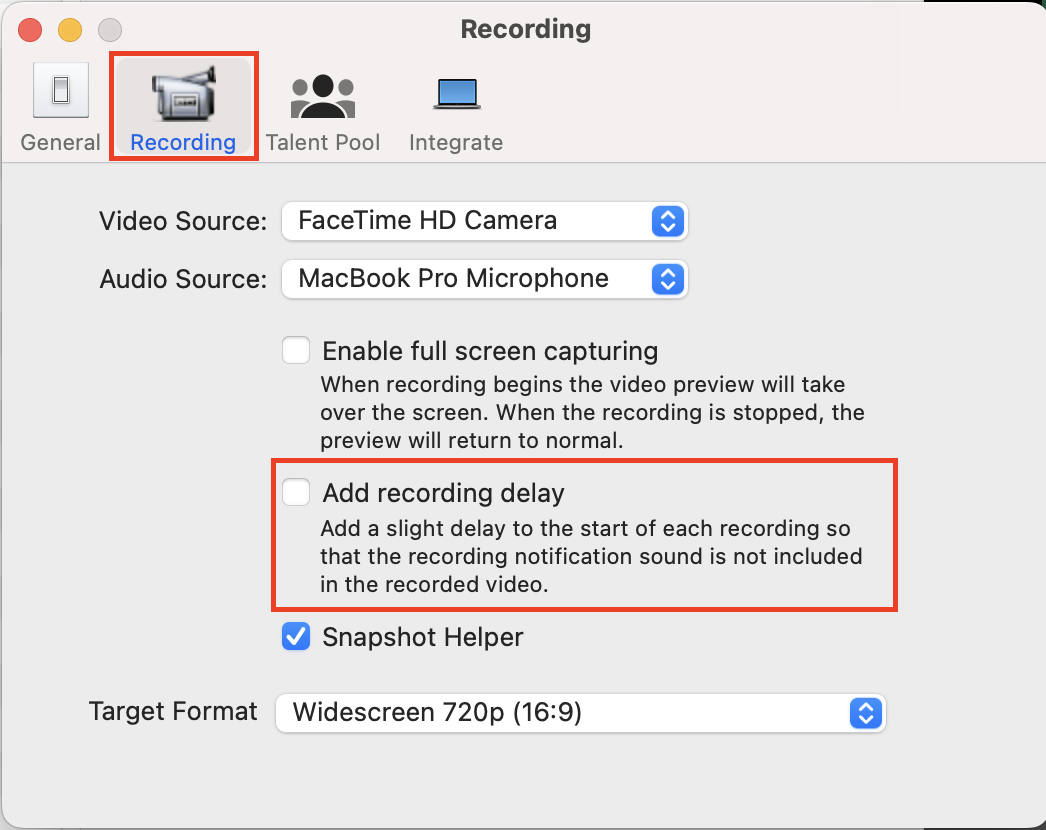
Click on the Recording tab.
To turn the delay function ON, click the check box labeled Add Recording Delay.
To turn the delay function OFF, leave the check box unchecked.
Important Note on Delay and Sound Notification
Please note: If you choose to leave the recording delay OFF, you might hear the sound notification FastCapture generates at the beginning of each clip.