
CASTING DIRECTORS: How do I switch my Video and Audio settings in FastCapture?
This article explains how to adjust your video and audio settings in FastCapture. These steps will help you ensure your are recording from the correct source.
How do I adjust my Video and Audio settings?
When you first sign into FastCapture, the settings window to change your Video and Audio Source should automatically appear. If it does not, or if you close it by mistake, please follow the steps below:
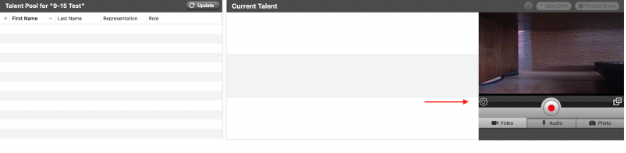
Click on the gear icon located next to the video feedback on your screen.
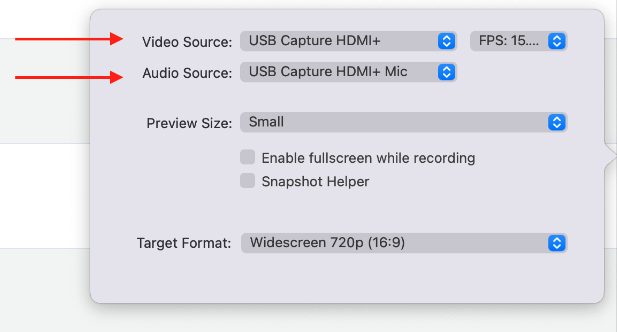
Locate the Video Source and Audio Source dropdown menus in the settings window.
Select your desired device from the list to activate it.
What should I know if I am using a Capture Card?
If you are using specific hardware setups, please review the note below:
If you are using a capture card, your audio and video source will be the same, unless you are using a separate external microphone.
Switching my Target Format
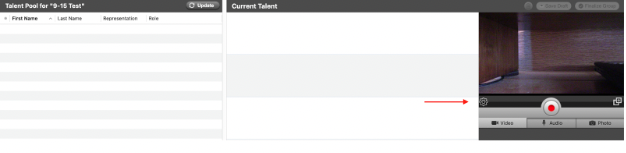
If you are in need to switch your Target Format, you can do this by clicking on the gear icon located next to the video feedback.
Once in the settings window, please select from the dropdown menu. You will notice that there are four options for your format, two in 480p and two in 720p, this will remain the same regardless of the type of camera you use.
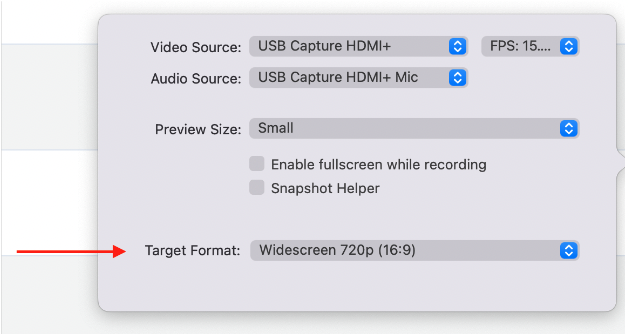
Please Note: For best picture quality, we highly recommend using Widescreen 720p (16:9)