CASTING DIRECTORS: How do I set the video thumbnail in FastCapture?

Edited

This article explains how to customize the timing for automatic video thumbnails in FastCapture. By adjusting the generated thumbnail, Casting Directors can determine exactly when in the recording the system should capture the preview image.


How do I adjust the Generated Thumbnail Offset?

Casting Directors using FastCapture 3.0.266 and newer can set a specific time (in seconds) for the system to generate a thumbnail for all clips. To change this setting, please follow the steps below:

  1. Click on FastCapture3 located in the toolbar at the top of your screen.

    A screenshot of a macOS menu bar with the application name "FastCapture3" highlighted inside a red rectangular box next to the Apple logo. The standard menu items File, Edit, Format, View, Window, and Help follow to the right.

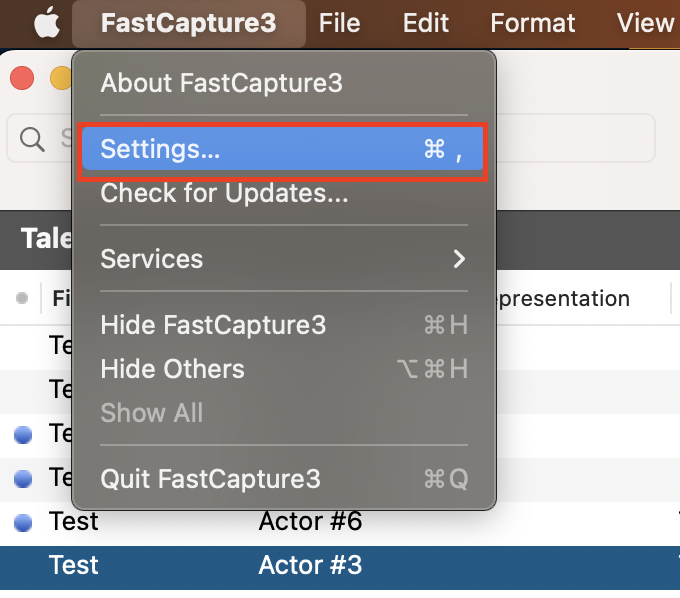
  2. Select Settings from the dropdown menu.

  3. Click on the General tab.

    A screenshot of the **FastCapture3** application menu on macOS. The menu is expanded, and the **"Settings..."** option is highlighted in blue and enclosed within a red box. The keyboard shortcut "⌘ ," (Command + Comma) is displayed next to the Settings option. Other visible menu items include "About FastCapture3," "Check for Updates...", "Services," "Hide FastCapture3," and "Quit FastCapture3."

  4. Locate the Generated Thumbnail Offset setting.

  5. Adjust the number on the right-hand side to your desired time in seconds. (e.g., Set the number to 3 if you want the thumbnail generated 3 seconds into the recording).
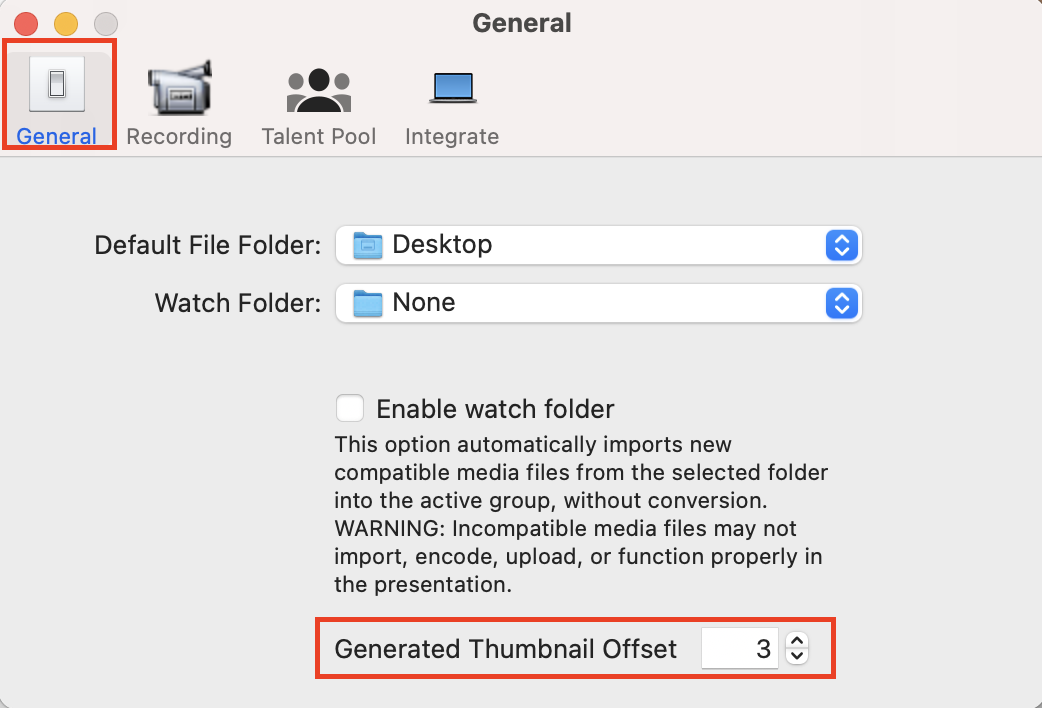
    A screenshot of the General settings tab in a macOS application window. The General icon in the top toolbar is selected and highlighted with a red box. Below, the "Default File Folder" is set to "Desktop" and "Watch Folder" is set to "None." At the bottom of the window, the "Generated Thumbnail Offset" setting is highlighted in a red box, with the value set to 3.

  • Please Note: You must update this setting before you begin your recordings. This feature will not apply to videos retroactively.

Was this article helpful?

Sorry about that! Care to tell us more?

Thanks for the feedback!

There was an issue submitting your feedback
Please check your connection and try again.