
CASTING DIRECTORS: How do I use the new FastCapture features and install the latest version?
This article explains the new Configurable Clip Stitching feature in FastCapture and provides instructions on how to install the latest version (Version 4.0.16) to ensure your device is compatible and up to date.
What is new in FastCapture?
You asked, we delivered! With the new Configurable Clip Stitching option in FastCapture, you can now decide whether to upload audition clips individually or as a stitched-together file—giving you more control over how talent auditions are presented on Casting Networks.
This feature was highly requested by casting directors in both commercial and theatrical casting—and we’re excited to make it available!
Choose your preferred clip format

Match your workflow with industry standards

Make audition playback easier for clients & teams

What are the device requirements?
FastCapture requires macOS 13.0 Ventura and later. This includes most Apple computers manufactured in 2017 or later.
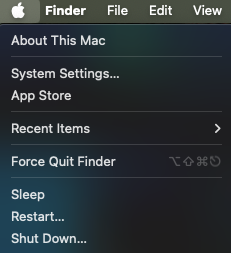
Please make sure to check your macOS version before downloading and installing FastCapture 4 by clicking the Apple icon in the upper left-hand corner of your screen and clicking "About This Mac."
How do I install FastCapture?
Note: If you have a previous version of FastCapture installed, before you begin these steps, find the old version of FastCapture in the Applications folder on your Mac, drag it into the Trash, and empty the Trash. This will ensure that the old version is removed before moving forward with the new one.
After you have confirmed your macOS version, click here: FastCapture Version 4.0.16
Click the download icon in the upper right-hand corner:

Double-click the .zip file that was downloaded to decompress the application.

Drag the FastCapture application to the Applications folder.
You are ready to use FastCapture!