
CASTING DIRECTORS: How do I create requests?
This article is for Casting Directors who want to send requests to talent. Requests allow you to ask questions or collect media directly from talent within a project. Read on to find out how to set up each type of request and get the most out of this feature.

Create a New Request
Follow these steps to send a request to talent:
From the Project List page, click on the project name.
Click on Self Tapes & Requests below the project name.

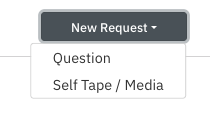
Click on New Request.

Choose Question or Self Tape / Media.
Self-Tape / Media Request
A new page will appear with a form to complete. Fill in the following:
Request name
Media types (video, audio, photo, and PDF)
Media instructions
Option to include sides previously uploaded to the talent's role
Ability to add specific talent to the request
Once the form is filled out, click Send Request.
Please note: Talent can upload a total of 10 media files per request.
Question Request
A new page will appear with a form to complete. Fill in the following:
Request name
Your question
Option to include sides previously uploaded to the talent's role
Ability to add selected talent to the request
Once the form is filled out, click Send Request.
Helpful Tip: Both request types allow you to include a message to representatives that will not be visible to talent.
How to add Sides
While creating your request, Section 4 provides an option to Include Sides.
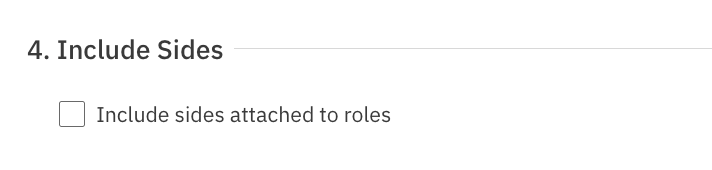
In order to add sides to your request, you must first be upload the documents to their corresponding role on the Overview page. Sides cannot be uploaded on the Requests page. If sides have already been uploaded, select the checkbox to include sides attached to roles. Talent included in the request will only see the sides that correspond with their role. For more instructions on adding sides to your role, follow this link here.
If your sides have not been previously uploaded to your role. You can save the progress on your current request and come back to it by selecting "Save Draft" at the bottom of the page.
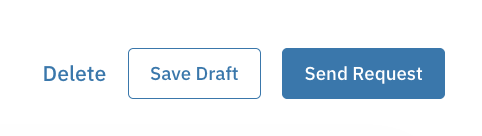
Once the sides have been added to your role, you can come back to your request, select the checkbox to include sides attached to roles and continue building your request.
Adding Talent to a Request
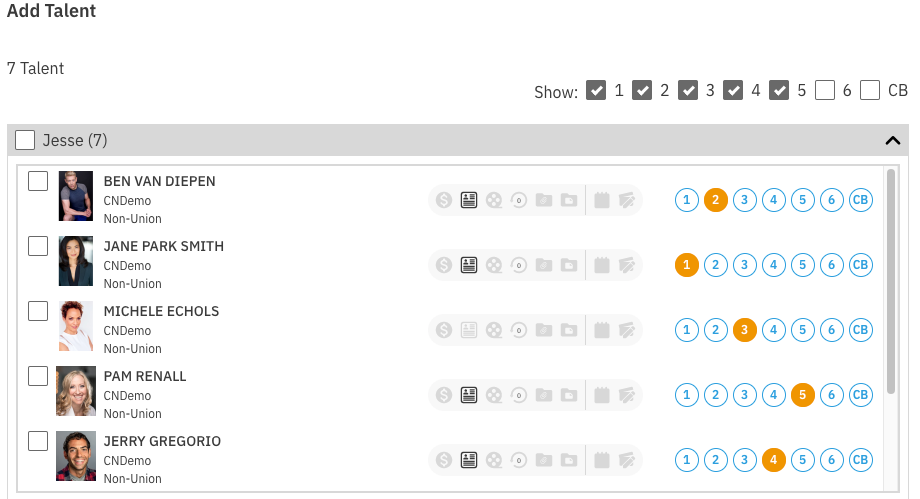
While creating your request, you will see an option to +Add Talent.
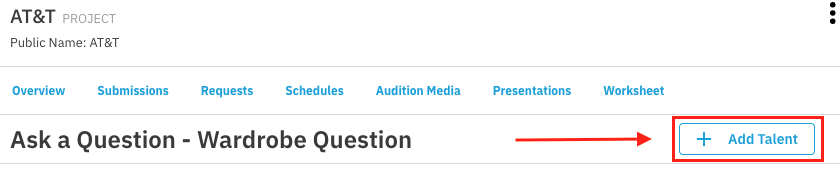
This opens a list of all selected talent in the project.
It includes their selection number.
You can filter talent by their selection tag.
Clicking the checkbox next to the role name adds all talent (or all filtered talent) to the role.
Opening the role drop-down will display all selected talent for that role allowing you to use the checkbox next to specific talent. This allows you to select them individually then adding your selections in bulk.
FAQ's
Can I send a Self-Tape / Media Request and a Question Request at the same time?
You do not have the option to send both types at the same time. If you want to request media and ask talent a question, we recommend sending a Media Request. You can add your question to the Media Instructions field. Talent also have the opportunity to include a note with their media submission, which can be used to answer questions or share additional information.