
CASTING DIRECTORS: How do I add sides to a role?
This article explains how to upload sides while creating or editing a role so that talent can access the necessary materials for their audition.
Uploading Sides
You can upload scripts or sides directly within the role creation or editing process.
Navigate to the section titled Role Description when creating a new role or editing an existing one.
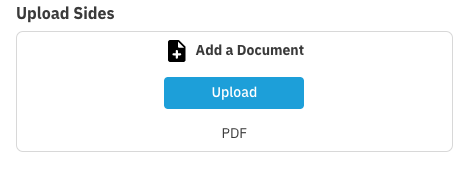
Upload your file in the designated area. (Must be a PDF file)
For PROJECT CREATORS: Sides will be visible to talent submitting on Casting Billboard.
For CASTING DIRECTORS: You have the option to have the sides available on Casting Billboard or only available within Requests or Schedules
Sides attached to roles can be made available to talent when they are sent a request. Sides are automatically added when talent are sent a schedule.