
CASTING DIRECTORS: How Do I Use Forms?
This article is a user guide for casting directors using the Forms feature on Casting Networks. It explains how to create, send, and review forms to gather specific information from talent for your projects.
Creating Forms
First, select “Forms” from the navigation menu at the top of the page.

Select “+ Create a New Form.”

You can either drag one of the question elements from the left panel or click the “Add Question” button to get started.
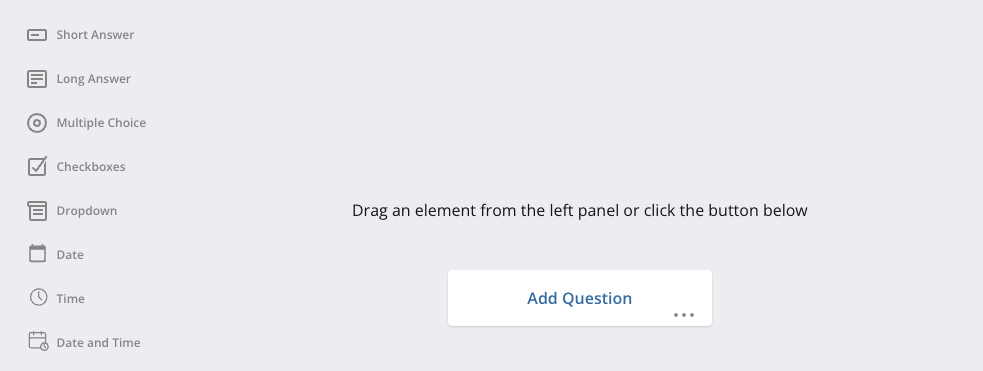
Once you’ve begun, you can edit the following fields:
Form Title: This is the main title of your form. You can use it for your organizational purposes, but be aware that both talent and their representatives will see this title.
Description: Use this field if you’d like to give talent a little more information before they start answering the questions.
Question Title: This is where you’ll ask your specific question.
Question Type: You can choose from these question types:
Short Answer - This allows talent to type a response of up to 225 characters.
Long Answer - This allows talent to type a response of up to 2,000 characters.
Multiple Choice - Allows you to provide several options, of which only one response can be selected.
Checkboxes - Similar to Multiple Choice, but multiple responses can be selected.
Dropdown - Allows you to provide several options in a dropdown menu, of which only one response can be selected.
Date, Time, & Date and Time - These are specific short answer questions where talent can only enter a date, time, or both.
Question Requirement: You can specify if a question must be answered before talent can submit the form.
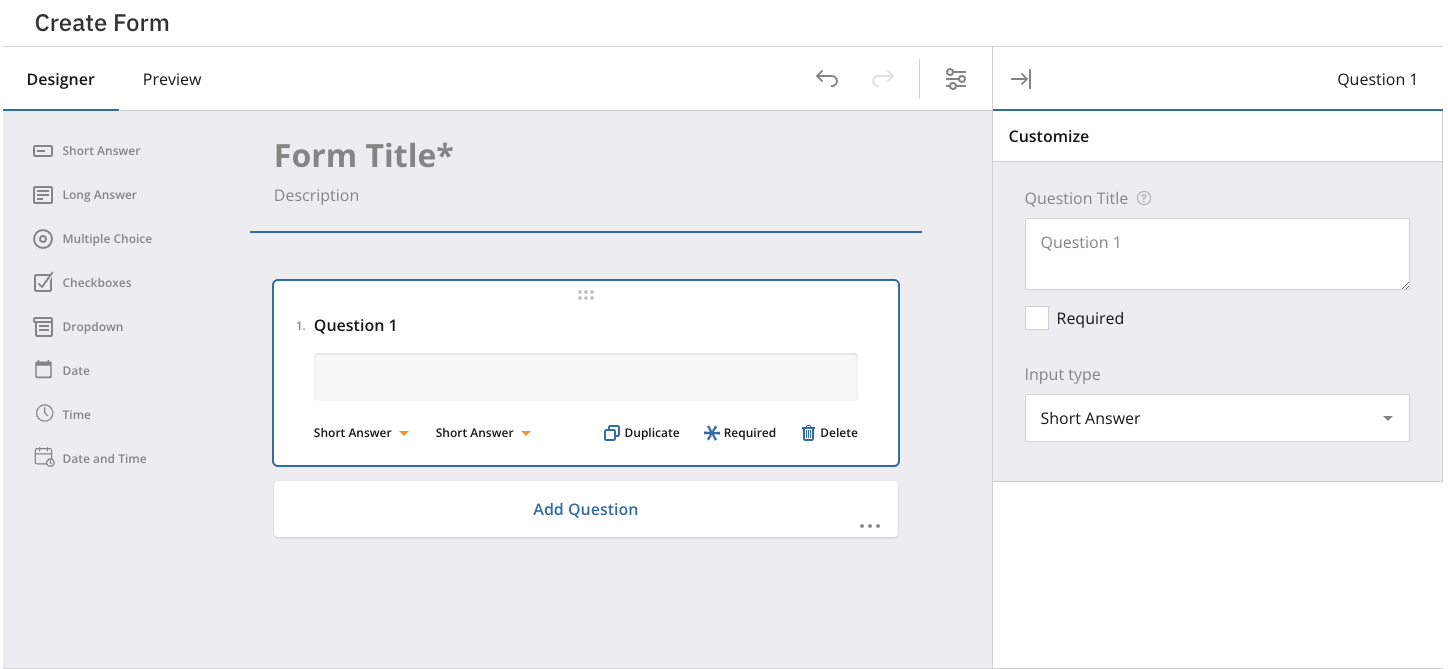
You can click the “Preview” tab in the upper left to see what the form will look like to the talent who receive it.
Once your form is complete, click the blue “Save Form” button in the bottom right corner.
You will have the option to edit an existing form. You can either update the current form or save your changes as a new form. Note: If you have already sent the form to talent, you will have to send it again for them to see the changes.
Sending Forms to Talent
To send a form to talent, you’ll first need to start a Media Request.
Go to your project and select the “Requests” tab.

Create a “Media Request.” For instructions on how to create your request, click here
In Step 5 of the request process, use the dropdown menu to select up to 5 different forms to send along with your request.
Don’t forget to add instructions to talent that a form is attached. They will be able to fill out the form and the media request separately, in any order they wish.
Receiving Form Responses
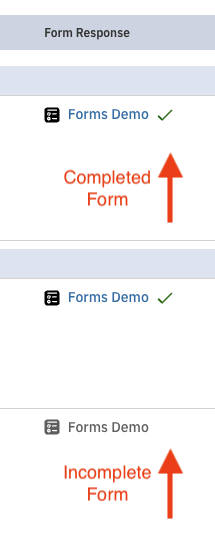
Once talent have filled out their forms, you can find their responses in the media request where you originally sent the form. You will see the submissions under the “Form Response” column.
Forms that have not been completed will appear grayed out.
Completed forms will have a checkmark next to them and will be a clickable link.
You can click into the forms individually to read answers, or you can click the “Export Form Responses” button to generate a report of everyone who has responded.
Frequently Asked Questions (FAQs)
Will form answers be available in Presentation Links?
Not immediately. You can save the exported responses as a PDF and send them separately if you wish.
Can talent change their answers?
No, once a form has been submitted, no changes can be made.
If I update a form that has already been sent, will those changes be reflected on the sent forms?
No, you’ll need to send the form again with the updated questions.
Can a talent’s representative fill out the form on their behalf?
Yes! Once again, please note that once submitted, no changes can be made.
Can I delete a form?
No, not at this time.