
TALENT: How do I track my requests and submissions?
This article explains how to manage your incoming requests on the Your Alerts page, how to track the status of your submissions using Role Tracker, and how to view your past self-submissions in Submission History.
Your Alerts
The Your Alerts page displays all requests received across all your profiles in a single location. A blue dot next to an alert indicates that the message is unread.
These requests include:
Callback requests
Audition requests
Media requests
Question requests
You can sort these requests by date using the Sort by dropdown menu on the right side of the page.
Searching Alerts by Date
To search for alerts within a specific timeframe:
Click Your Alerts in the top navigation bar.

Choose start and end dates in the Dates Received fields.
Click Search.

Note: Audition and Callback alerts received before January 2020 will not appear in Your Alerts. Please contact our support team if you need to reference an earlier alert.
Archiving Alerts
You can archive requests to keep your inbox organized. You can switch between the Current and Archived tabs to view these lists.

To Archive: On the Current tab, click the box with the down arrow for the project you wish to archive.

To Unarchive: On the Archived tab, click the box with the up arrow to return the project to the Current tab.

Role Tracker
Role Tracker is a feature available to Talent with Premium or Ultimate memberships. It allows you to track the life of your Casting Billboard submissions and see if casting has chosen to move forward with your submission.
The tracker displays Project and Role Information, Submission Status, Submission Date, and the Date of Last Update.
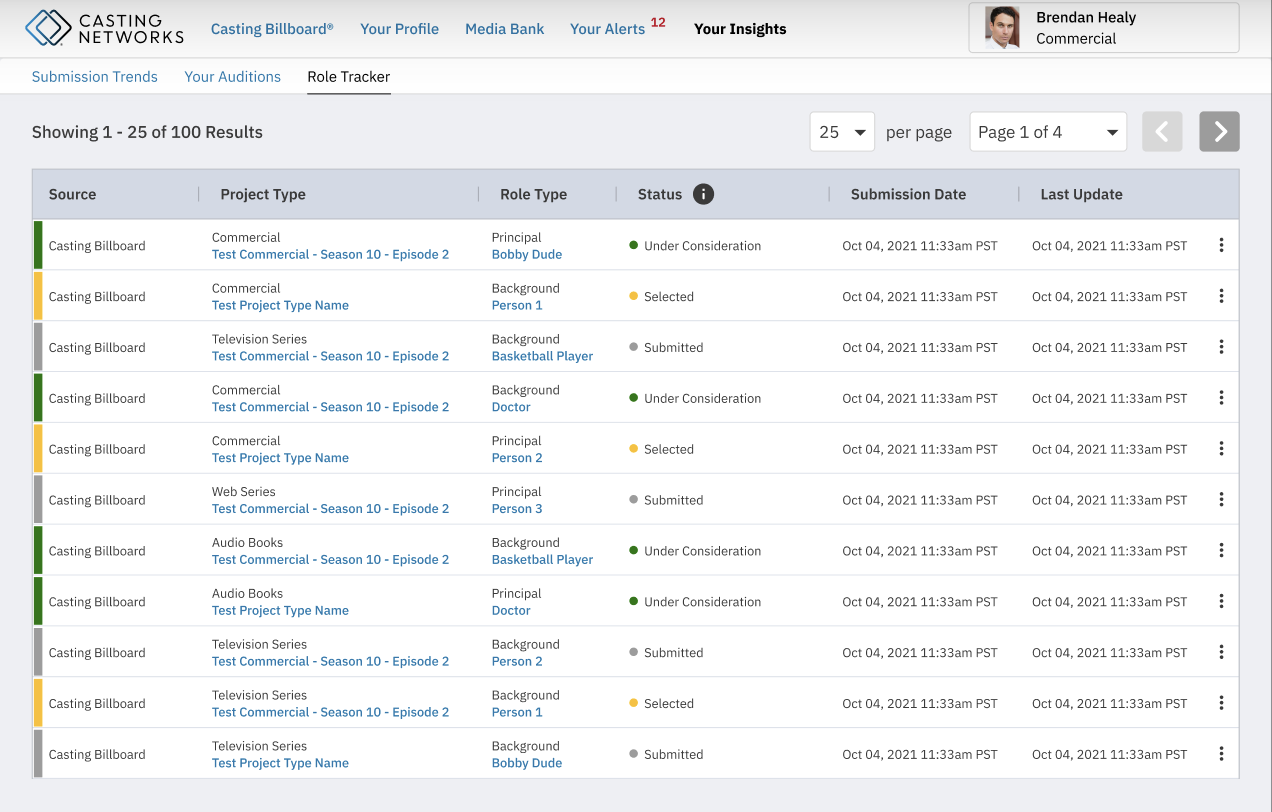
Submission Status Definitions
The Status column indicates your current level of consideration:
Submitted: You are submitted to this role. No additional action has been taken on your submission.
Selected: Casting has selected your profile and you may be contacted for an audition, callback, media, or question request.
Under Consideration: Your profile is included in an audition, callback, media, or question request or client presentation.
Submission History
Submission History allows Premium members to view their past Casting Billboard submissions.
To view your self-submissions:
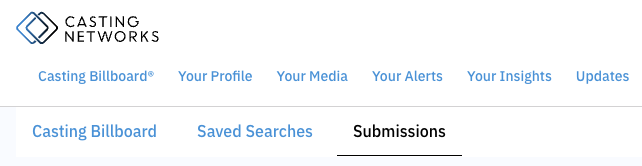
Click on Casting Billboard in the top navigation bar.
Click Submissions to see the projects you have submitted to using your Personal Profile.
Please contact your representative directly for information regarding projects your agent or manager has submitted you for.