
TALENT: How Do I Manage My Representative Profiles?
This article is for Talent on Casting Networks. It explains how to add and manage representative profiles, link existing profiles, and answer frequently asked questions about working with agents and managers on the platform.
Overview
Talent with representation have the ability to link their agency's profiles to their accounts. This allows talent and agents to seamlessly work together to navigate the industry. If your new agent or manager has created a talent profile for you, you will receive an email notification. If you have not received an invitation to be added to your agent's roster, reach out to them and request one be sent to you.
Adding New Representation
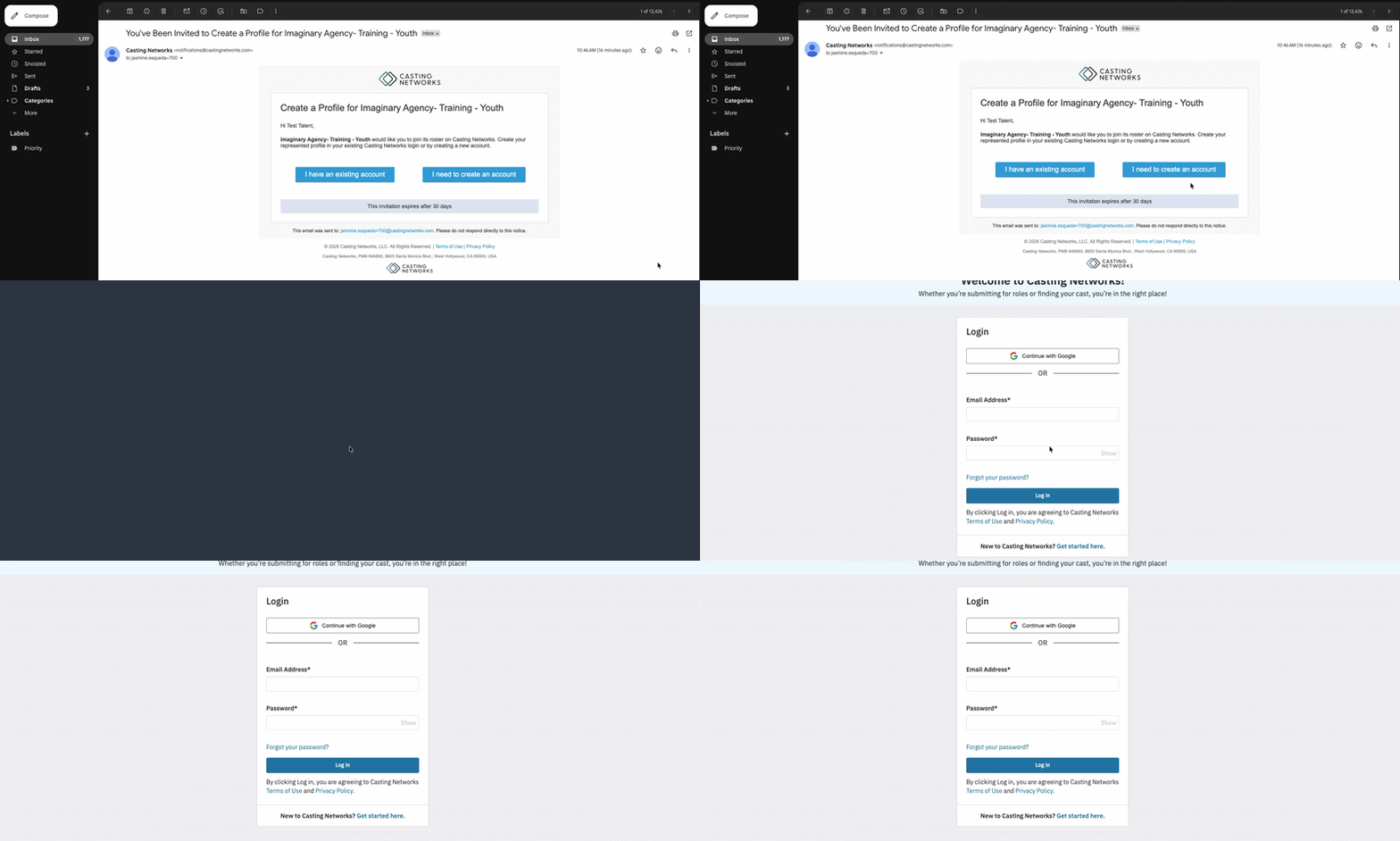
When the invitation is received you will have two options:
If you already have a Casting Networks account:
Click on "I have an existing account."
This will prompt you to log in with your email and password to associate the new profile with your account.
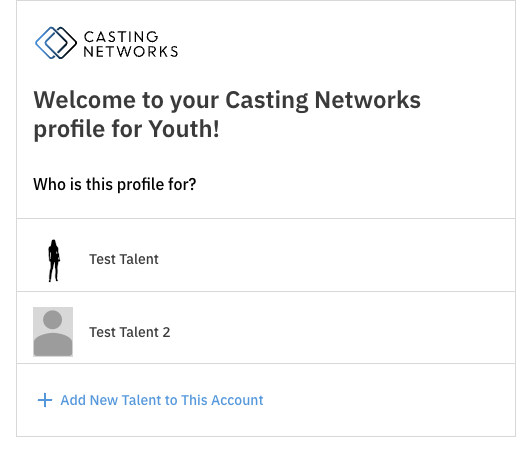
Once you have logged in you will be asked to select which talent the invitation is for.
Please Note: If you are creating an account and profile for brand new talent select the option +Add New Talent to This Account.
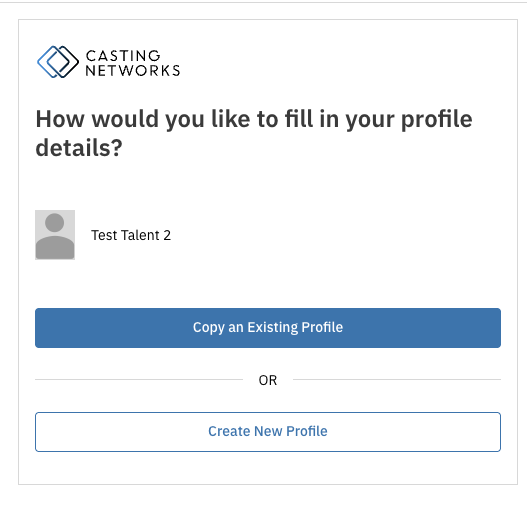
You will then be asked to select how you would like to complete the profile details. In order to copy all details from an already completed profile select Copy an Existing Profile. If you would like to start from scratch and manually enter details to build a new profile, select Create New Profile.
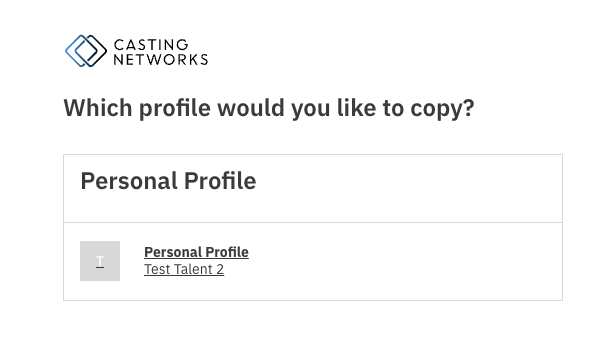
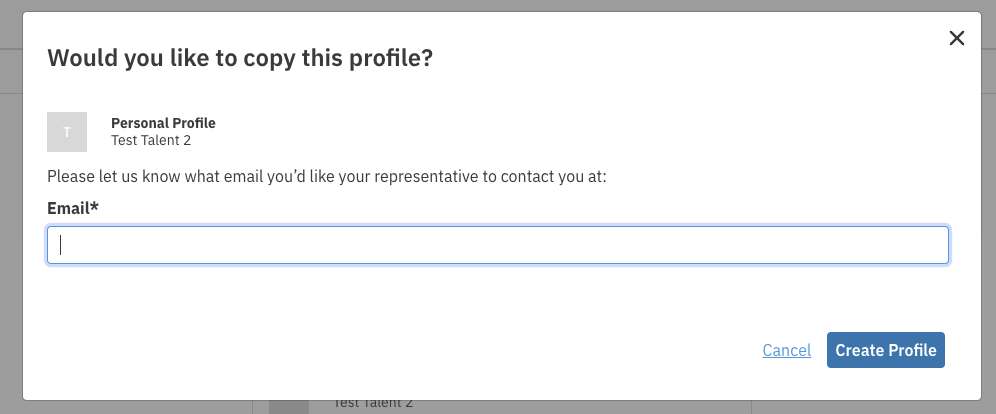
If you proceed with copying details from an existing profile you will be prompted to choose which profile you would like to copy. This will copy ALL details, making both profiles identical.
The final step is to decide which email you would like to be contacted by your new talent representative. Enter your email address in the field and select Create Profile.
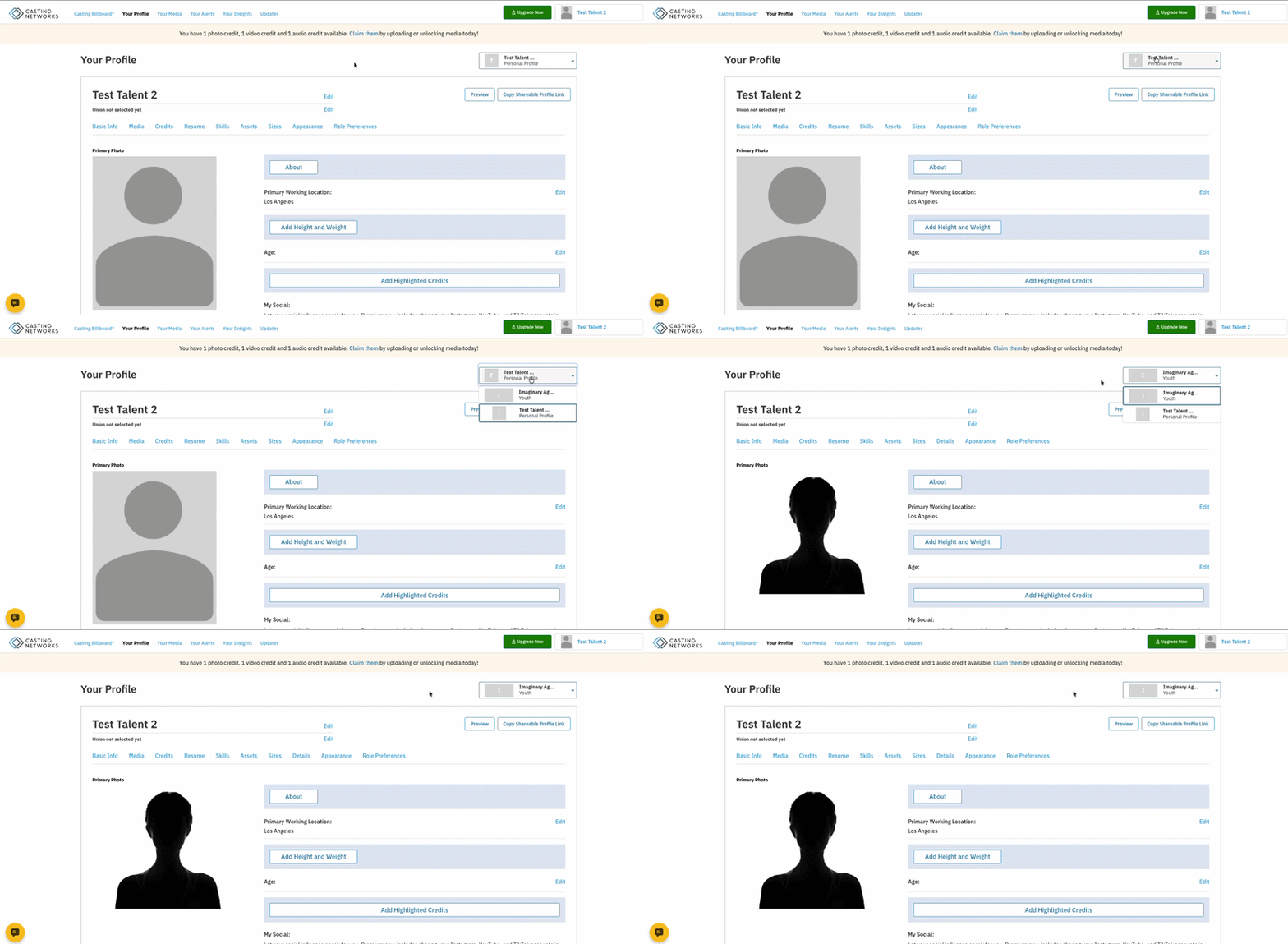
You can confirm that you have successfully added your talent representative to your account by navigating to the dropdown on the upper left. Here you should see an option for a personal profile and an option with your representatives name appear.
If you are new to Casting Networks:
Click on "I need to create an account."
This will lead to a form requesting your name, email address, and password and select Register.
Please note: Your password must be at least 8 characters and include a number and a symbol.
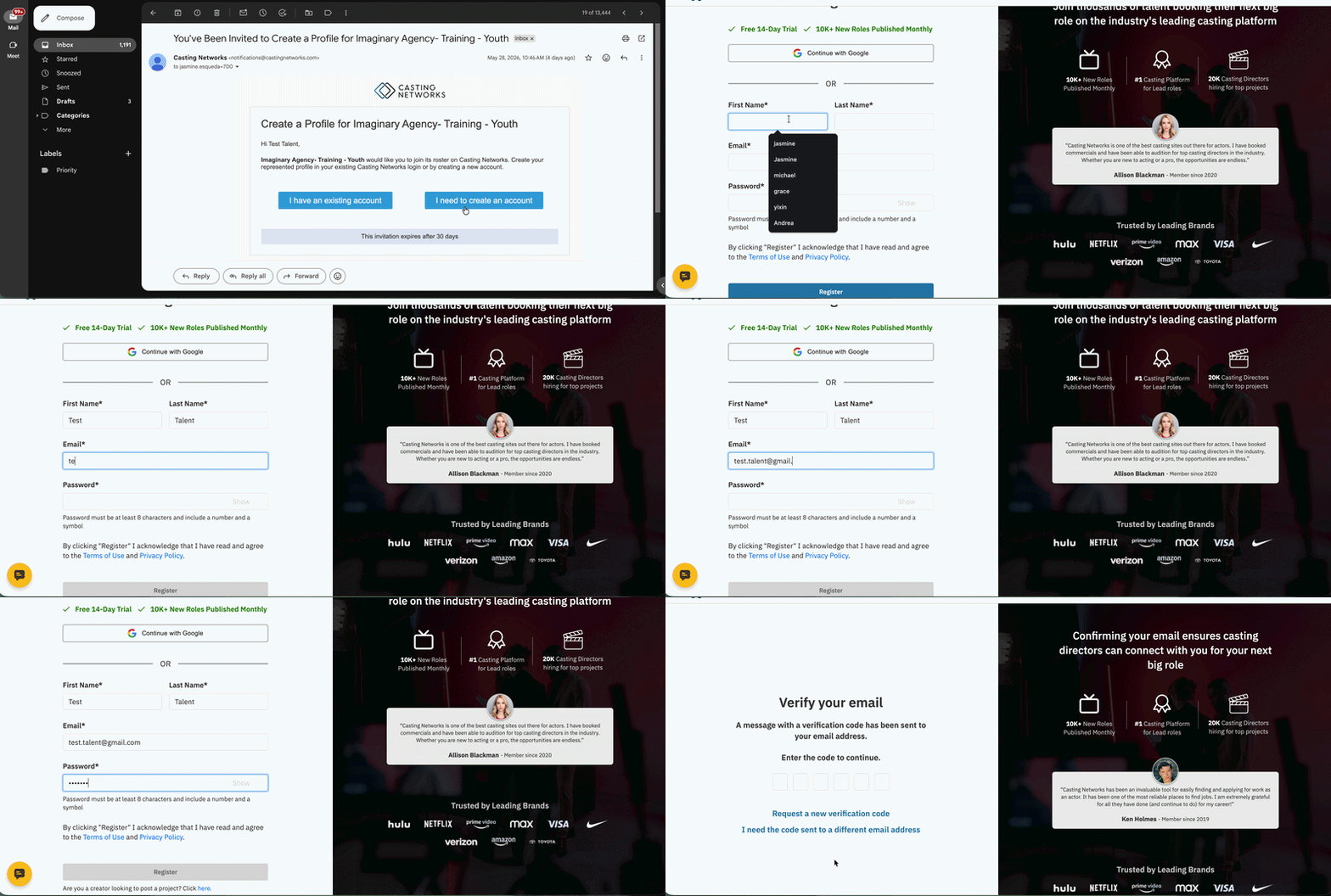
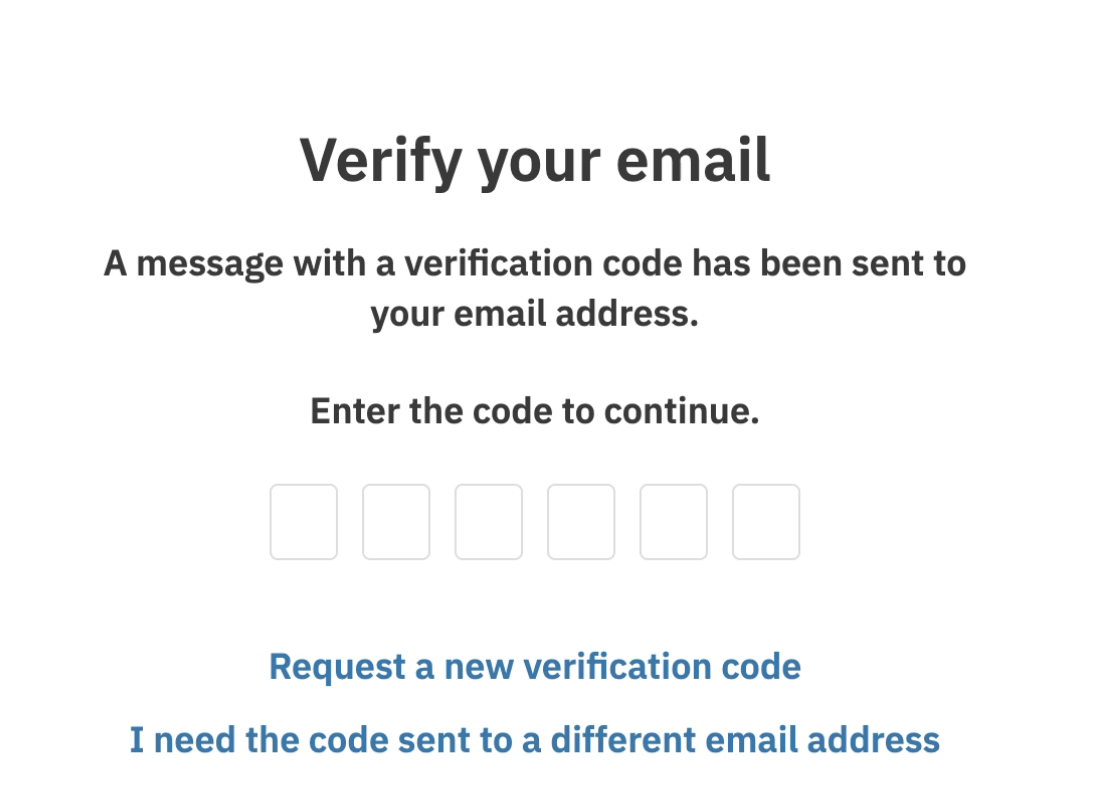
Once you have selected registered you will be sent an email with a verification code. Locate this email in your inbox and enter the verification code.
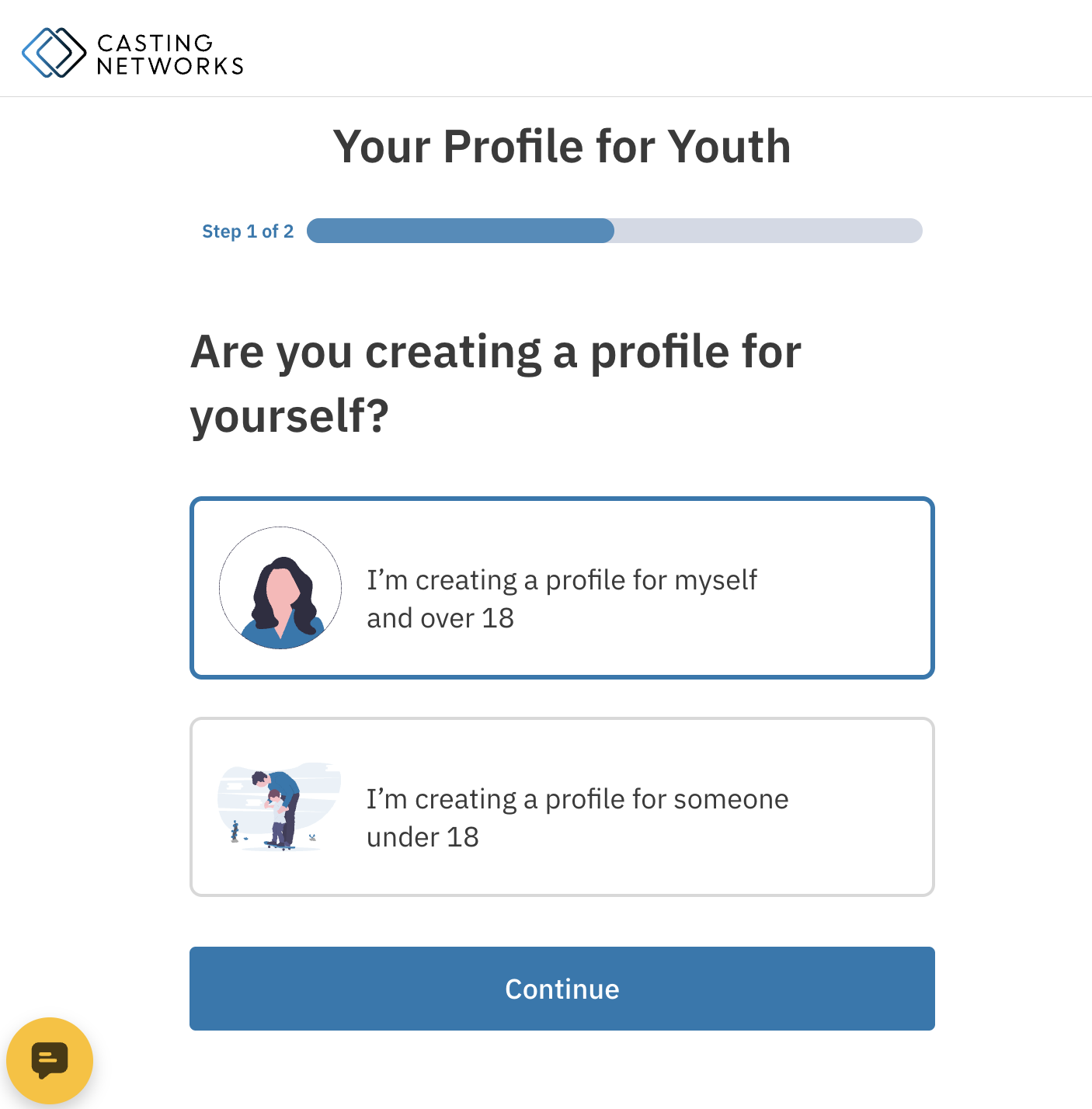
Once the email has been verified you will be prompted to select if the profile you are creating is for yourself or a minor.
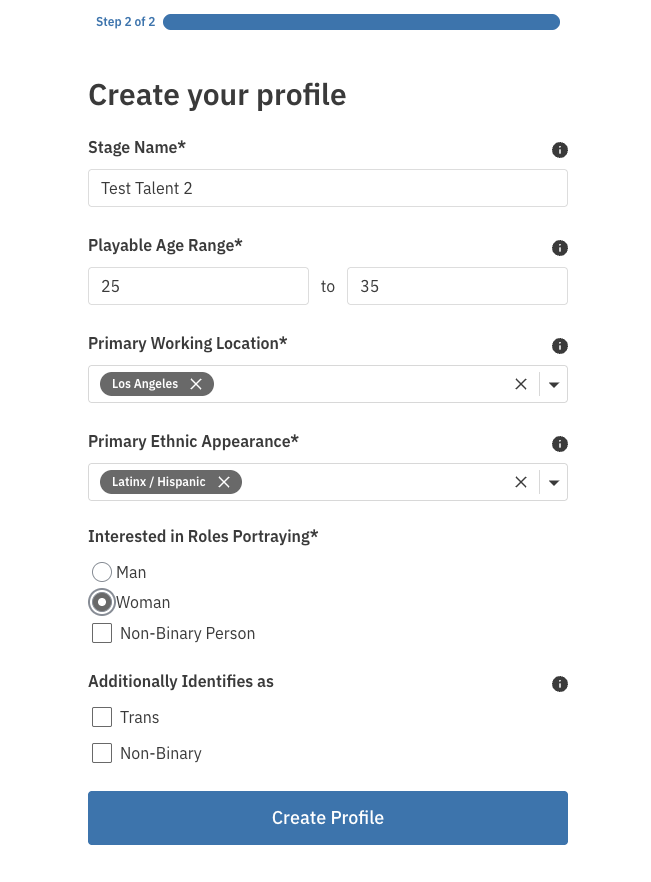
You'll then be asked to complete profile details. You are able to make changes to this information at any time. Once you have entered all details select Create Profile
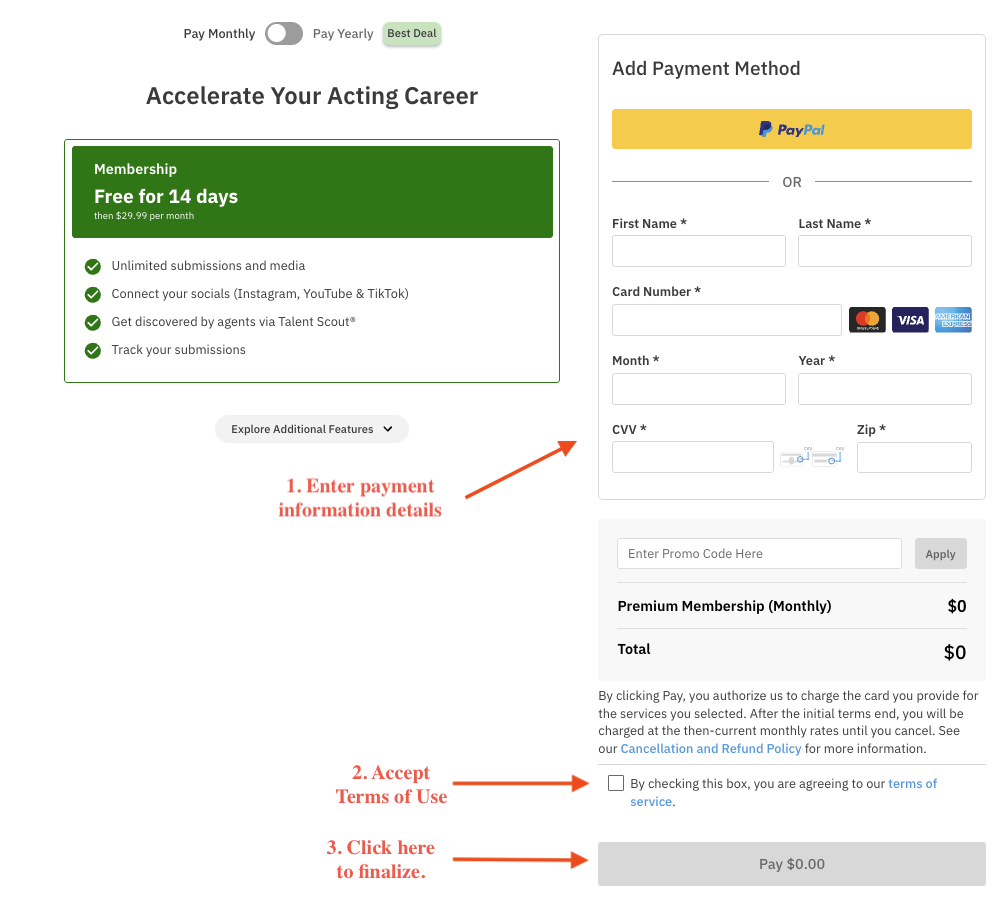
The final step is to accept your 14 day free-trial. In order to do so enter your payment information, click the box accepting the terms of service, and select and select Start 14-Day Risk* Free Trial.
*Please Note: You will not be billed for the membership until renewal, and are able to cancel at any time prior to the charge being processed. Please see here for additional details about our membership options and the Risk-Free Trial.
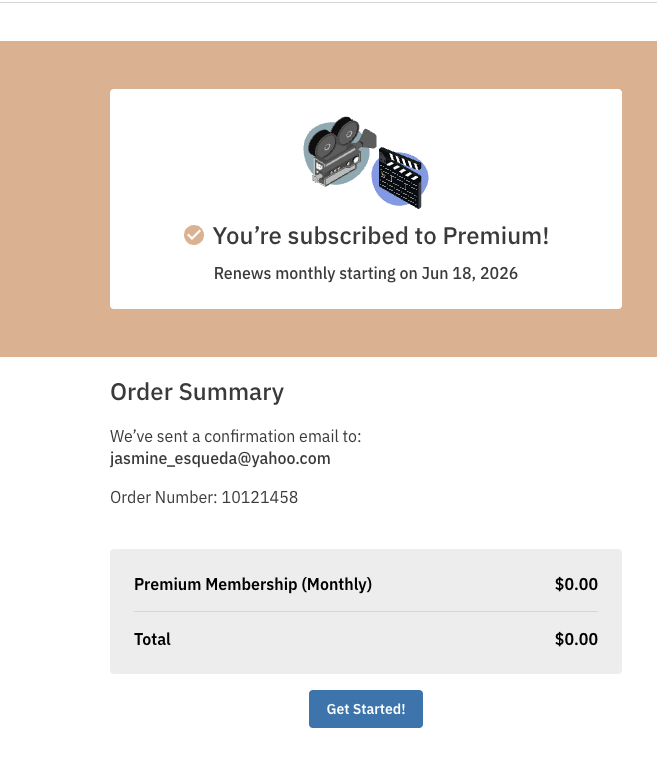
Once the risk-free trial is accepted you will be led to a confirmation screen. Select Get Started in order to access your new account.
Congratulations! You have officially completed the account creation process. Please feel free to reach out to our support team at talentsupport@castingnetworks.com or visit our Help Center for additional guidance.
Switching Between Profiles
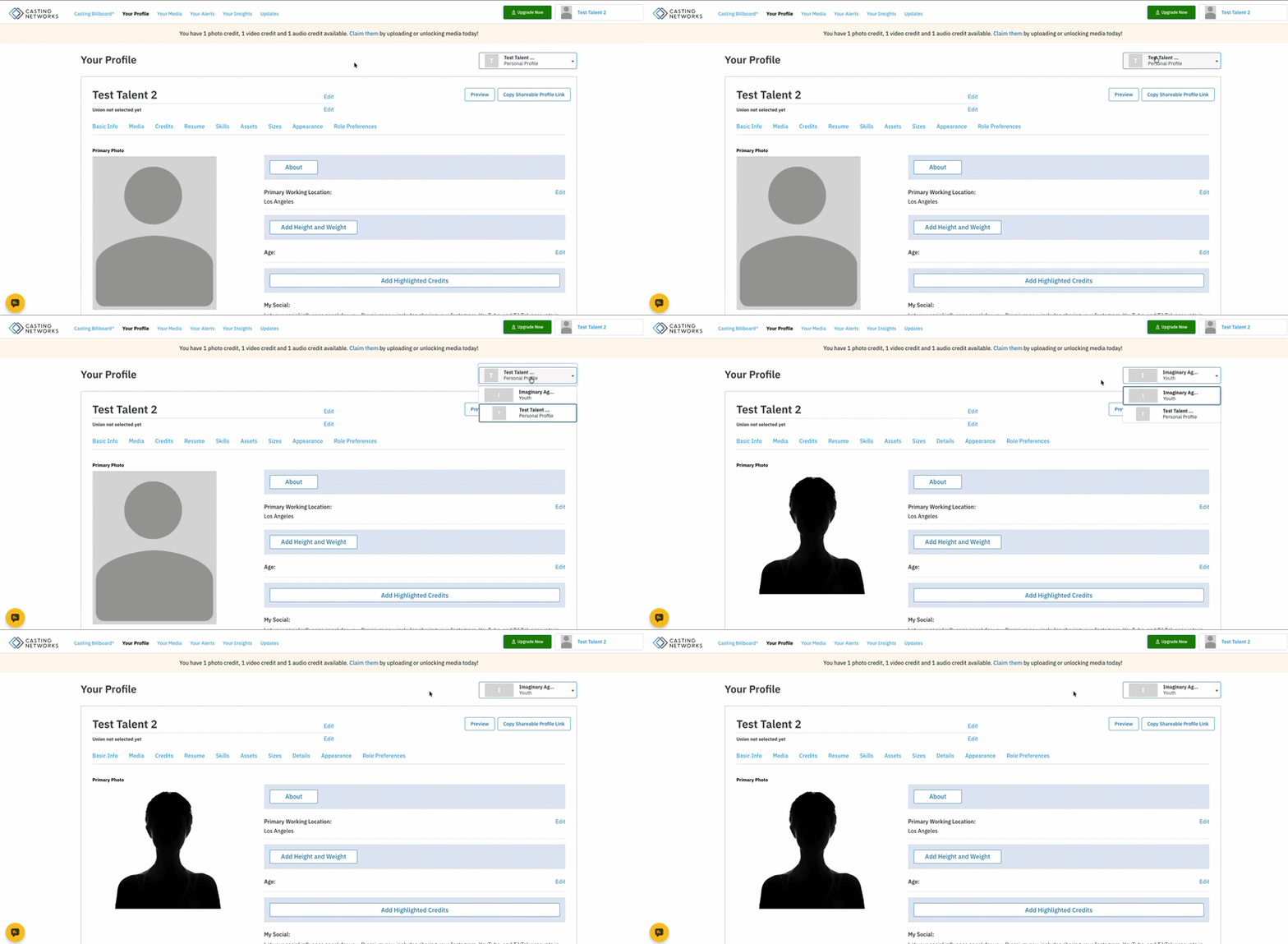
If you have multiple profiles, you will see a profile switcher on Your Profile showing your personal profile and/or any represented profiles you have. Click on the switcher to select a profile and make any necessary changes or updates.
Accessing an "Unclaimed" Agency Profile
Your agent may have reached out to you to inform you of a profile on their account listed as "unclaimed". No need to worry, it is completely possible to link this profile to your existing Casting Networks account. In order to do so please reach out to our support team via Chat, and we will happily assist you with this process. You can find the chat option on the Casting Networks website.
If you do NOT have an existing Casting Networks account you will need to create one first before reaching out to link the unclaimed profile. In order to do so select "Get Cast" on the webpage.
Disabling Representative Profiles
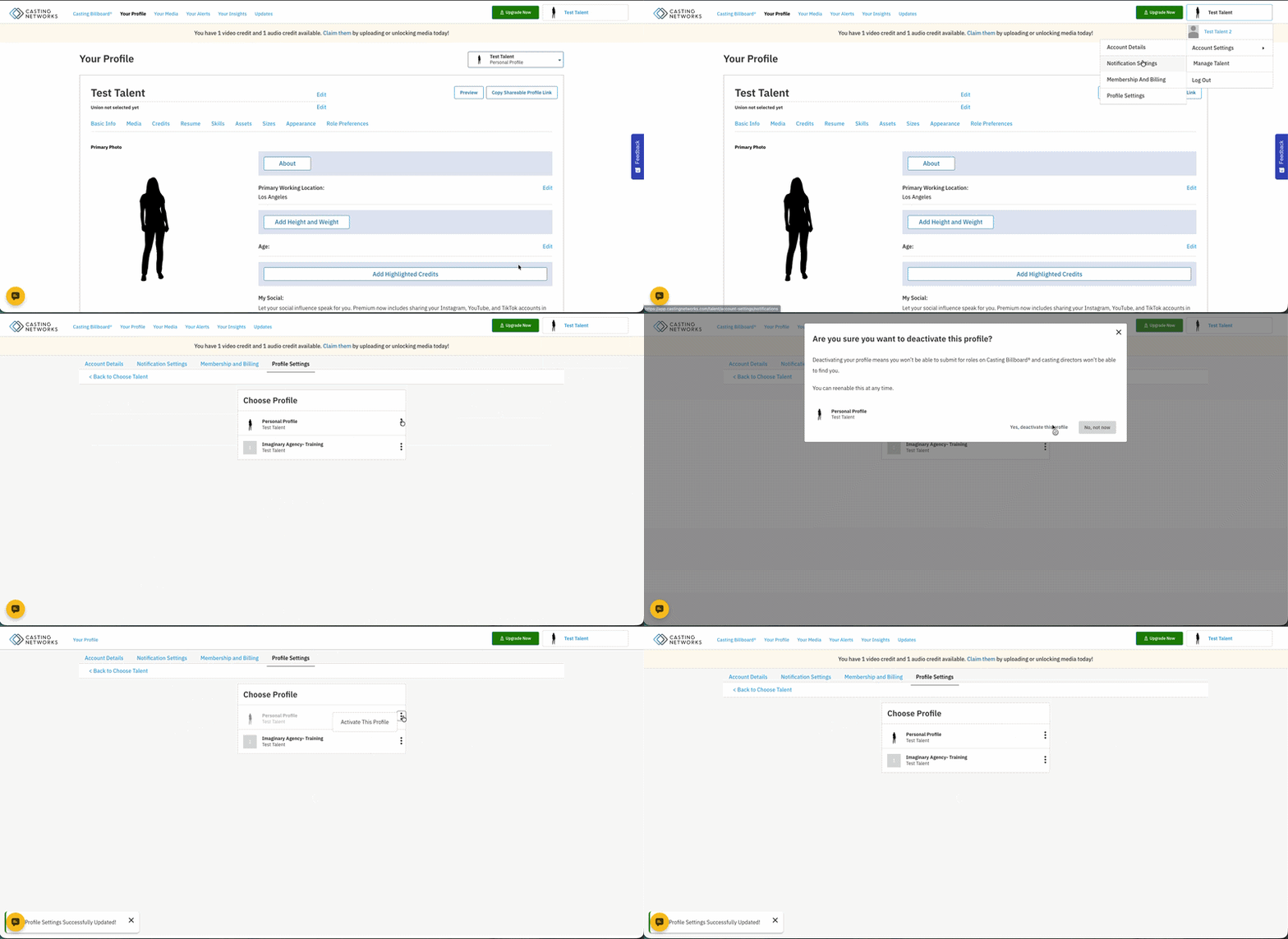
Click your name in the top right of your account.
Hover over Account Settings and choose Profile Settings.
Click the overflow menu (⋮) to the right of the represented profile you would like to deactivate.
Click Drop This Profile.
Click Yes, drop this profile to remove the profile.
This account will no longer be visible in searches, cannot be submitted to roles by your representative, and will not appear in your representative’s active roster. This action can be undone at any time.
Activating Representative Profiles
Click on your name in the top right corner.
Hover over Account Settings and choose Profile Settings.
Choose the profile you would like to reactivate.
Click Activate This Profile.
If your talent representative dropped the profile you will not have the ability to reactivate the profile. Reach out to your agent so they may reactivate should you begin working with them again.
FAQ's
What is an agency code?
Agency codes were the previous process used by Casting Networks in order to add representation. Our platform no longer uses agency codes. To add new representation please see the above process.
Can I add a representative again through my profile?
No, representation must be added via invitation.
Am I able to have multiple agent profiles on one account?
Yes.
Can my agents see each other's profiles?
No. Your agent can only view the profile designated to them.
Can I add the same representative for multiple users?
Yes. You will need to request a separate invitation for each user on the account.
Do I have to complete all of the profile and media information manually?
No. You are able to copy your profile information to your new profile. Any media you have in your Media Bank can be shared across all profiles