
TALENT: How do I Link my Social Media to my Profile?

Edited

This article explains how to link different social media platforms to your Casting Networks profiles, and shares how this may benefit your visibility on our platform.  


Overview

Premium Members on Casting Networks can now enhance their profiles by linking their social media accounts. This functionality currently exists for Instagram and YouTube.

Benefits of Linking

  • When you link your Instagram, your follower count will be visible on your Casting Networks profile, and there will be a convenient link to your Instagram feed.

  • When connecting YouTube, an icon will be displayed on your profile with the amount of YouTube subscribers you have.


Instagram Linking and Removal

To set up this feature:

  1. Make sure your Casting Networks account is on a Premium Membership .

  2. Make sure your Instagram account is set as a professional account. This step is free and only takes a moment. You can find instructions on how to do so here .

  3. On your Casting Networks profile, find the section called “My Social”. This will be located to the right of your main profile picture.

    A screenshot of a "My Social" section on a webpage, showing options to connect social media accounts. There are three buttons: "Connect to Instagram," "Connect to YouTube," and "Connect to TikTok." The "Connect to Instagram" button is highlighted with a red box.

  4. Click “Connect to Instagram”.

  5. On the next window, click “Connect & Share”.

  6. You’ll be presented with a popup from Instagram to give permission to link your account to Casting Networks.
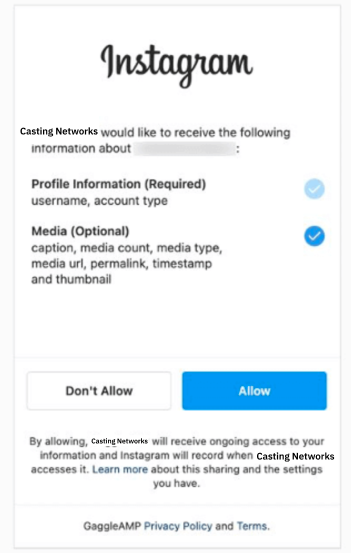
    The image illustrates an Instagram authorization request from Casting Networks. It shows the required profile information and optional media access permissions with buttons to allow or deny access.

  7. You’re done!

To remove this feature:

  1. Go to your profile.

  2. Click the ‘x’ next to your Instagram link.
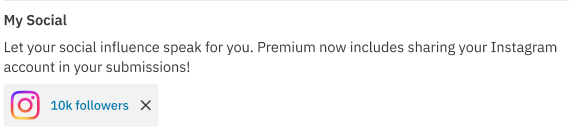
    The image shows a section titled 'My Social' with an Instagram logo and the text '10k followers'. Below the logo, there is an 'X' button indicating the option to disconnect the Instagram account.

  3. On the next screen, choose how you’d like to disconnect, either from this profile or all profiles.
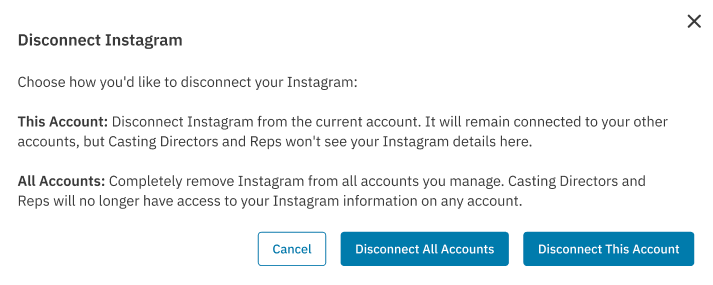
    The image shows a section titled 'Disconnect Instagram' with options to disconnect Instagram from 'This Account' or 'All Accounts'. Buttons for 'Cancel', 'Disconnect All Accounts', and 'Disconnect This Account' are present.


YouTube Linking and Removal

To set up this feature:

  1. Make sure your Casting Networks account is on a Premium Membership .

  2. On your Casting Networks profile, find the section called “My Social”. This will be located to the right of your main profile picture.

    A screenshot of a "My Social" section on a webpage, showing options to connect social media accounts. There are three buttons: "Connect to Instagram," "Connect to YouTube," and "Connect to TikTok." The "Connect to YouTube" button is highlighted with a red box.

  3. Click “Connect to YouTube”.

  4. On the next window, click “Connect & Share”.
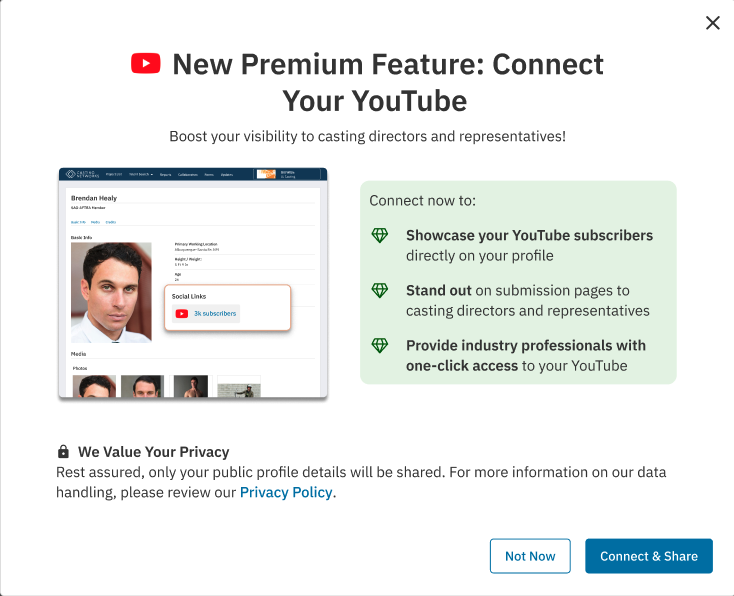
    The image features a new premium feature that allows connecting a YouTube account to boost visibility to casting directors and representatives. It contains a blurred face, a section of text listing the benefits of connecting YouTube, and buttons labeled 'Connect & Share' and 'Not Now'.

  5. You’ll be presented with a popup from YouTube to give permission to link your account to Casting Networks.

  6. You’re done!

To remove this feature:

  1. Go to your profile.

  2. Click the ‘x’ next to your YouTube link.
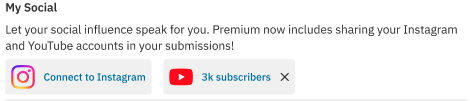
    The image features a section titled 'My Social'. The text reads, 'Let your social influence speak for you. Premium now includes sharing your Instagram and YouTube accounts in your submissions!' Below this text, there are logos for Instagram and YouTube, each with a corresponding button labeled 'Connect to Instagram' and 'Connect to YouTube'.

  3. On the next screen, choose how you’d like to disconnect, either from this profile or all profiles.
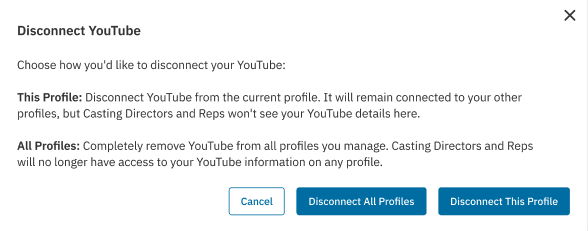
    The images show various sections of a user interface for connecting and disconnecting Instagram and YouTube accounts to a social profile. They include sections titled 'My Social' with different states of connection and disconnection options for Instagram and YouTube. Features highlighted include adding social media accounts to submissions, linking account permissions, and showcasing follower counts. Buttons for actions like connecting, sharing, and disconnecting accounts are also present.


TikTok Linking and Removal

  1. Make sure your Casting Networks account is on a Premium Membership .

  2. On your Casting Networks profile, find the section called “My Social”. This will be located to the right of your main profile picture.

    A screenshot of a "My Social" section on a webpage, showing options to connect social media accounts. There are three buttons: "Connect to Instagram," "Connect to YouTube," and "Connect to TikTok." The "Connect to TikTok" button is highlighted with a red box.

  3. Click “Connect to TikTok”.

  4. On the next window, click “Connect & Share”.
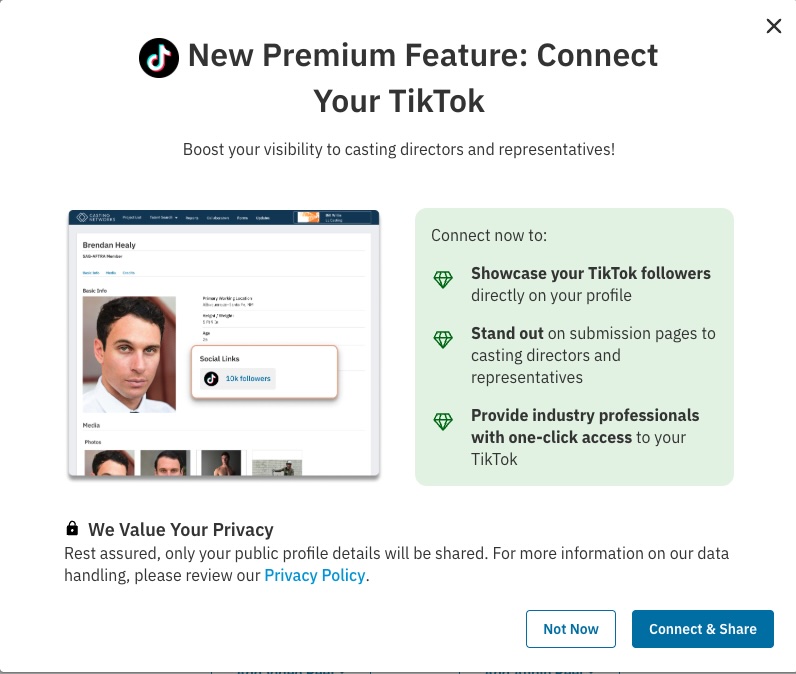
    connect tiktok.jpg

  5. You’ll be presented with a popup from TikTok to login and give permission to link your account to Casting Networks.

  6. You’re done!

To remove this feature:

  1. Go to your profile.

  2. Click the ‘x’ next to your TikTok link. 

Important Details

  • If you decide to switch away from a Premium Membership, you’ll be required to reconnect your Instagram account at a later time should you choose to re-enroll.

  • We value your privacy and will only share your public profile details. For more information on how we handle data, please review our Privacy Policy.

Was this article helpful?

Sorry about that! Care to tell us more?

Thanks for the feedback!

There was an issue submitting your feedback
Please check your connection and try again.