
TALENT REPRESENTATIVES: How do I use the Worksheet?
This article explains how to use your Worksheet. The Worksheet is your central hub for managing all casting requests, including viewing request statuses, responding to casting, forwarding requests to your talent, and organizing your information.
Request Statuses and Request Types
Your Worksheet houses all information for your requests. Each request has a status, letting you know if there is Action Required, a response is Pending from talent or casting, or if it is Completed. When viewing requests by Received Date, the newest request will appear at the top.
Request Types
There are three types of requests:
Schedule Request: An audition or callback request.
Question Request: Casting can send this to gather more information or ask other questions.
Media Request: Most commonly used for self-tapes, casting can request any media, including photos, video, audio, or PDFs.
Request Statuses
A request may be in any of the following statuses:
Action Required: This status displays when you receive a new request, need to review a talent’s response, or when casting has updated a schedule date or time.
Pending: A request may be pending if it is waiting for a response from talent, or if you have requested a reschedule from casting but have not received a new time. You do not need to take further action while a request is Pending.
Completed: A request is listed as completed if casting has received your response and no further action is needed. Canceled requests will also be marked as completed.
Canceled: You may receive a notification that a media request has been canceled. This is completely normal — cancellations can happen for a variety of reasons, such as a project being discontinued or a change in direction. We recommend directing questions about a specific cancellation to the casting director for clarity.
Viewing Request Details
Details for a request can be seen on the right-hand side of your screen. Click on the request type (Audition, Callback, Question, Media) on the left-hand side to switch between requests. You can hide the details by clicking the arrow button to the left of the details modal.
If a Casting Director manually added your talent to a project, a "CD" icon will be visible to the right of the talent's name.
Forwarding Requests to Talent
You can forward any request on to your talent from the Worksheet.
Forward an Individual Request
You can forward a single request in two ways:
Click the right-facing arrow on the main worksheet line.

Click the right-facing arrow within the request's details modal.

You can include a message if you’d like.
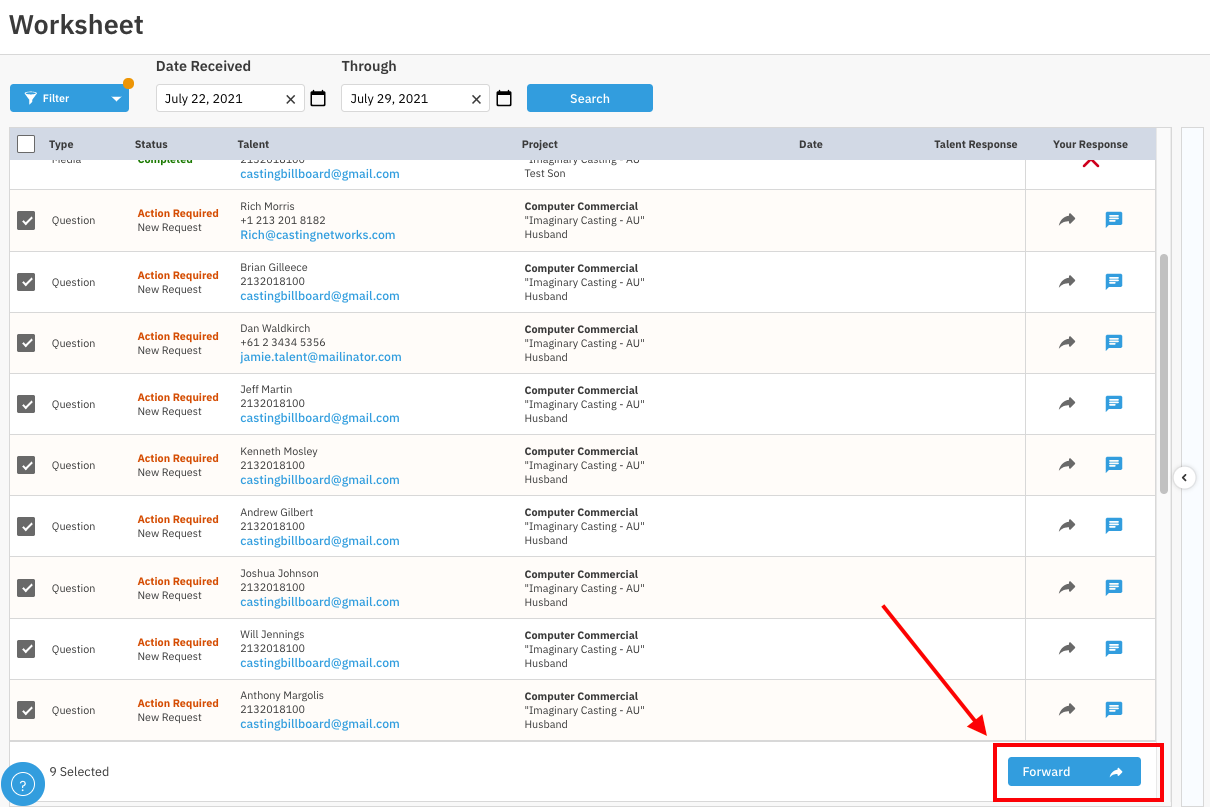
Forward Multiple Requests
Select the checkbox on the left-hand side of each request you want to forward.
Choose Forward in the bottom right corner.
Copy Request Information
This feature is designed to save you time and make sharing information with your talent effortless. This feature is an extra tool to help you communicate information quickly and efficiently, especially when time is sensitive. We know you sometimes need to share details via email or text, and this button makes that process easier. We still encourage you to use the platform for your primary workflow and communication whenever possible.
Navigate to your Worksheet and click on a Media, Audition, or Callback request.
In the header of the request details panel, locate the copy icon. When you hover over it, a tooltip will appear that says "Copy Request Details to Clipboard".
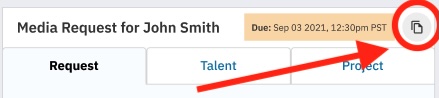
Click the copy icon.
The request information will be copied to your clipboard, and a confirmation message, "Request details have been copied to your clipboard," will appear on your screen. You can now paste this information wherever you need it.
What Information is Copied?
The specific details copied to your clipboard will depend on the type of request.
Media Requests
Request type
Due date & time
Instructions for Talent
Role dates (Audition, Callback, Fitting, Work)
Role Details (Role Name, Role Type, Age Range, Role Rate, Wardrobe, Role Description)
Project Information (Project Name, Project Type, Project Union, Casting Company)
Cancellation Note (if the request has been cancelled)
Audition & Callback Requests
Request type
Audition date & time
Audition Location
Instructions for talent
Role Dates (Audition, Callback, Fitting, Work)
Role Details (Role Name, Role Type, Age Range, Role Rate, Wardrobe, Role Description)
Project Information (Project Name, Project Type, Project Union, Casting Company)
Responding to Requests
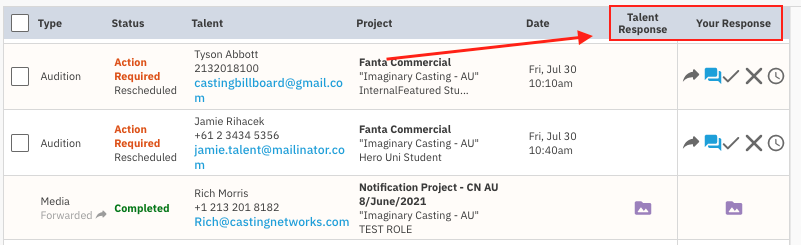
When a talent responds to a request, their response will be listed in the Talent Response column. When reviewing a request’s details, you can provide your own response, or review the response from talent.
You can keep track of a request’s progress with the Talent Response and Your Response columns, which use icons to show if talent have responded and if you have sent the response to casting.
Additional Information
After forwarding a request for the first time, the status column will update to Pending while you wait for your talent to respond.
If you see a duplicated arrow icon, you can hover over it to see how many times the request has been forwarded.
There is no limit to the number of times a request can be forwarded to your talent.
How to Respond to Media Requests
A rep can confirm or decline a media request on behalf of their talent.
When confirming, you can either upload the media on behalf of the talent or forward the request to the talent and wait for them to upload their media.
When you’re ready, click “Send Response.”
Declined responses cannot be edited after being sent.
Once talent uploads media, this will be sent directly to the Casting Director.
Note: If you have Media Gating turned on, Talent's Media will not be sent directly to Casting.
How to Respond to Audition Requests
For an audition request, you are able to respond on behalf of your talent with one of these options:
Confirm (checkmark icon)
Decline ("X" icon)
Reschedule (clock icon)

If you forward an audition request to your talent, the talent can confirm or decline.
If a talent has confirmed a schedule request, that confirmation will automatically be sent directly to casting.
How to Respond to Question Requests
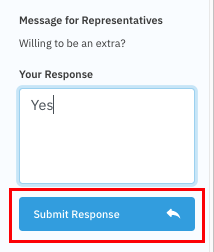
The question from casting can be seen on the right-hand side of the request modal.
Send your response by typing in your reply and clicking Submit Response.
If a talent responds to the question request, you need to manually copy and paste the talent's response into the "Your response" section.
Important: Question request replies from talent do not get auto-sent to Casting.
How to Use Direct Messages
If casting sends a direct message, you will see a red bubble on the chat icon. Click this icon to see the message.
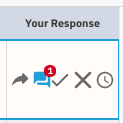
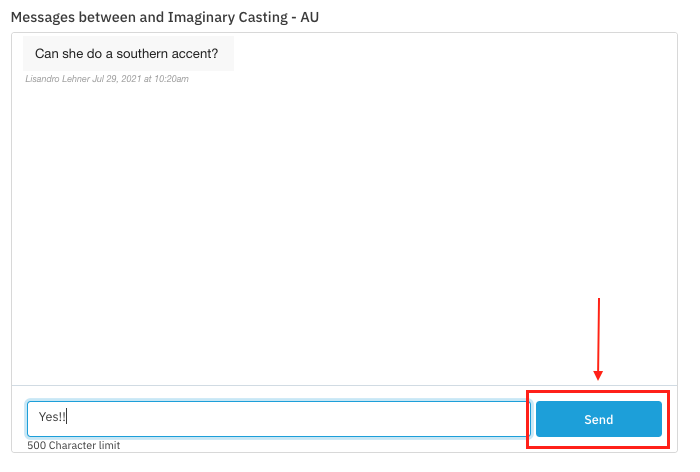
You can also send a message to casting on an audition request by clicking the Chat Icon at the bottom of the request.
Type in your reply and hit Send. You will see your message with a timestamp underneath.
Filtering the Worksheet
You can filter your worksheet to view requests within a specific time frame (by schedule/due date or received date) or by other criteria.
How to Apply a Filter
Go to the Worksheet tab and select the Filter button.
Select your desired criteria.
To filter by date, use the calendar icon to adjust dates.
Click the Search button.
Filterable Criteria
You can filter requests on your worksheet by:
Request Type (Audition, Callback, Question, Media)
Request Status
Action Required (New Request, Rescheduled, Review Response)
Pending (Change Requested, On Hold, Pending Request)
Complete (Canceled Request, Completed Request)
Project Name
Talent
Casting Director
Sorting, Rearranging, and Grouping the Worksheet
In addition to filters, you can sort, reorder, and group columns to organize your Worksheet.
Sorting
The worksheet columns can be sorted by Request Type, Status, Talent Name, Project Name, and Due/Scheduled Date.
Select a column header once to sort by alphabetical order (A-Z).

Select the column header again to sort Z-A.
Select the column header a third time to default back to the original order.
Rearranging
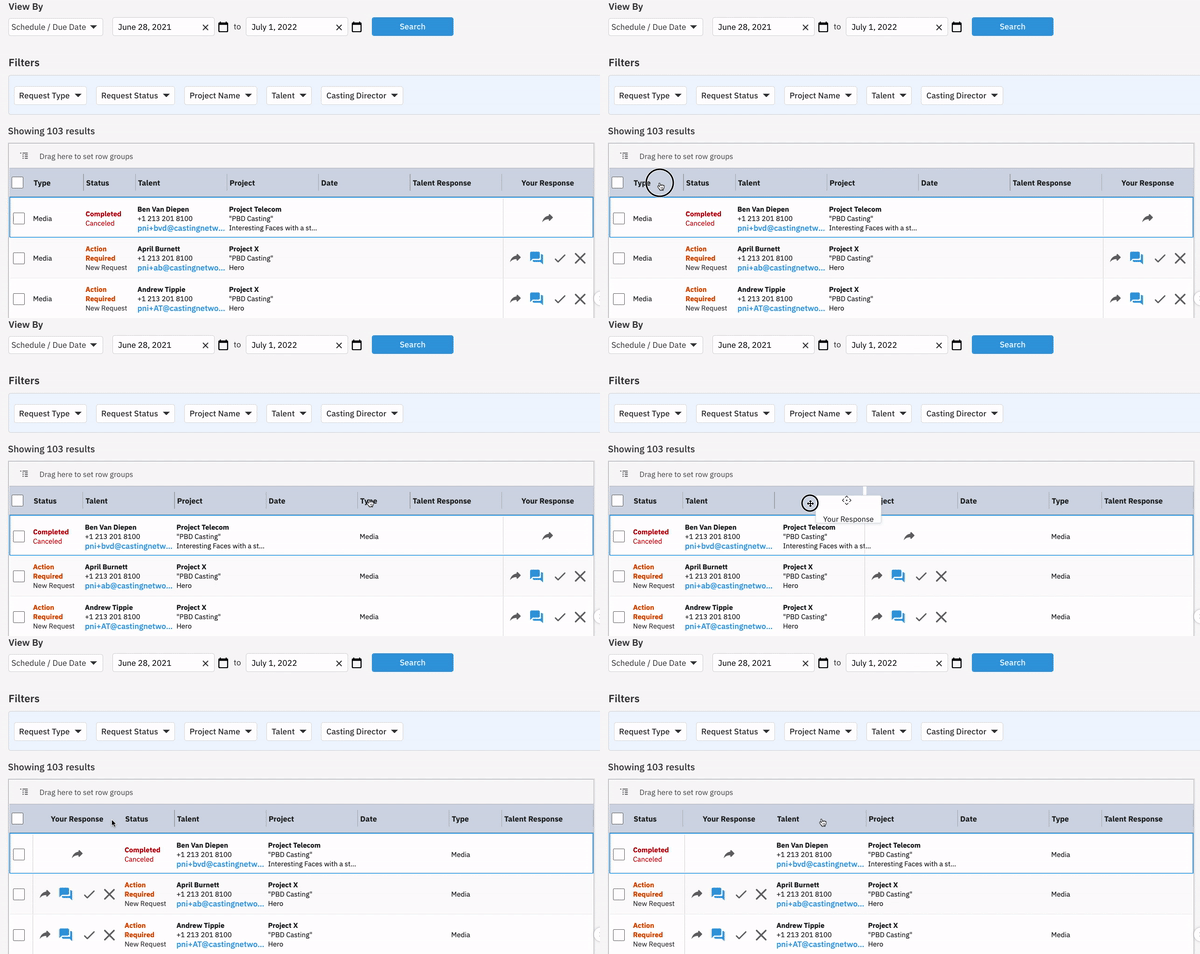
You can reorder the column order on the worksheet. To move a column, simply drag and drop the column header to your desired location.
Grouping
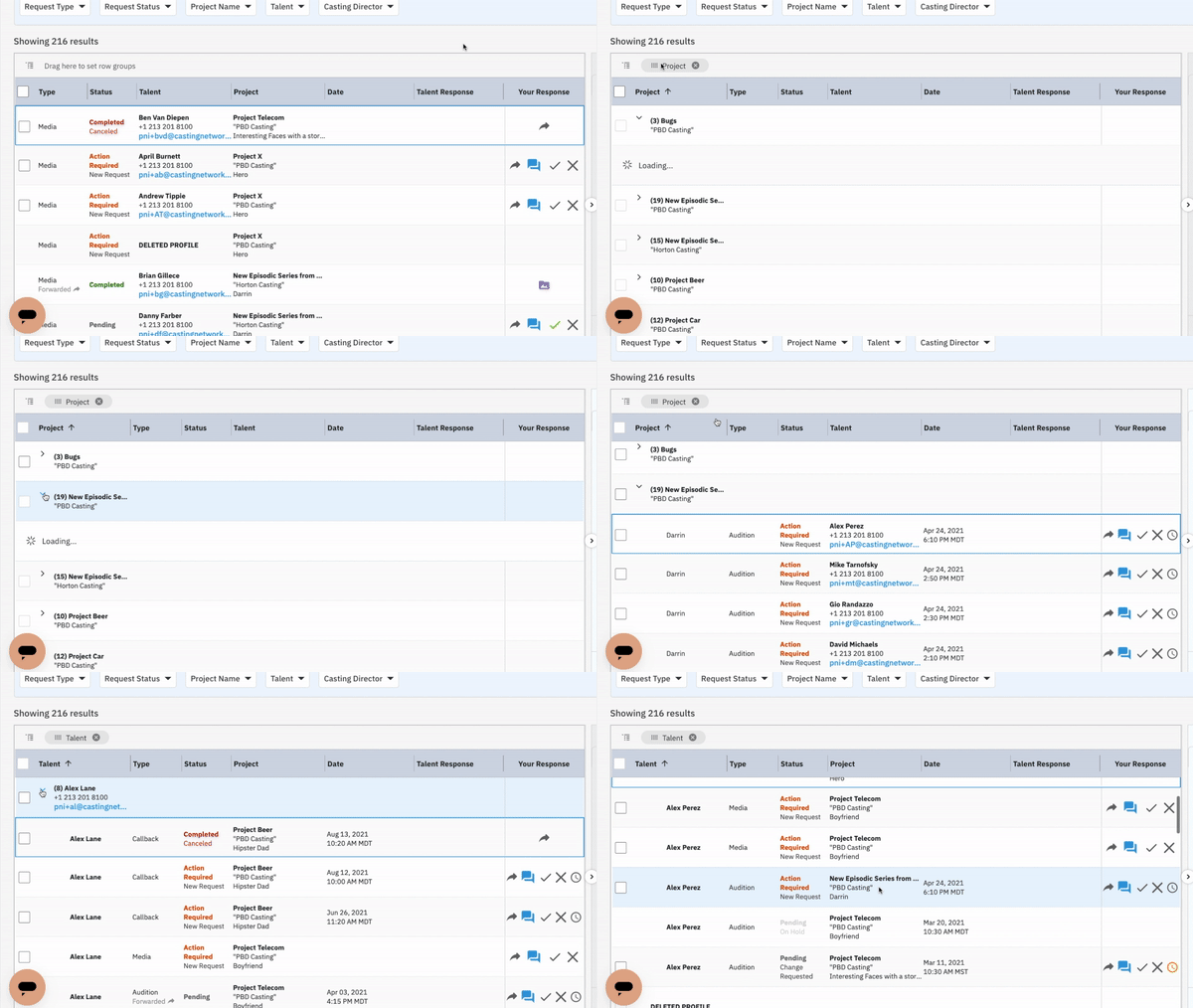
You can also group your worksheet by either Projects or Talent. To view your worksheet by a group, drag and drop the column header to the “Drag Here to set row groups” section.
FAQ
What happens if casting makes an updates on an audition/callback schedule?
If casting updates an audition or callback schedule, your request will be updated to reflect that there is Action Required. You can forward this new time on to your talent for their review. Included when viewing the request details will be the talent’s originally scheduled date and time as well as their original response for your reference.
If casting has updated your talent’s scheduled time, but has not yet sent the time on to you, you may see a request with a Pending status listed as “On Hold”.