
CASTING DIRECTORS: Why Is My Selects Tab Empty If I've Already Selected Talent?
If you've opened the Selects tab and found it empty, even though you know you've been working through talent, we'll explain what happened and how to get back to your profiles quickly.
What Does the Empty Selects Tab Mean?
When the Selects tab shows no talent, it doesn't necessarily mean your selections are gone. It means the talent you originally marked as Selected have since moved to a later status in your workflow.
Once a talent's status advances beyond "Selected" to Under Consideration, Pinned, On Avail, On Hold, Backup, Booked, or Released, they are no longer counted in the Selected bucket. The Selects tab reflects only talent currently sitting at that status.
How to Find Your Progressed Talent
If talent have moved past Selected, the Selects tab will let you know with a clear message and a direct navigation option:
Go to Submissions and open the Selects tab for the role.
Look for the message confirming that all talent have progressed past the Selected stage.
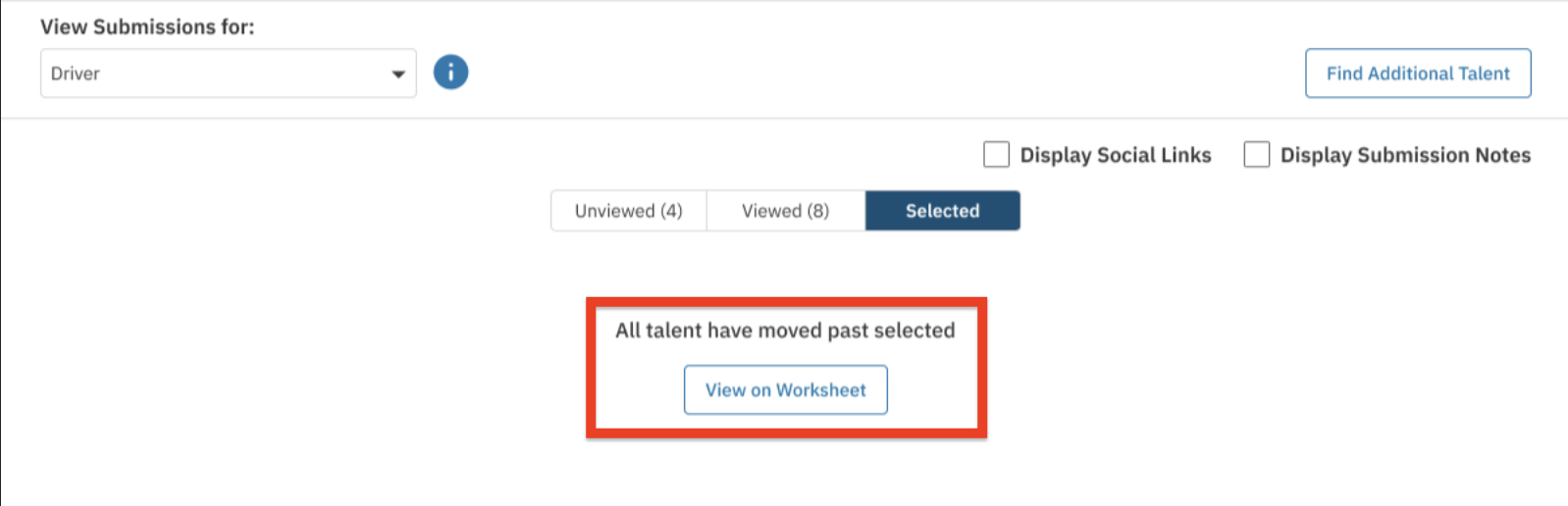
Select View in Worksheet to jump directly to the Worksheet, pre-filtered for that role.
From the Worksheet, you'll see all talent who have advanced, along with their current statuses.
FAQ's
Did my selections disappear? No. Your talent are still on the project. Once a talent's status moves past "Selected," they no longer appear in the Selects tab, but they are fully accessible in the Worksheet, filtered by role.
Why doesn't the Selects tab show talent at all statuses? The Selects tab is specifically designed to show talent currently at the "Selected" stage. This keeps each tab focused and easy to manage. The Worksheet is the best place to view all talent on a role regardless of status.