
CASTING DIRECTORS: What Is the Worksheet and How Do I Use It?
This article is for Casting Directors using Casting Networks who want to understand the Worksheet — what it is, how it's organized, and how to get the most out of every column and feature within it. If you're looking for one place to track and manage all the talent you have under consideration for a project, you're in the right place.
What Is the Worksheet?
The Worksheet is your central hub for tracking all talent who are under consideration for a project. Any time a talent is sent a request, added to a session, or sent an audition, they are automatically marked as Under Consideration and will appear on the Worksheet by default. You can also filter for submitted talent either viewed, unviewed, or selected.
Think of it as your live project roster — everything you need to manage talent from first consideration to booking, all in one place.
How to Access your Worksheet
Log in to your Casting Networks account at castingnetworks.com.
From the top navigation, click Projects Lists.
Select the Project you are currently wanting to access.
From the Project Navigation Menu select Worksheet.

Filtering the Worksheet
The Worksheet has robust filtering options to help you zero in on exactly what you need.
Filter Options
You can filter your worksheet using a variety of criteria to streamline your casting process. The available filter options are:
Stage Name: Find a specific talent by their stage name.
Role: View all talent for a particular role in your project.
Talent Type : Isolate profiles from talent who do not have representation or who by who do.
Reps List: Filter by a saved list of representatives.
Representatives: View talent profiles from specific talent representatives.
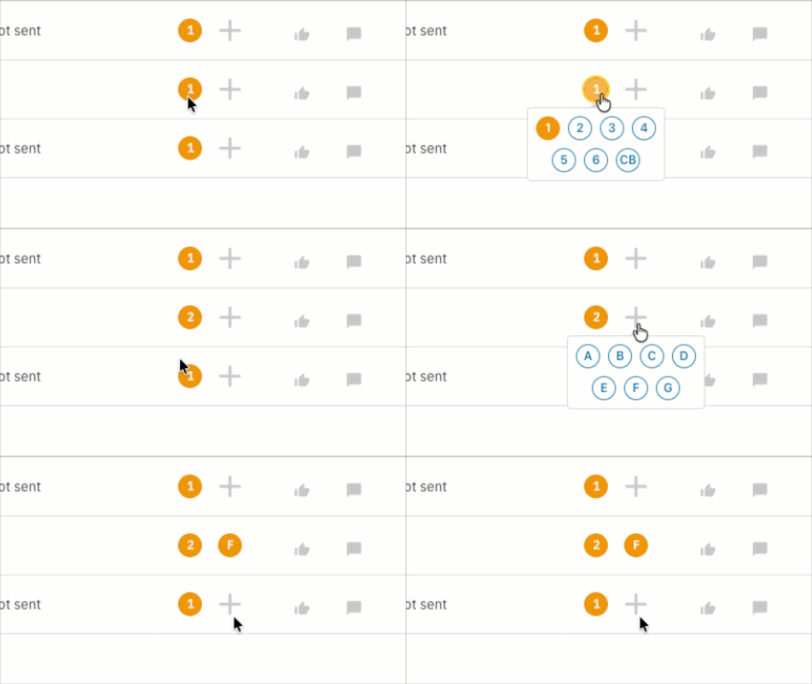
Selection Numbers & Letters (1-6, CB & A-G): Filter by any custom selection tags you have applied.
Submission Status:
Unviewed
Viewed
Selected
Under Consideration
Pinned
On Avail
On Hold
Backup
Booked
Released
Schedules: View talent based on a schedule you have created.
Session: View talent based on a session they are in.
Presentation: View talent based on a presentation.
Feedback Type:
Audition Presentation Picks
Comments
Schedule Response: View talent based on their response to an auditions schedule.
How to Filter
To filter your worksheet, please follow the steps below.
Navigate to your project's Worksheet.
Select the criteria you would like to filter by.
Once you have made your selections, click the Filter button to apply the filters to your worksheet.

How to view applied filters
Applied filters appear just below the filter options. From there, you can:
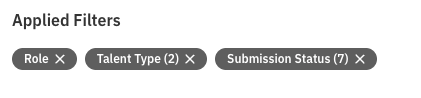
Hover over an applied filter name to see the specific selections currently being applied.
Select the X next to a filter name to remove that individual filter.
How Talent Are Displayed
By default, roles on the Worksheet are listed in the same order they appear on the project. Talent within each role are listed alphabetically.
For each talent, you'll see:
Their headshot
Their name
Contact information for the submitting agent
The Spice Rack
The Spice Rack is the row of icons you'll see next to each talent on the Worksheet. These are the same icons you see when viewing submissions, so they'll be familiar. They give you quick-glance information about a talent's profile and activity without having to click into their full profile.

Notes: Project Notes vs. Permanent Notes
Two of the most important icons in the Spice Rack are Project Notes and Permanent Notes — and it's worth knowing the difference.
Project Notes are tied to the talent for the duration of that specific project. They follow the talent throughout everything related to that project.
Permanent Notes are only visible to your casting team and will appear for that talent across all projects on your account. These are a great place to keep longer-term observations that aren't project-specific.
Audition Requests, Agent Responses, and Agent Chat
Located under the Schedule section on the Worksheet, you will see the most recent audition request sent to a talent, along with the talent's or agent's response to it. If you have a pending chat with an agent, you can open it directly from the Worksheet — no need to navigate away.

Selection Numbers
You can update a talent's selection number right from the Worksheet. For example, if you want to move a talent to callback status, you can make that change here quickly without having to go into their individual profile.
Presentation Feedback
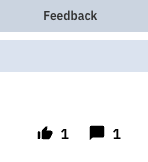
The feedback column displays any feedback that has been left on a talent's profile via a presentation link. Once feedback is submitted for a talent on a project, it stays connected to that talent for the rest of the project — so nothing gets lost as the process moves forward.
Talent Status
The Status column lets you change a talent's standing on a project. Your options are:
Under Consideration — the default status when a talent is added to the Worksheet; this is the highest status a talent can hold while still being added to requests, schedules, sessions, or presentations.
Pinned — an informal expression of strong interest, signaling that this talent is a top contender for the role.
On Avail — talent is being held as available
On Hold — a more formal step asking the talent to reserve the shoot dates, typically used when narrowing down to final contenders.
Backup — talent is kept in reserve in case the primary choice becomes unavailable.
Booked — talent has been officially hired for the production.
Released — talent is no longer being considered for the role.
These statuses are for internal use only and are visible to the casting team only — talent and agents cannot see them.
Talent Activity
The Activity column is a full log of everything that has happened for a talent on the project. Pull it down to see:
Who submitted the talent
Whether they responded to a request
Which presentation(s) they appear in
This is a great way to get a complete picture of a talent's journey on a project at a glance.

Talent Overflow Menu
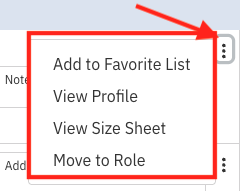
Each talent row has an overflow menu that gives you a few additional actions. the overflow menu is accessible by selecting the icon of the three vertical dots to the far left of the talent row. From here you can:
Add the talent to a saved favorites list
View their full profile or size sheet
Move them to a different role within the same project
Frequently Asked Questions
Who can see the Status column (Under Consideration, Avail, Booked)? Only the casting team can see talent statuses. They are for internal use only and are not visible to talent or their representatives.
Who can see Permanent Notes? Permanent Notes are visible to your casting team only. They will not appear for talent or agents, but they will show up across all projects on your account for that talent.
When does a talent appear on the Worksheet? A talent is automatically added to the Worksheet and marked as Under Consideration as soon as they are sent a request, added to a session, or sent an audition.
Can I move a talent to a different role from the Worksheet? Yes. Use the overflow menu next to the talent's row to move them to a different role within the same project.
Does presentation feedback stay on the Worksheet? Yes. Once feedback is left on a talent's profile via a presentation link, it remains connected to that talent for the remainder of the project.