
CASTING DIRECTORS: How do I Navigate the New Presentation Sidebar?
We are excited to announce a new way to review audition presentations on Casting Networks — the Sidebar Presentation View. This updated layout brings a familiar, industry-standard review experience directly into the platform.
A Layout Built for the Way You Work
This new view was built with you in mind. The Sidebar Presentation View replaces the traditional grid layout with a three-panel interface to allow for easier navigation.
Left sidebar — Groups column: All groups are displayed in a scrollable vertical carousel. Each card shows the talent headshot for single-talent or a group thumbnail, along with actor name(s), role name(s), and group number. The active group is highlighted with a blue border. The folder name appears above the first group, and a Download All icon appears when downloads are enabled.
Center — Media section: The selected group's media is organized into Video, Audio, and Photo tabs. Empty tabs are hidden automatically. The first item in each tab loads automatically, and a collapsible playlist beneath the player shows all clips with a "Now Playing" indicator. Photos display as a grid and can be clicked to open an enlarged overlay.
Bottom — Talent section: Individual talent cards appear below the media player showing snapshot, name, role, picks, comments, and feedback entries. When feedback is enabled, you can leave comments and delete your own entries directly from the card. When no feedback options are enabled, cards display in a condensed two-per-row format. Each card includes an overflow menu with options to Download Snapshot, View Talent Profile, and View Size Sheet.
Everything You Already Rely On — Still There
The Sidebar Presentation View preserves all existing presentation functionality. Nothing has been removed. You will still have access to:
Back to Home navigation
All filters: Stage Name, Folders, Roles, Comments, and Picks
Download All Media at both the folder and group level
Presentation Log and Presentation Size Sheet reports
All per-talent actions: View Feedback, Leave Feedback, Download Snapshot, View Talent Profile, and View Size Sheet
Left and right arrow navigation between groups
The groups list and the clips/talent cards scroll independently, so the top of the page stays visible as you navigate through submissions. Both light and dark mode are supported, with dark mode set as the default.
How to Enable the Sidebar View
This is an opt-in feature. Your existing presentations are not affected, and the grid layout remains the default for any presentation not configured to use the sidebar view.
There are two ways to enable it:
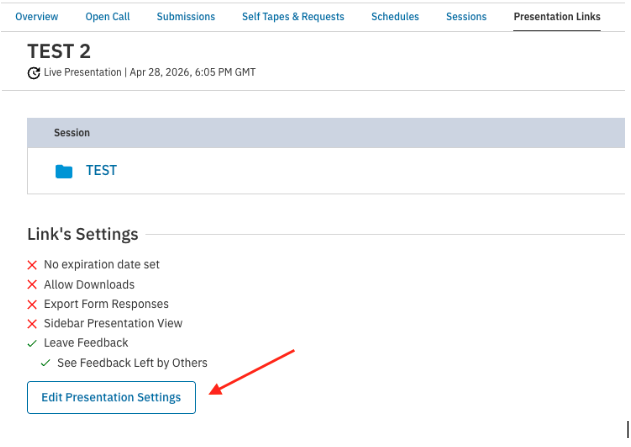
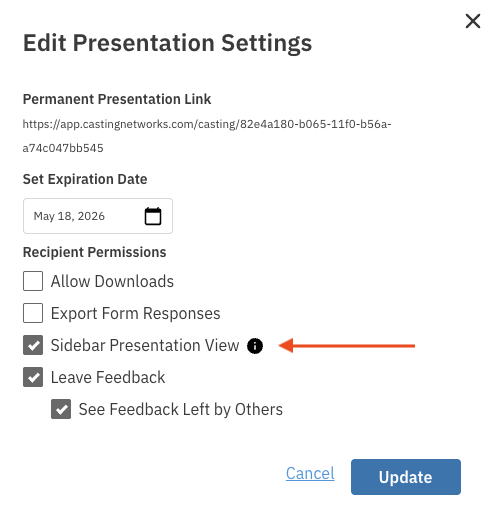
Per presentation: Open the presentation link page and select Edit Presentation Settings to enable the Sidebar Presentation View for that specific presentation.
As your organization default: If you would like all new presentations in your organization to use the sidebar view by default, contact Casting Networks support. This setting is configured at the organization level and does not retroactively change any existing presentations.
The Sidebar Presentation View is available on both desktop and mobile.
Frequently Asked Questions
Will my existing presentations change?
No. Existing presentations are not affected. Only presentations you configure to use the sidebar view — or new presentations created after your organization enables it as the default — will display the new layout.
Why does the sidebar show a headshot instead of a video frame for some groups?
For groups with only one talent, the sidebar displays that talent's headshot rather than a video thumbnail.The existing grid view is not affected.
Can I switch between light and dark mode?
Yes. While dark mode is the default, you can switch to light mode at any time from within the presentation.
Does this work on mobile?
Yes. The Sidebar Presentation View is supported on both desktop and mobile screen sizes.
Does feedback, picks, and downloading still work the same way?
Yes. All download, feedback, and pick functionality works identically to the current grid view.
If you have questions or need help enabling the Sidebar Presentation View, please reach out to our support team