
CASTING DIRECTORS: How do I copy media from a Casting Networks project to a Cast It project?
This article is for Casting Directors who use both Casting Networks and Cast It. It explains how to use the "Copy to Cast It" feature to seamlessly move audition media from a Casting Networks project directly into a Cast It project. This saves you from having to manually download and re-upload files.
Before you get started, make sure you have the following in place:
Copy to Cast It must be enabled for your company. If you do not currently have access, reach out to our Casting Networks Support team to get it turned on.
An existing project set up in Cast It Systems. For questions about Cast It, contact support@castitsystems.com.
An active project in Casting Networks with at least one Session that already has media in it.
How to Copy Media to Cast It
Log in to your Casting Networks account.
Navigate to your Project List using the top navigation bar.
Open the specific project you are working on.
Click the Sessions button.
Select the specific session that contains the talent or media you want to copy over to Cast It.
Select the checkbox to the left of the talent group thumbnail(s) you want to copy, or use the Select All option.
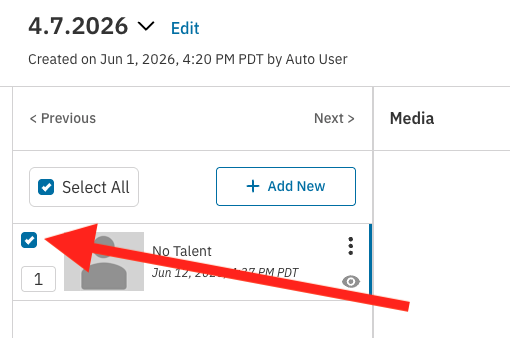
Once at least one selection is made, an action bar will appear at the bottom of the page. Select Copy to Cast It.

The system will check whether you are currently logged in to Cast It.
Not logged in: You will be prompted to enter your Cast It credentials. Your session will stay active for 30 minutes.
Already logged in: You will automatically move on to the project selection step.
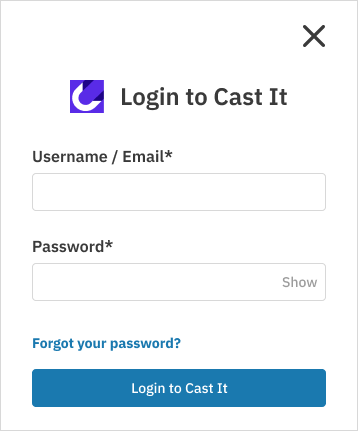
How Do I Select a Cast It Project?
After logging in to Cast It through Casting Networks, you will be taken to the Cast It Project Selection page.
The system will default to a suggested project — typically the most recently updated Cast It project that has video upload capabilities enabled.
If you have previously copied media from this Casting Networks project, it will default to that same Cast It project.
You can confirm the suggested project or choose a different one from the list.
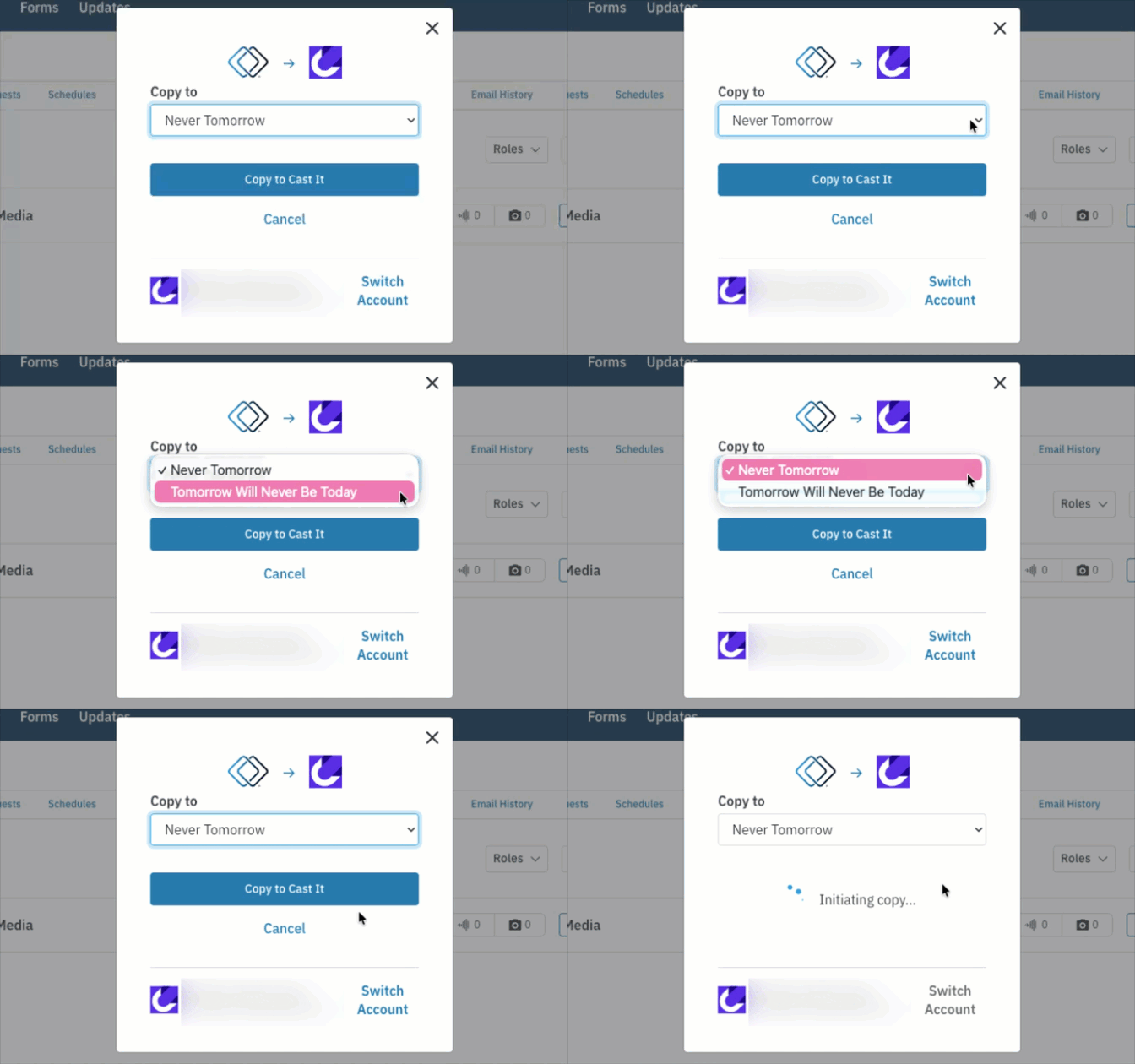
Once you select a project, the system gets to work:

Each clip is processed and renamed using the format: role name - actor name - description.
If a clip belongs to a group with multiple actors, a separate version is created for each actor with their name in the file on Cast It.
Clips are sent to the Bulk Uploader in the Cast It project and automatically assigned to the correct actor and role.
The clips are then delivered to the Bulk Uploader of the Cast It project and automatically assigned to the correct actor and role.
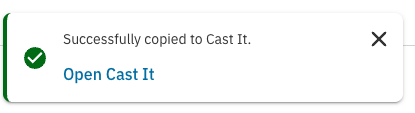
After all clips have been processed, a notification will appear confirming the copy is complete. This notification will include a link to the Cast It Project List, which will open in a new tab.
How Does the System Handle Duplicate Clips?
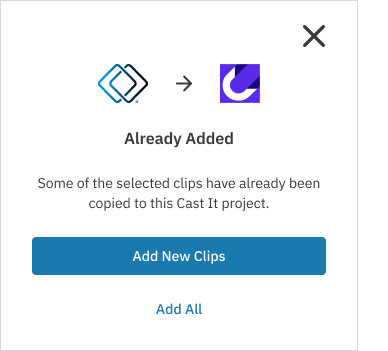
Before copying, the system checks whether any selected clips have already been sent to the chosen Cast It project (based on a combination of the video, actor name, and role name). Here is what you will see depending on the results:
Scenario | Options |
|---|---|
All selected clips are duplicates | Add Anyway (copies all clips) or Don't Add (cancels the action)
|
Some clips are duplicates | Add All (copies everything, including duplicates) or Add New Clips Only (skips duplicates, copies new media only)
|
How Do I View My Cast It Upload History?
Every copy you or anyone at your company has made to Cast It is logged automatically. The Cast It Uploads page gives you a running record of every copy operation, including which ones succeeded, which ones failed, and which ones need a retry, so you can resolve issues yourself without contacting support.
Accessing the Cast It Uploads Page
Once your company has completed at least one Copy to Cast It operation, a Cast It Uploads item appears in your global navigation. No special toggle is required to turn this on.

Clicking Cast It Uploads while you are already on the page simply refreshes it.
Anyone on your team can see every copy operation made by anyone else at your company on this page, so you always have organization-wide visibility. Project collaborators, however, do not have access to this page.
Understanding the Cast It Uploads Table
Rows are always sorted by most recent copy date first, with no manual sorting or filtering options. The table loads more rows automatically as you scroll, and every record is kept indefinitely.
Column | What It Shows |
|---|---|
Project | The Casting Networks project the copy was initiated from |
Sessions | The session(s) included in the copy operation (multiple sessions are listed in the same cell) |
Copying To | The destination system: Cast It Studio or Cast It Systems |
Status | Success, Processing, Partial Failure, or Failed |
Date | The date the copy operation was initiated |
Actions | A Retry button for rows with Partial Failure or Failed status. Rows marked Success or Processing show no button |
Understanding Upload Statuses
Status | What It Means |
|---|---|
| The copy has started and one or more clips are currently being transferred |
| Every clip transferred successfully, including any that were skipped because they already existed in Cast It |
| The copy finished, but at least one clip failed while at least one succeeded or already existed |
| The copy finished and every clip encountered an error |




You will need to refresh the page to see an updated status, with one exception: selecting Retry updates that row's status to Processing right away, with no refresh needed.
Retrying a Failed or Partially Failed Copy
Find the row with a Partial Failure or Failed status and select Retry.

A confirmation window will appear, letting you know that only the clips that previously failed will be retried. Successfully transferred clips will not be sent again.
Confirm to start the retry, or cancel to back out.
Once you confirm, the Retry button disappears and the row status updates to Processing.
When the retry finishes:
If every previously failed clip now succeeds, the row updates to Success and no Retry button reappears.
If any clips fail again, the row updates to Partial Failure or Failed, and the Retry button becomes available again so you can try once more.
What Do the Navigation Icons Mean?
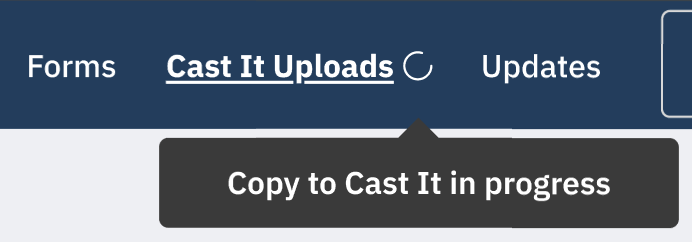
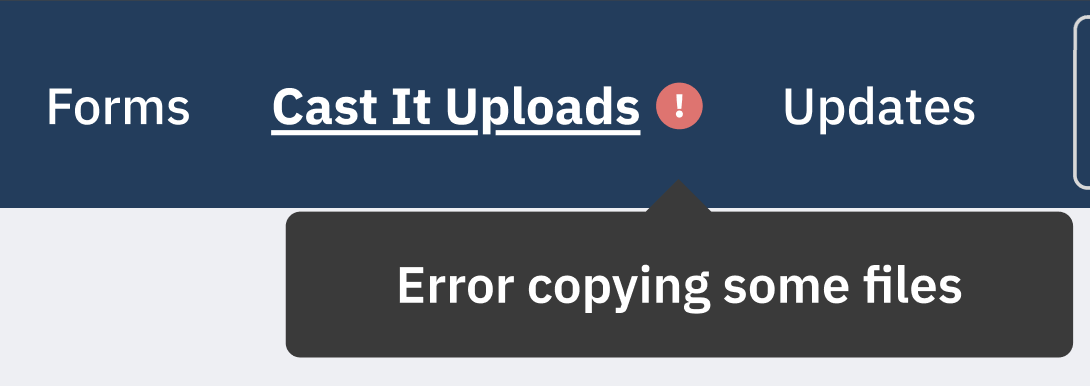
While you have a copy in progress, Casting Networks keeps you posted right from the global nav, even if you navigate away from the Cast It Uploads page.
When | What You'll See in the Nav |
|---|---|
Copy in progress |
|
Copy fully succeeds |
|
Copy fully fails |
|
Copy partially fails |
|


Keep in mind these navigation indicators are personal to you. If a teammate at your company runs a copy, you will not see their nav indicator, though you will still see their operation listed on the shared Cast It Uploads page.
FAQs
Does this feature work with any Cast It project? It will only work with Cast It projects that have video upload capabilities enabled.
How long does my Cast It login stay active? Your Cast It session will remain active for 30 minutes after you log in.
Can I see copy operations that my teammates ran? Yes. The Cast It Uploads page shows every copy operation made by anyone at your company, so you have full visibility into what has been sent to Cast It regardless of who sent it.
If a copy partially fails, will retrying resend everything? No. Retry only resends the clips that failed the first time. Anything that already transferred successfully is left alone.
What happens if I close the page before the copy finishes? It is best to leave the page open until you receive the completion notification. The notification will also include a link directly to your Cast It Project List so you can confirm everything was delivered.
Who do I contact if I am having trouble with Cast It? For Cast It-specific support, reach out to support@castitsystems.com.