CASTING DIRECTORS: How do I archive and restore a project?

Edited

This article explains how to remove completed or inactive projects from your main view without permanently deleting them. You can easily view or restore these projects at any time.


How to Archive a Project

  1. Locate the project you wish to remove from your main view.

  2. Click the menu button located to the right of the project name.

  3. Select Archive from the dropdown menu.

A small dropdown or context menu is shown with two options: **"Close Submissions"** and **"Archive."** The "Archive" option is highlighted with a red rectangular box, indicating it is the selected or focused action. The menu is associated with a vertical ellipsis (kebab menu) icon, partially visible to the right.


How to View Archived Projects

If you need to review a project you have previously archived:

  1. Navigate to your Projects List page.

  2. Click on the Project Status filter and enable the Archived option.
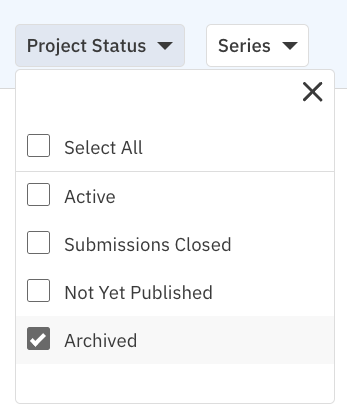
A dropdown menu titled "Project Status" is open, showing a list of checkbox options. The options are "Select All," "Active," "Submissions Closed," "Not Yet Published," and "Archived." The "Archived" option is checked. A "Series" dropdown menu is visible next to "Project Status." The menu also has a close "X" button in the top right corner.


How to Restore a Project

To move a project back to your active list:

  1. Click the menu button to the right of the archived project you wish to reactivate.

  2. Select Restore.

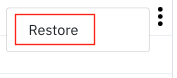
A small dropdown or context menu is shown with a single option: **"Restore."** The "Restore" option is highlighted with a red rectangular box, indicating it is the selected or focused action. The menu is associated with a vertical ellipsis (kebab menu) icon, partially visible to the right.

Was this article helpful?

Sorry about that! Care to tell us more?

Thanks for the feedback!

There was an issue submitting your feedback
Please check your connection and try again.