
CASTING DIRECTORS: How can I move talent to another role?

Edited

This article explains how to easily move a talent's profile from one role to another within any of your projects.


Moving a Talent to a Different Role

  1. Locate the talent you wish to move. Select the three dots in the upper right corner of the talent's photo and select Move to Role.
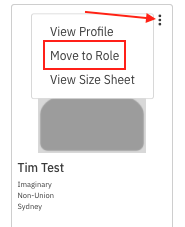
    A pop-up menu showing options for a user named "Tim Test" on a profile card. An arrow points to a vertical three-dot icon (kebab menu) on the top right of the card, which opened the menu. The options in the menu are "View Profile," "**Move to Role**" (highlighted with a red box), and "View Size Sheet." The user's name is "Tim Test," and below it are the labels "Imaginary," "Non-Union," and "Sydney."

  2. A window will appear asking where you want to send them. Choose which project and role you'd like to move the talent to and select Move.
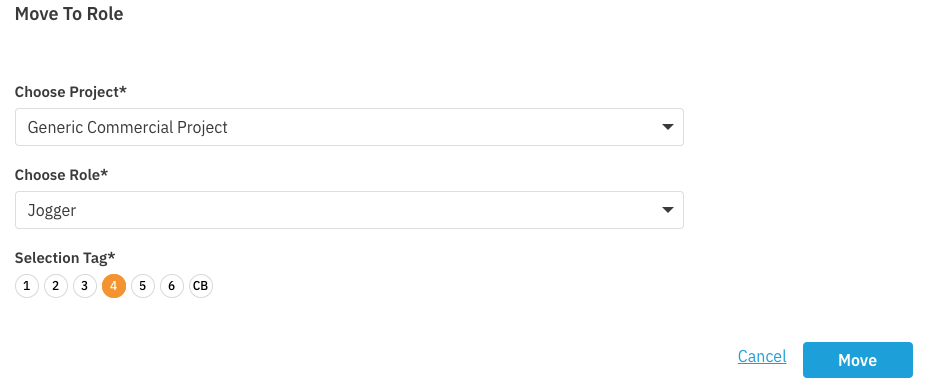
    A screenshot of a user interface dialog box titled "**Move To Role**". It contains three required fields:  1.  **Choose Project***: A dropdown menu currently showing "**Generic Commercial Project**". 2.  **Choose Role***: A dropdown menu currently showing "**Jogger**". 3.  **Selection Tag***: A group of circular buttons labeled **1** through **6**, followed by a **CB** button. The number **4** is highlighted with an orange background, indicating it is selected.  At the bottom right are two action buttons: **Cancel** and an active blue **Move** button.


Was this article helpful?

Sorry about that! Care to tell us more?

Thanks for the feedback!

There was an issue submitting your feedback
Please check your connection and try again.