
How do I download a report?
This article is for Talent Representatives and Casting Directors. It will guide you through the process of downloading and saving reports from your account as a PDF file across different web browsers.
How to Download a Report
You can save any report page as a PDF directly from your web browser. Follow the instructions below for your specific browser.
Google Chrome
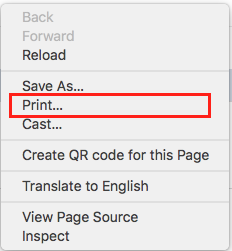
Right-click anywhere on the report page to open the menu.
Select "Print...".
Next to Destination, make sure Save as PDF is selected.
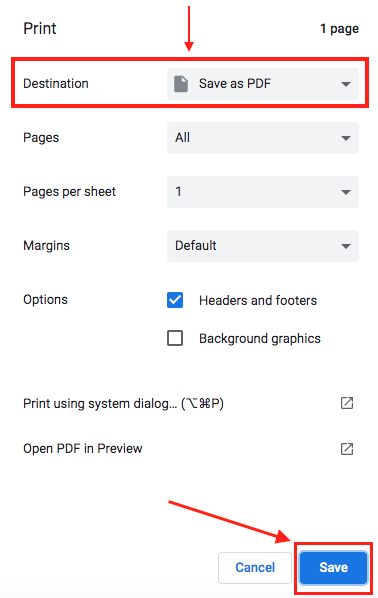
Click the Save button to download the report to your computer.
Safari
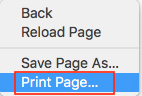
Right-click anywhere on the report page to open the menu.
Choose the Print Page option.
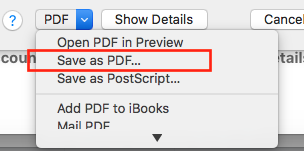
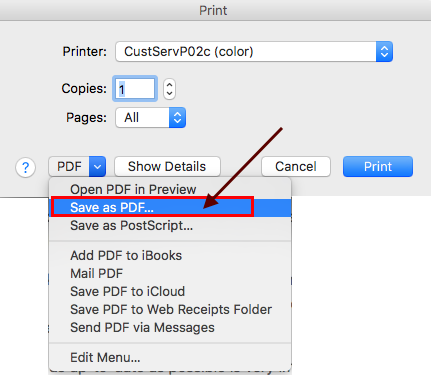
Click the dropdown menu near the bottom of the window that reads "PDF".
Select Save as PDF.
Firefox
Navigate to the menu at the top-right corner of the browser (three horizontal lines).
Select Print...
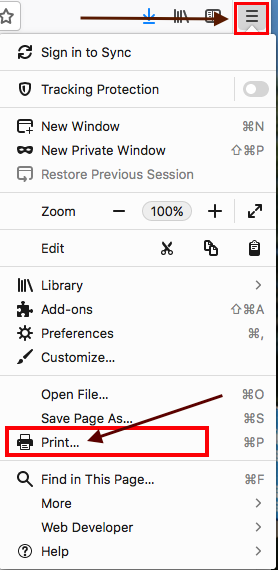
In the print options, click the Destination dropdown and select Save to PDF to download your report.
Frequently Asked Questions (FAQs)
What should I do if I can't view a report because of a pop-up blocker?
If a pop-up blocker is preventing you from viewing a report, you will need to adjust your browser's settings to allow pop-ups from our site. Here are the steps for each major browser:
Google Chrome
On your computer, open Chrome.
At the top right, click the three vertical dots (More), then click Settings.
Under "Privacy and security," click Site settings.
Click Pop-ups and redirects.
You can either allow all pop-ups or add our website to the "Allowed to send pop-ups and use redirects" list.
Safari
Open Safari.
Under the Safari drop-down menu in the top menu bar, click Settings (or Preferences).
Select the Websites tab at the top.
In the left-hand menu, click on Pop-up Windows.
Find our website in the list of currently open websites and change the dropdown next to it from "Block" to "Allow".
Firefox
Open Firefox.
Click on the menu button (three horizontal lines) in the top-right corner and select Settings.
In the left-hand menu, select Privacy & Security.
Scroll down to the Permissions section.
Next to "Block pop-up windows," click the Exceptions... button.
Enter our website's address (e.g., www.castingnetworks.com) and click Allow.
Click Save Changes.