How do I find my saved passwords in a web browser?

Edited

This article is for any user who needs to find a password they have previously saved in their web browser. It provides instructions on how to locate your saved passwords in common browsers like Google Chrome, Safari, and Firefox.


Google Chrome

If you are using Google Chrome to save passwords (either on a computer or phone), you can go to passwords.google.com to access your saved passwords.

Google Chrome (Browser)

  1. Go to the three dots on the top right corner of the browser.

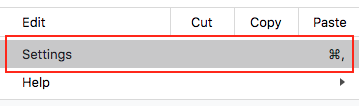
  2. Scroll down and select Settings.

    A screenshot of a software menu with the "Settings" option highlighted, showing its keyboard shortcut as Command-comma (⌘,).

  3. Go to the Autofill section and select Passwords.
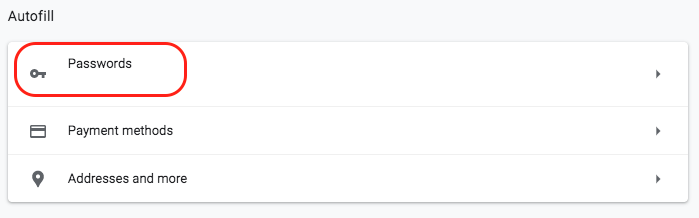
    A screenshot of an "Autofill" settings menu, showing options for "Passwords," "Payment methods," and "Addresses and more." The "Passwords" option is highlighted with a red rectangle.

  4. Tap the eye icon to the right of the passwords to reveal the saved password.

    A simple, gray "show" or "view" icon, stylized as an eye, typically used to reveal hidden text like a password.

Google Chrome on iPhone

  1. Open up the Chrome app on your phone.

  2. Go to the menu in the bottom right corner and select Settings.
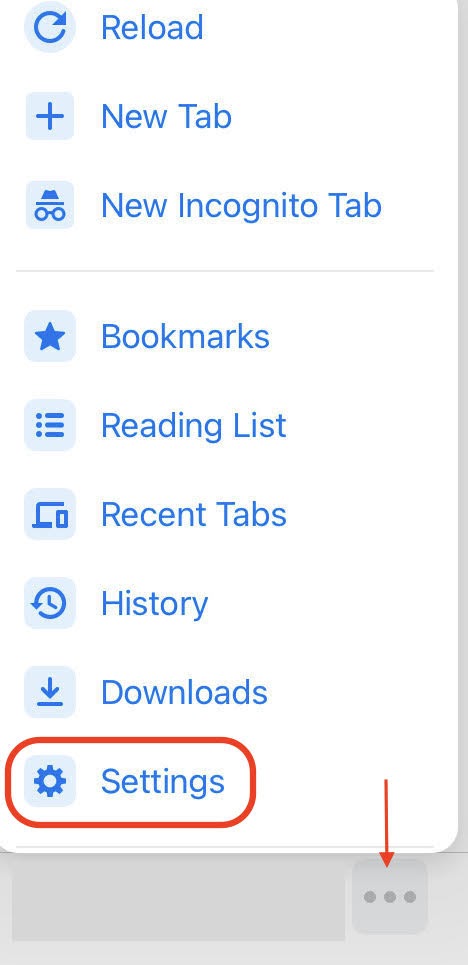
    A screenshot of a web browser's menu, with the "Settings" option circled in red. A red arrow points down to the three-dot icon that opens the menu.

  3. Go to Passwords.

    A settings menu option labeled "Passwords," preceded by a yellow key icon, and showing its status as "On" on the right.

  4. Scroll or search to find the website you’re looking for and select the eye icon to reveal the password.

  • Please note: you may need to enter your phone passcode to see the password.

    A password field labeled "Password" with the hidden password shown as dots, and a blue "show password" eye icon circled in red on the far right.

Safari

Safari (Browser)

  1. Go to Safari in the top left corner, then Preferences.
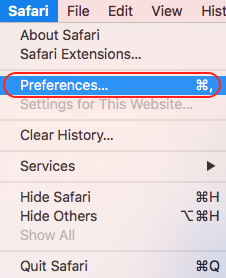
    A screenshot of the Safari menu with the "Preferences..." option highlighted, showing its keyboard shortcut as Command-comma (⌘,).

  2. Go to Passwords.

    A simple icon labeled "Passwords" featuring a silver key above the text.

  3. To view a saved password, click on a website in the list.

  • Please note: You may need to enter in your computer’s password to see passwords.

Safari on iPhone

  1. Go to the Settings app on your iPhone.

    The iOS Settings app icon, showing interlocking gray mechanical gears on a light gray, rounded-square background.

  2. Scroll down and select Passwords.

  • Please note: you may need to enter your phone passcode to see the password.
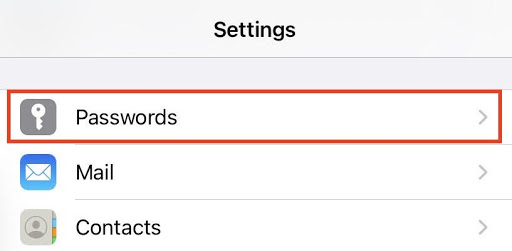
    A screenshot of the iOS Settings menu, with the "Passwords" option highlighted by a red rectangle.

  1. Select the website of the password you’re looking for.

  2. Your saved password is listed.

Firefox

Firefox (Browser)

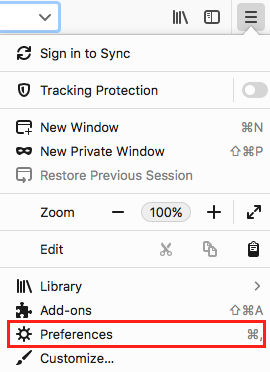
  1. Go to the browser menu (three horizontal lines) on the top right corner.

    A gray hamburger menu icon, consisting of three stacked horizontal lines.

  2. Go to Preferences.

    A screenshot of a browser's main menu, with the "Preferences" option highlighted by a red rectangle, showing its keyboard shortcut as Command-comma (⌘,).

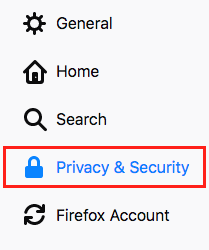
  3. Go to Privacy & Security.

    A screenshot of a settings navigation menu showing "General," "Home," "Search," "Privacy & Security," and "Firefox Account." The "Privacy & Security" option is highlighted with a red rectangle.

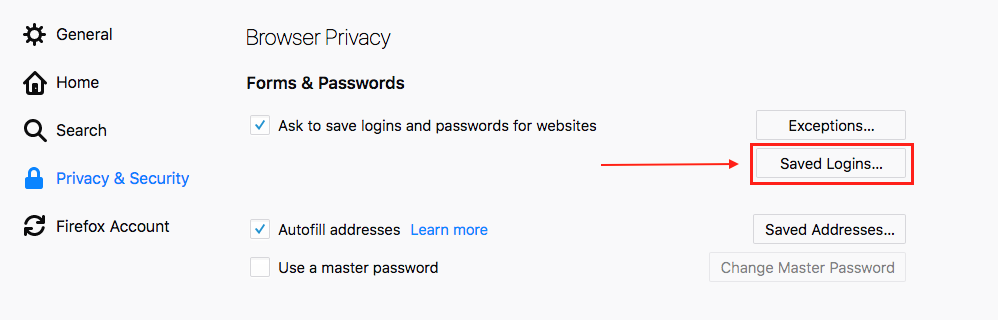
  4. Go to Saved Logins…

    A screenshot of a browser's "Privacy & Security" settings page, under the "Forms & Passwords" section. A red arrow points to the "Saved Logins..." button, which is highlighted with a red rectangle.

  5. Select Show Passwords to see any saved passwords on Firefox.
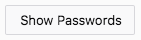
    A screenshot of a light gray button with the text "Show Passwords".

Was this article helpful?

Sorry about that! Care to tell us more?

Thanks for the feedback!

There was an issue submitting your feedback
Please check your connection and try again.