PROJECT CREATORS: How Do I Update the Name and Date of an Audition?
This article explains how to edit the name and date of your schedule.
How do I update the date of an audition?
To update the date of an audition, please follow these steps:
Click on Schedules below the project name.
Click on the schedule for which you would like to change the date.
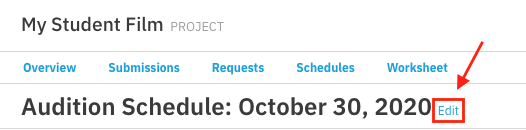
Click on Edit by the schedule name at the top.
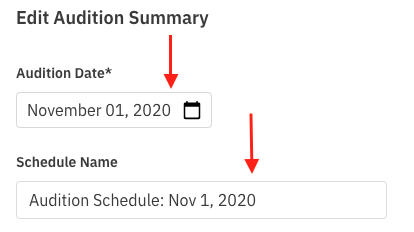
Click on the calendar icon and select a new date.
Click Save.
Make sure you send times to all talent to ensure that they are notified of the date change.
Note: Changing the date of a schedule will not automatically update the audition information for any of your roles. This will also not change the name of the audition schedule.
How do I update the name of an audition?
The name of the schedule will not automatically update if you update the audition date.
If you are updating the audition date, we recommend you also update the name of the schedule to match.