PROJECT CREATORS: How do I share talent profiles with others using Share Selects and Share Talent links?

Edited

This article explains the difference between Share Selects Links and Share Talent Links, and how to create and share them with people outside the Casting Networks system.


Share Selects Links

If you want to create a shareable link of the talent you've selected after the initial submission review, the Share Selects Link is the perfect tool.

How to Create a Share Selects Link

  1. While reviewing submissions, mark the talent you like with a selection tag (1-6, CB). These are internal tags that only your casting office can see.

    Row of seven circular buttons, numbered 1 through 6, and a final button labeled "CB". The button with the number 1 is highlighted in orange, while the others are light blue outlines with blue numbers/letters.

  2. Once you've assigned a selection tag (a number under the profile headshot), the profile will automatically move into the Selects folder.

  3. Navigate to the Selects folder.

  4. At the bottom-right of your screen, click the Share Selects button to create the link.
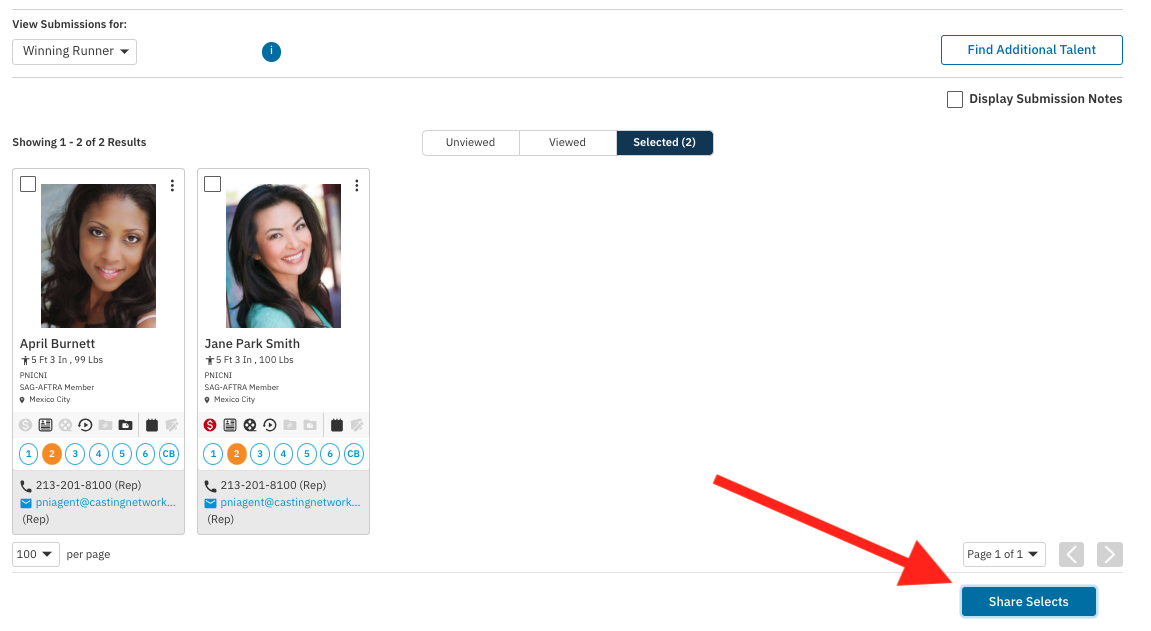
    An image of a casting or talent submission platform interface. The screen displays a "Selected (2)" tab active and shows two headshots with corresponding candidate profiles side-by-side for **April Burnett** and **Jane Park Smith**.  Each profile shows: * A headshot. * Basic stats like height, weight, union status (PNCNI, SAG-AFTRA Member), and location (Mexico City). * A row of circular numbered buttons (1-6) and a "CB" button, with button **2** highlighted in orange on the first profile and button **5** highlighted in orange on the second. * Contact information (phone and email for their representative). * A navigation bar at the top allows viewing submissions for "Winning Runner" and has a button to "Find Additional Talent". * In the bottom right, a prominent blue button labeled **"Share Selects"** is highlighted by a large red arrow pointing to it. * Below the profiles, pagination controls are visible: "100 per page" and "Page 1 of 1" with navigation arrows.

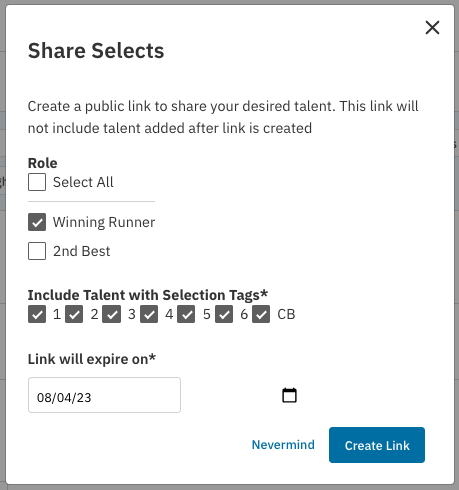
  5. A prompt will appear where you can:

    • Select which talent to include based on their Role and selection tag number.

    • Set a date for the link to expire on.

    create link.png

  6. Select Create Link.

  7. A new window will pop up showing the link you've created, along with a handy Copy URL to Clipboard button.
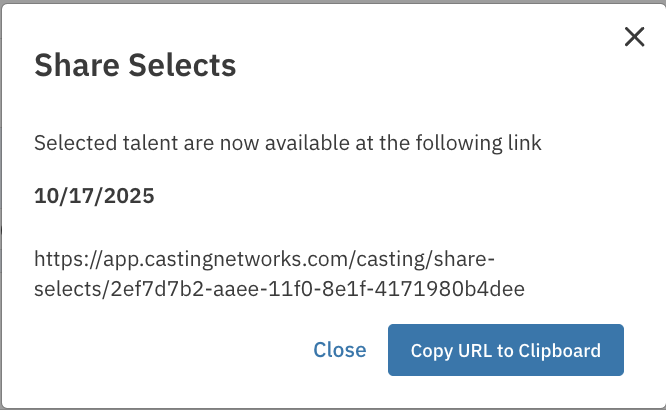
    A pop-up modal titled "Share Selects". The text inside states, "Selected talent are now available at the following link" followed by the date "10/17/2025" and a full URL: https://app.castingnetworks.com/casting/share-selects/2ef7d7b2-aaee-11f0-8e1f-4171980b4dee. At the bottom of the modal, there are two buttons: a simple "Close" link and a prominent blue button labeled "Copy URL to Clipboard".

    • Note: The clipboard is short-term storage on your computer, not a section of our website.

  8. Once the URL has been copied to your clipboard, you can then paste the link into a web browser, an email, or a message to somebody else:

    • Right-click and select Paste.

    • Other ways to paste the link:

      • You can also hold Ctrl and press V (Command + V on a Mac) to paste.

      • On iPhone, tap the area where you want to put the link, then tap Paste.

      • On Android, touch & hold where you want to paste, then tap Paste.


Share Talent Links

After talent have been submitted, selected, and added to the worksheet, you can share them by clicking the Share Talent button at the top of the worksheet. This link is useful for creating a custom presentation of talent based on roles, selection tags, and status.

How to Create a Share Talent Link

  1. In the worksheet, click the Share Talent button at the top.

A screenshot showing part of a talent search or management interface.  ---  ### Interface Details  * **Applied Filters:** Two filters are displayed as dark gray tags with close 'x' buttons: **"Talent Type (2)"** and **"Submission Status (3)"**. * **Results Count:** The text **"Showing 1-100 of 117 Results"** indicates the number of displayed results. * **Action Button:** A prominent dark blue button labeled **"Share Talent"** is visible on the right, with a large red arrow pointing directly at it. * **Table Header:** A partial table header for the results list is visible below, with columns labeled **Name**, **Schedule**, **Tag**, **Feedback**, **Status**, and **Activity**.

  1. When you click Share Talent the following prompts will appear:

    • Name: This will appear at the top of the page on the shared link.

    • Role: You can choose to send some or all of your roles. 

      • *Note*: You must select something from this category, or your presentation will be empty!

    • Include Talent with Selection Tags: These are tags you use to group talent or indicate who you would like to call back (CB). 

      • Note: You must select something from this category, or your presentation will be empty!

    • Status: You can choose to send different talent as they progress through the casting process. 

      • Note: You must select something from this category, or your presentation will be empty!

    • Link will expire on: You can set an expiration date for your link so it will no longer be viewable after that date.
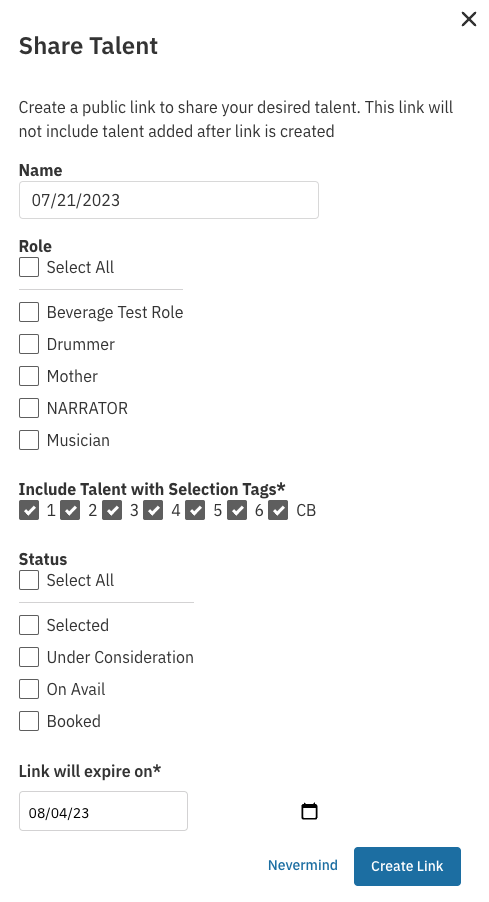
A pop-up modal titled **"Share Talent"** used to create a public sharing link.  The modal contains the following form fields and options:  1.  **Instructional Text:** "Create a public link to share your desired talent. This link will not include talent added after link is created." 2.  **Name:** An input field pre-filled with the date **"07/21/2023"**. 3.  **Role:** A section starting with **"Select All"** checkbox, followed by individual checkboxes for various roles: **"Beverage Test Role"**, **"Drummer"**, **"Mother"**, **"NARRATOR"**, and **"Musician"**. 4.  **Include Talent with Selection Tags***: A section where all selection tags (numbered **1** through **6** and **CB**) are checked. 5.  **Status:** A section starting with **"Select All"** checkbox, followed by individual checkboxes for different talent statuses: **"Selected"**, **"Under Consideration"**, **"On Avail"**, and **"Booked"**. 6.  **Link will expire on***: An input field pre-filled with the date **"08/04/23"** next to a calendar icon.  At the bottom of the modal, there is a **"Nevermind"** button/link and a prominent blue button labeled **"Create Link"**.

  1. Once you have decided on all the parameters you’d like to share, click Create Link.

  2. This will bring up a window that shows the link you’ve created, plus a handy Copy URL to Clipboard button.
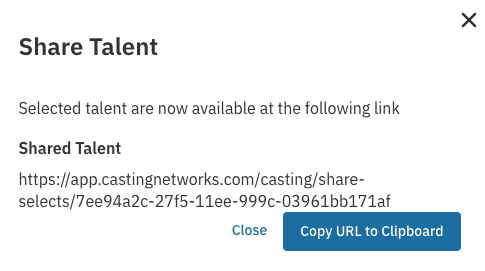
A pop-up modal titled **"Share Talent"** displays the confirmation that a public link has been created. The text reads: "Selected talent are now available at the following link" followed by the title **"Shared Talent"**. The URL for the shared talent is: `https://app.castingnetworks.com/casting/share-selects/7ee94a2c-27f5-11ee-999c-03961bb171af`. At the bottom, there is a **"Close"** link and a prominent blue button labeled **"Copy URL to Clipboard"**.

  • Note: The clipboard is short-term storage on your computer, not a section of our website.

  1. Once the URL has been copied to your clipboard, you can then paste the link into a web browser, an email, or a message to somebody else:

    • Right-click and selecting Paste.

    • Other ways to paste the link:

      • You can also hold Ctrl and press V (Command + V on a Mac) to paste.

      • On iPhone, tap the area where you want to put the link, then tap Paste.

      • On Android, touch & hold where you want to paste, then tap Paste.

What the Viewer Sees

When you or whomever you’ve shared the link with views that page, they’ll see the following:

  • Project: This is the name of the project you're working on.

  • Presentation: This comes from the Name field you entered when you created the link.

  • Folders: This is where they’ll find the talent, sorted by role.

When they go into the folders, they’ll be able to see all the talent in that role and view their Casting Networks profiles.


FAQ's

What is the difference between Share Selects and Share Talent Links? 
The Share Selects Link is created directly from your Selects folder after the initial submission review and is a quick way to share your initial picks. The Share Talent Link is created from the worksheet and offers more customization options, allowing you to select talent based on role, selection tags, and casting status.

Was this article helpful?

Sorry about that! Care to tell us more?

Thanks for the feedback!

There was an issue submitting your feedback
Please check your connection and try again.