
PROJECT CREATORS: How Do I Add a Role to a Project?
This article explains how to add new roles to both new and currently active projects.
How do I add a role to a new project?
After you have entered your Project Details, the option Save Project and Add Role will appear at the bottom of the page. Clicking this automatically takes you to the role creation page.
Please note that if this button cannot be selected, there is information within a required field that is missing.

After you have created your role, you can either Save and Go to Project Overview or Save and Add Another Role. Selecting Save and Add Another Role takes you to a new role creation page.
Please note that if either of these buttons cannot be selected, there is information within a required field that is missing.

If you choose to Save and Go to Project Overview, you will have the option to submit your project for approval by our approvals team.

How do I add a role to an existing project?
Navigate to the Project Overview.
Go to your project Overview tab and select New Role.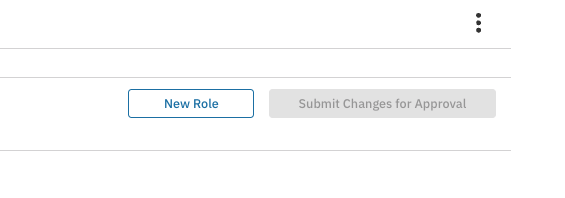
After you have created your role, you can either Save and Go to Project Overview or Save and Add Another Role. Selecting Save and Add Another Role takes you to a new role creation page.
Please note that if either of these buttons cannot be selected, there is information within a required field that is missing.

If you choose to Save and Go to Project Overview, you will have the option to submit your project for approval by our approvals team.

Please note: Project approval hours are from 9:30am to 6:00pm Monday — Friday local time. Projects are reviewed in the order they are received, typically within one business day. Any projects submitted after 6:00pm Friday will not be reviewed until Monday.