PROJECT CREATORS: How do I sort and organize my Projects List page?
This article explains how to use the sorting and organizing features to manage this list.
Filters
At the top of the page, you will see a Filters feature. This allows you to filter your view by Project Type and Series.
You also have the option to search for specific projects by any part of the project name using the search bar.
Note: To view archived projects, you will need to scroll to the bottom of your list.

Sorting Columns
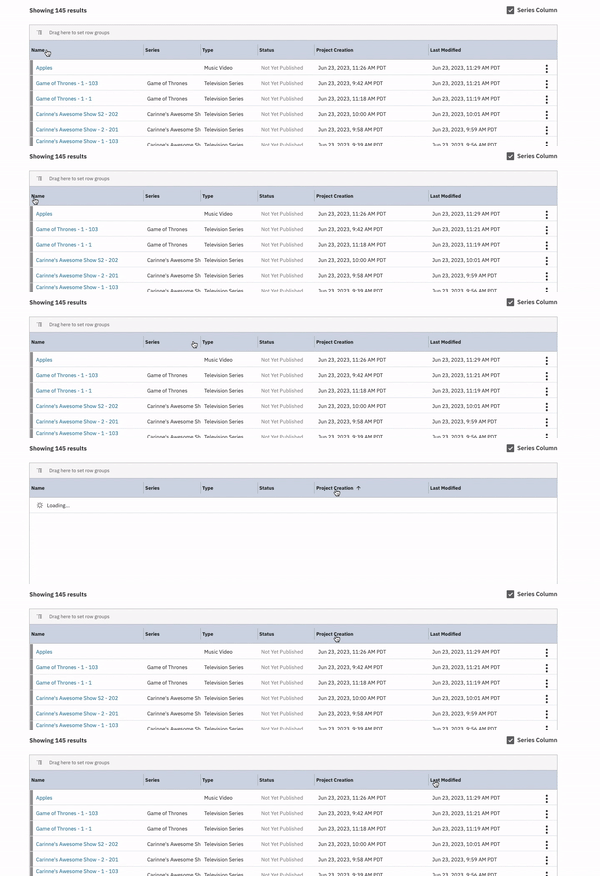
You can sort each category title by simply clicking on it. By default, the project list shows "Most Recently Modified" at the top.
You can click on the category titles (Name, Type, Series, Project Creation, and Last Modified) to cycle through the sorting options.
Name, Type, and Series
First Click: Organizes the category A-Z.
Second Click: Organizes the category Z-A.
Third Click: Returns the category to the default (Last Edited at the top).
Project Creation and Last Modified
First Click: Organizes the category Oldest-Newest.
Second Click: Organizes the category Newest-Oldest.
Third Click: Returns the category to the default (Last Edited at the top).
Grouping
You can drag and drop categories (Series, Type, and Status) to the top to sort your projects by one category at a time.
Click the header you wish to group by (e.g., "Type").
Drag the header to the area that says "Drag here to set row groups."
This will organize your projects into a drop-down menu format based on the category you selected (e.g., Commercial, Documentary, Feature Film).

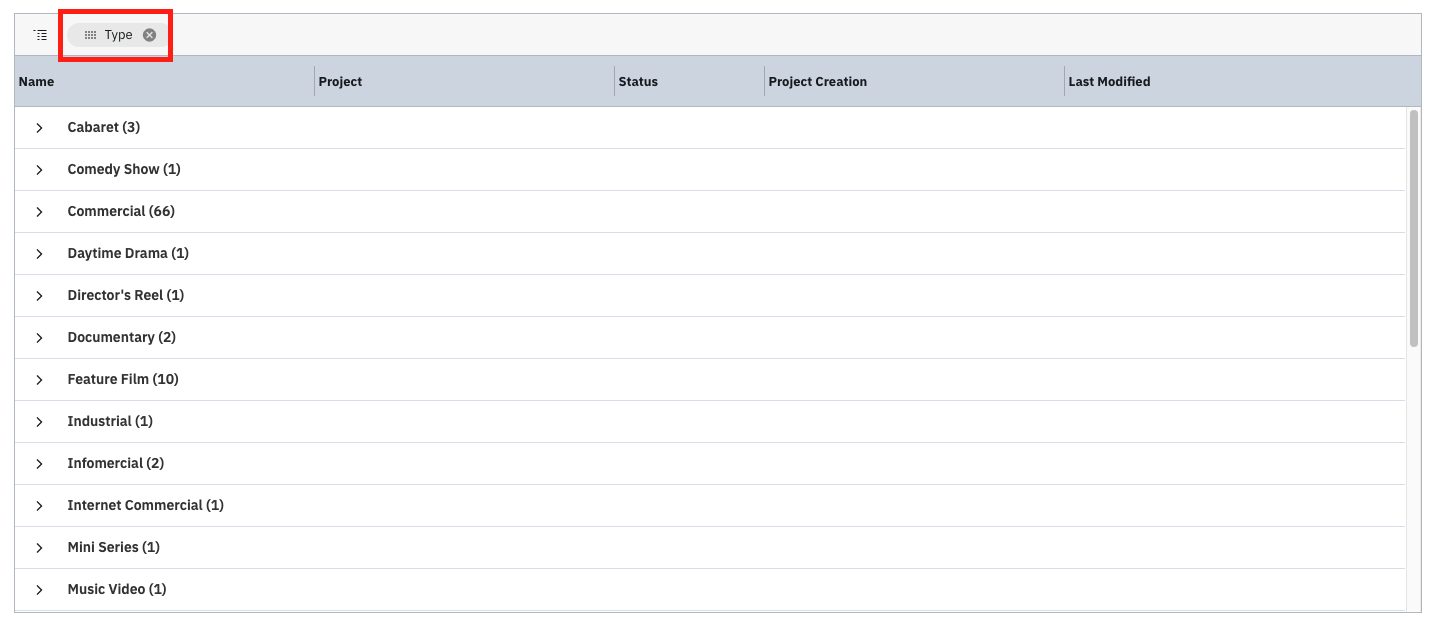
You can also drag and drop the category Status to the top to organize your projects and customize your workflow. Below is an example of the Status category:

Series
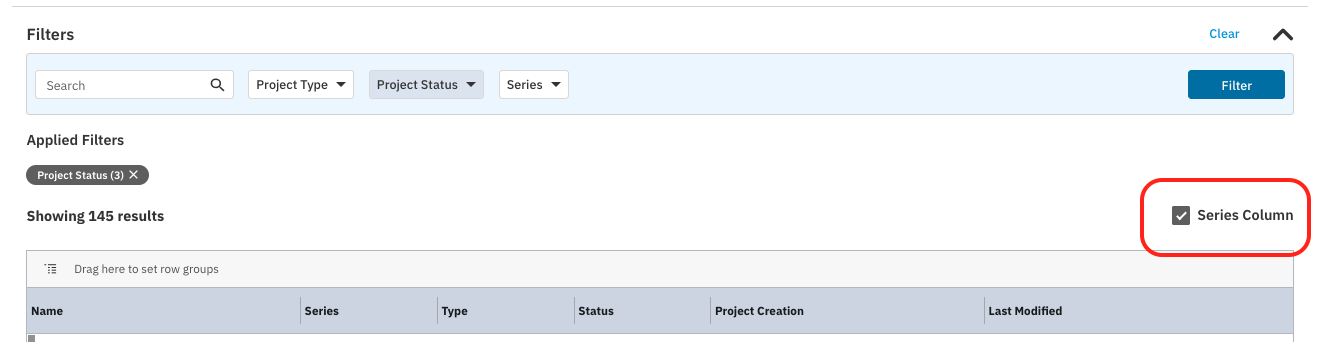
If you are casting a Television Series or Web series, you can make the Series column visible.
Locate the "Series Column" box.
Select the box to make the column visible on your list.