
PROJECT CREATORS: How do I create a Television or Web Series project?
This article is for Casting Directors and Project Creators who want to create a Television Series or Web Series project. It explains how to use the "Series Name" feature to create new series, add episodes to existing series, and organize them on your Projects List Page.
Creating a New Series
When you select "Television Series" or "Web Series" as your project type, you'll see a new field called "Series Name." This allows you to group multiple episodes under a single series title, keeping your projects organized. Here’s how to create a brand new series:
After selecting the project type as Television Series or Web Series, the "Series Name" field will appear.
Begin typing the name of your new series in the "Series Name" field. An option to Add New Series will appear in the drop-down menu. Select it.
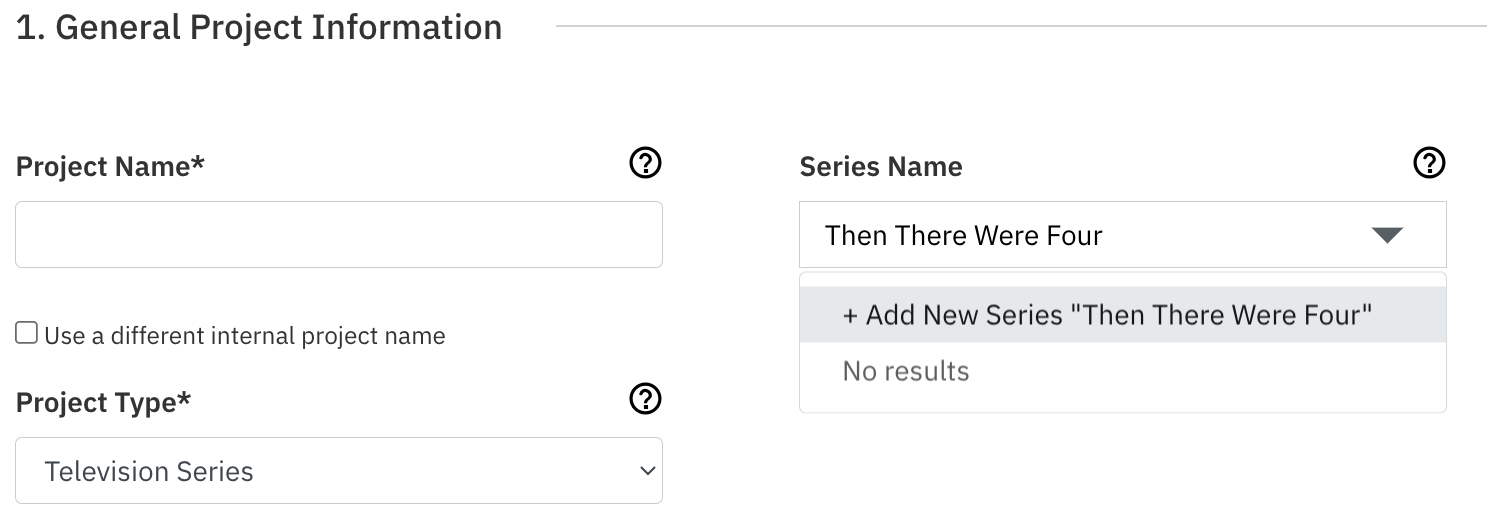
Once selected, two new optional fields will appear below: Season Number and Episode Number. You can only enter numerical digits into these fields.
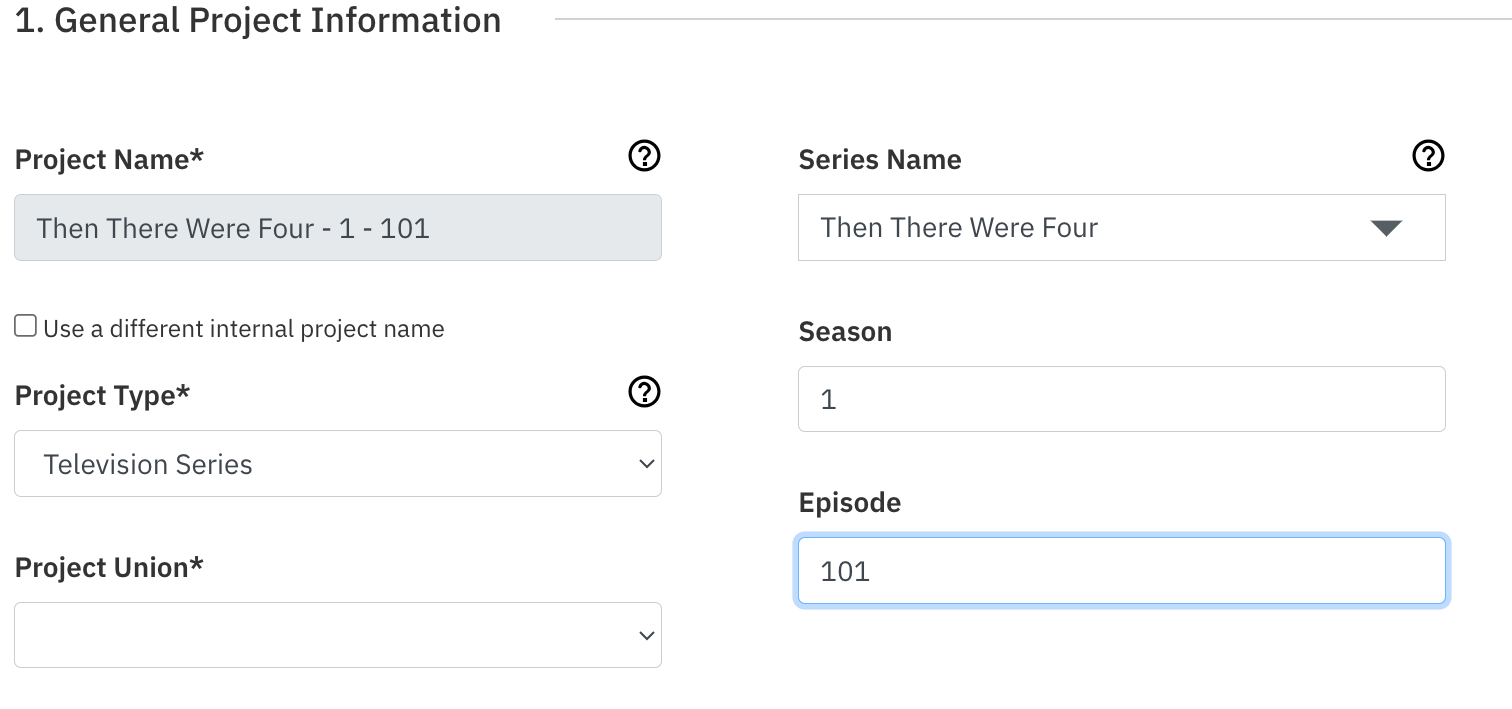
Please note: The system will automatically update the project's name to reflect the season and episode number as you type them in. All other steps for creating a new project remain the same.
Creating a New Episode for an Existing Series
You can easily add a new episode to a series you've already created. Follow these steps:
Select Television Series or Web Series as the project type.
Start typing the name of your series in the "Series Name" field. A list of your existing series will populate in the dropdown menu.
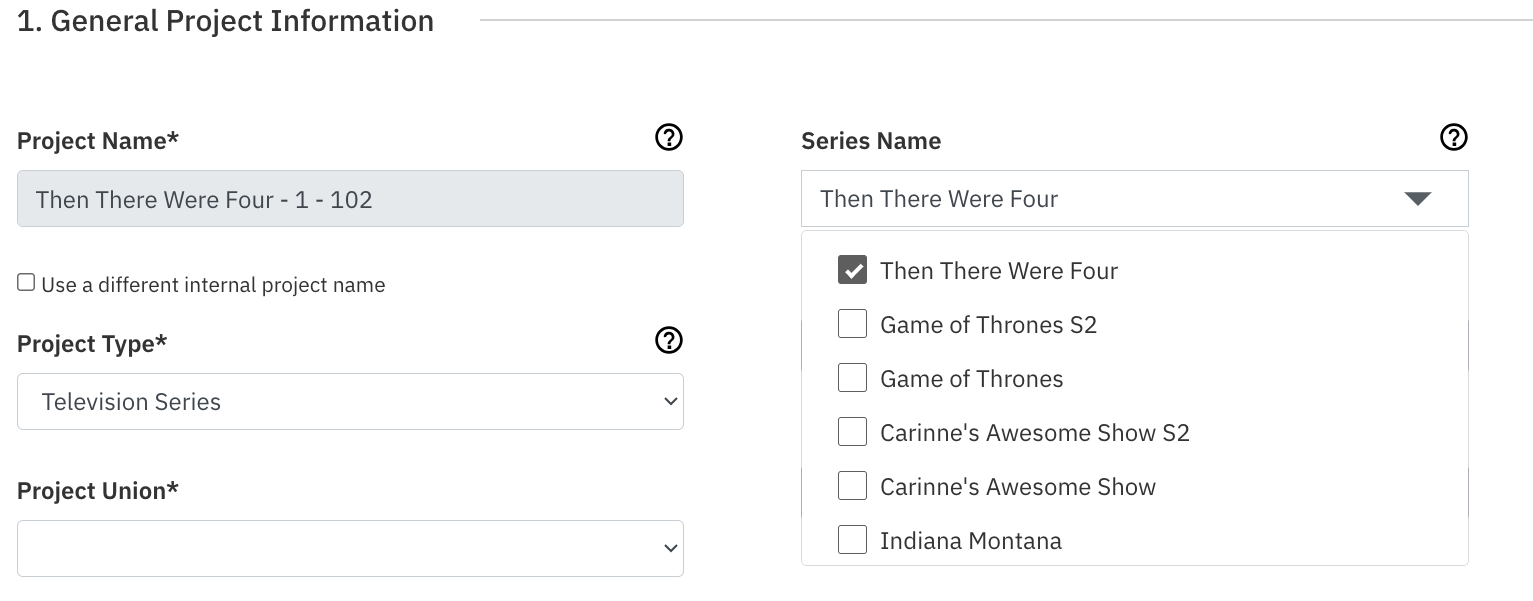
Select the correct series from the list.
The Season Number and Episode Number fields will appear. Enter the new episode's information here.
Please note: The system will automatically update the project's name to reflect the season and episode number you enter. All other steps for creating a new project remain the same.
How to View Series on the Projects List Page
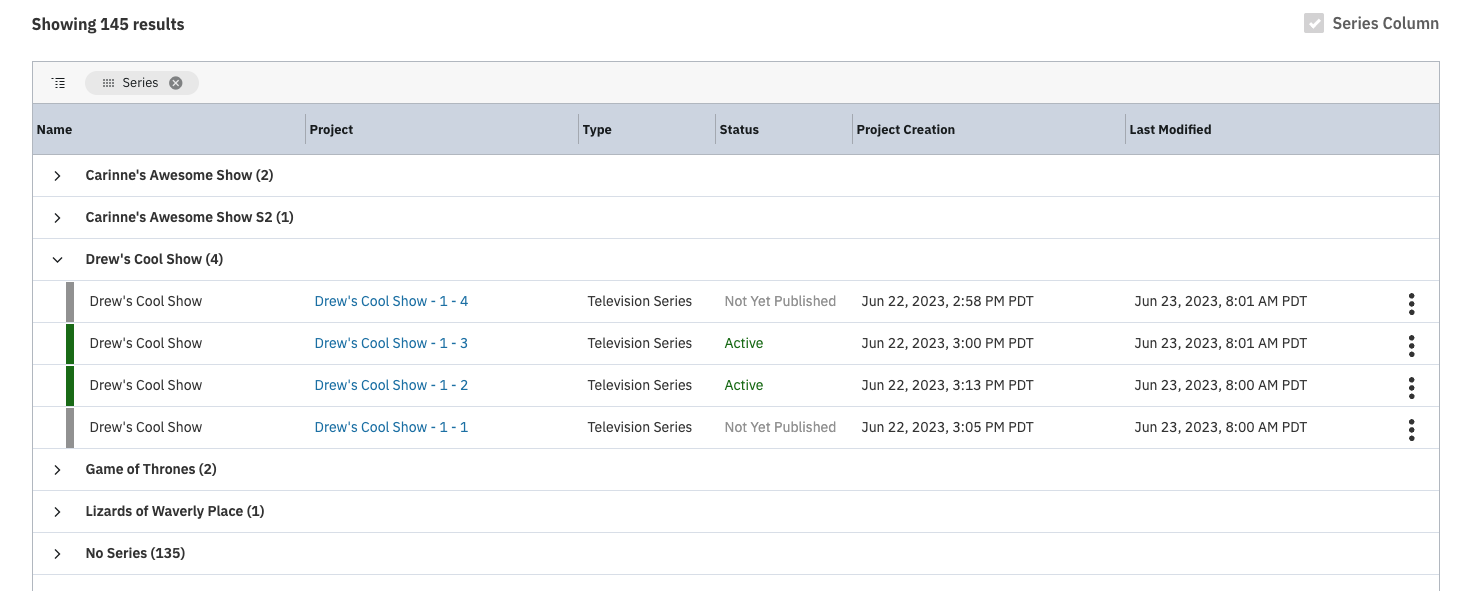
The new series feature helps you stay organized by grouping episodes together on your Projects List Page. While each episode is still its own separate project, you can view them together by following these steps:
On your Projects List Page, find and check the box that reads "Series Column" on the right-hand side.
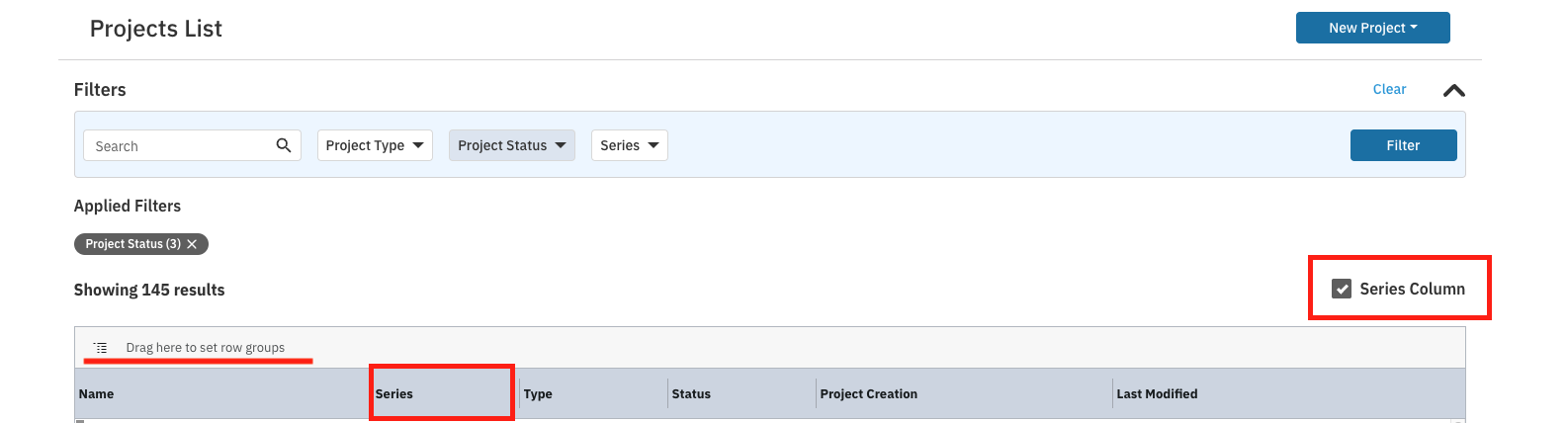
A new "Series" column will appear. Drag and drop this column to the area that reads, "Drag here to set Row Groups."
Your projects will now be grouped by series name. You can click the down arrow next to a series name to see all the episodes within that series.
Frequently Asked Questions (FAQs)
Can I edit or delete a Series Name after it has been created?
No. Currently, Series Names cannot be edited or deleted.