
TALENT REPRESENTATIVE: How do I reply to a chat message from a Casting Director?
This article is for Talent Representatives and explains how to view and reply to messages from Casting Directors. You can use the chat feature to communicate directly about audition schedules or media requests, helping to resolve any questions quickly.
How to Reply to a Chat Message from Casting
Both Casting Directors and Talent Representatives can initiate a chat message on a specific request. Follow these steps to reply to a message sent by Casting:
Go to the Worksheet tab.
If casting has sent a message regarding a talent, you will see a red message bubble on the chat icon under the 'Your Response' column.
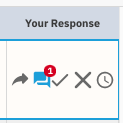
Click on the icon to view the message and reply. Press Send when ready to send your message to casting.
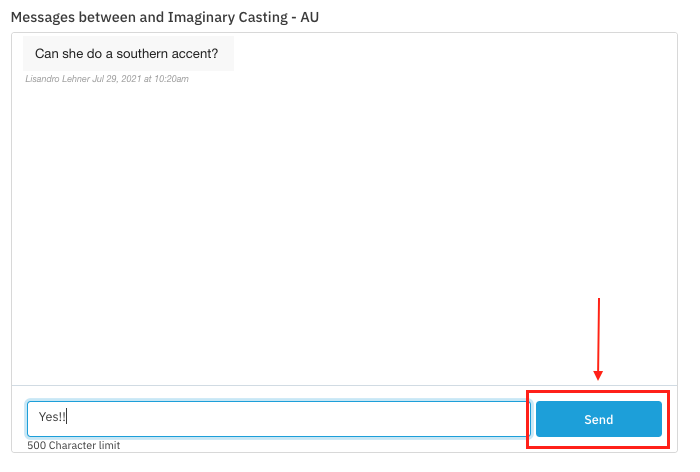
Once sent, you will see your message along with a timestamp underneath.
How to Initiate a Chat Message with Casting
If you need to send a message to casting first regarding a request, you can do so from the Worksheet.
Click the Chat Icon at the bottom of the request.

This allows reps and casting to communicate about a media request, especially when there are situations that affect a talent’s availability.
How to Turn On Email Notifications for New Chat Messages
You can ensure you are notified via email whenever you receive a new chat message by adjusting your settings.
Select your name in the top right corner of the screen.
Hover over Account Settings and choose Notification Settings.
Scroll to chat notifications and select the check box next to email notifications.
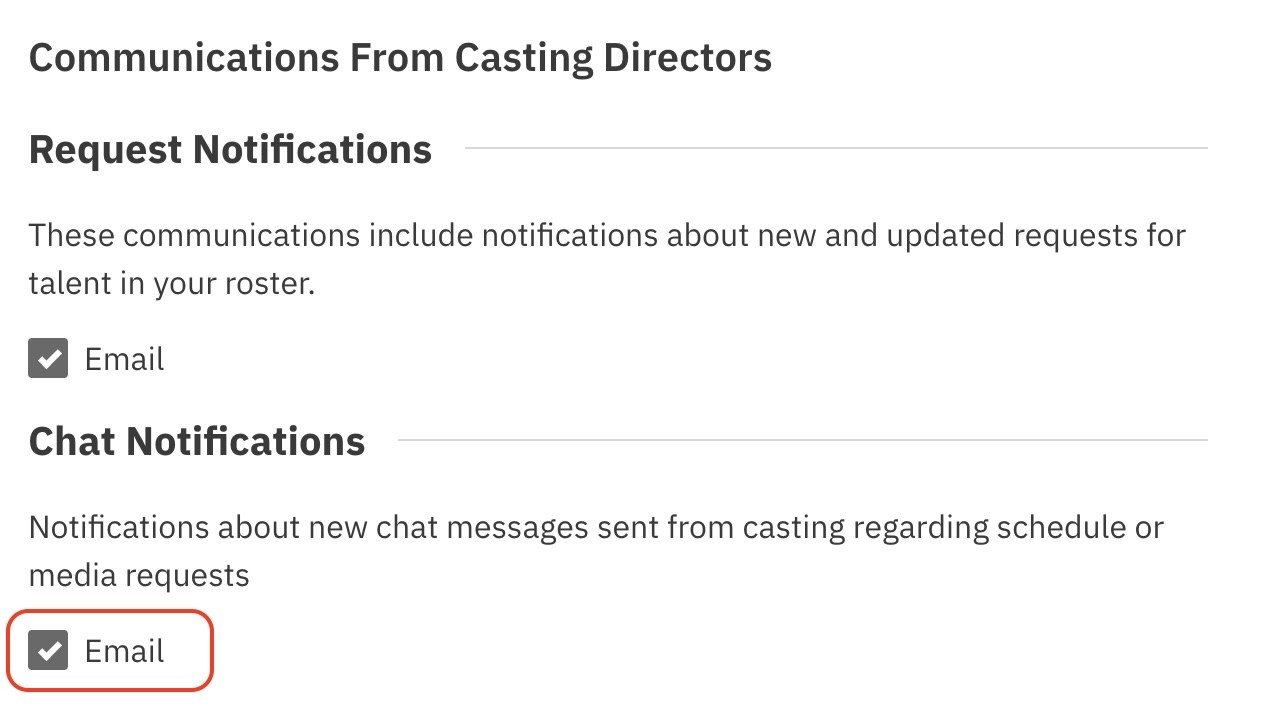
For more information, check the video example below: