Section Five: Worksheet
The Worksheet is where all Auditions, Callbacks and Requests land once casting has distributed them.
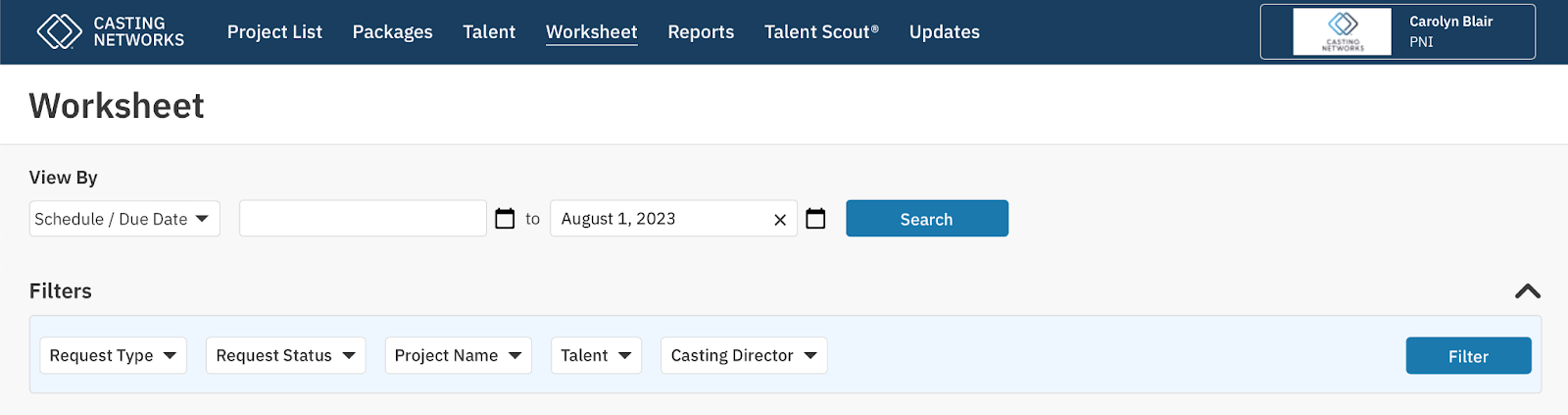
5.1 - View By
When the representative navigates to the Worksheet the default View By is Scheduled / Due Date, the current date, with 2 weeks trailing.
If the user would like to see “Received Date,” they can do so via the dropdown
5.2 - Filters
Filters are “sticky” meaning once the representative has established the filters for the working session, when they navigate to another page on the site and back, the filters set will remain.
Request Types:
Audition
Generally in-person or virtual
Callback
Generally in-person or virtual
Question
Casting office has a question for talent
Media
Self Tapes
Request Status
Action Required
New Request
Rescheduled
Review Response
Pending
Change Requested
On Hold
Pending Request
Completed
Canceled Request
Completed Request
5.3 - Grouping/Sorting
Representatives have the ability to Sort the Worksheet by; Type Status, Talent, Project, and Date. Simply click on the name of which you wish to sort. Additionally, with talent and Project, representatives have the ability to group them together.
Group Talent: Grouping by talent allows the representative to see all Requests for a specific talent.

Group Project: Grouping by Project allows the representative to see all Requests for a specific Project.

5.4 - Forwarding to Talent
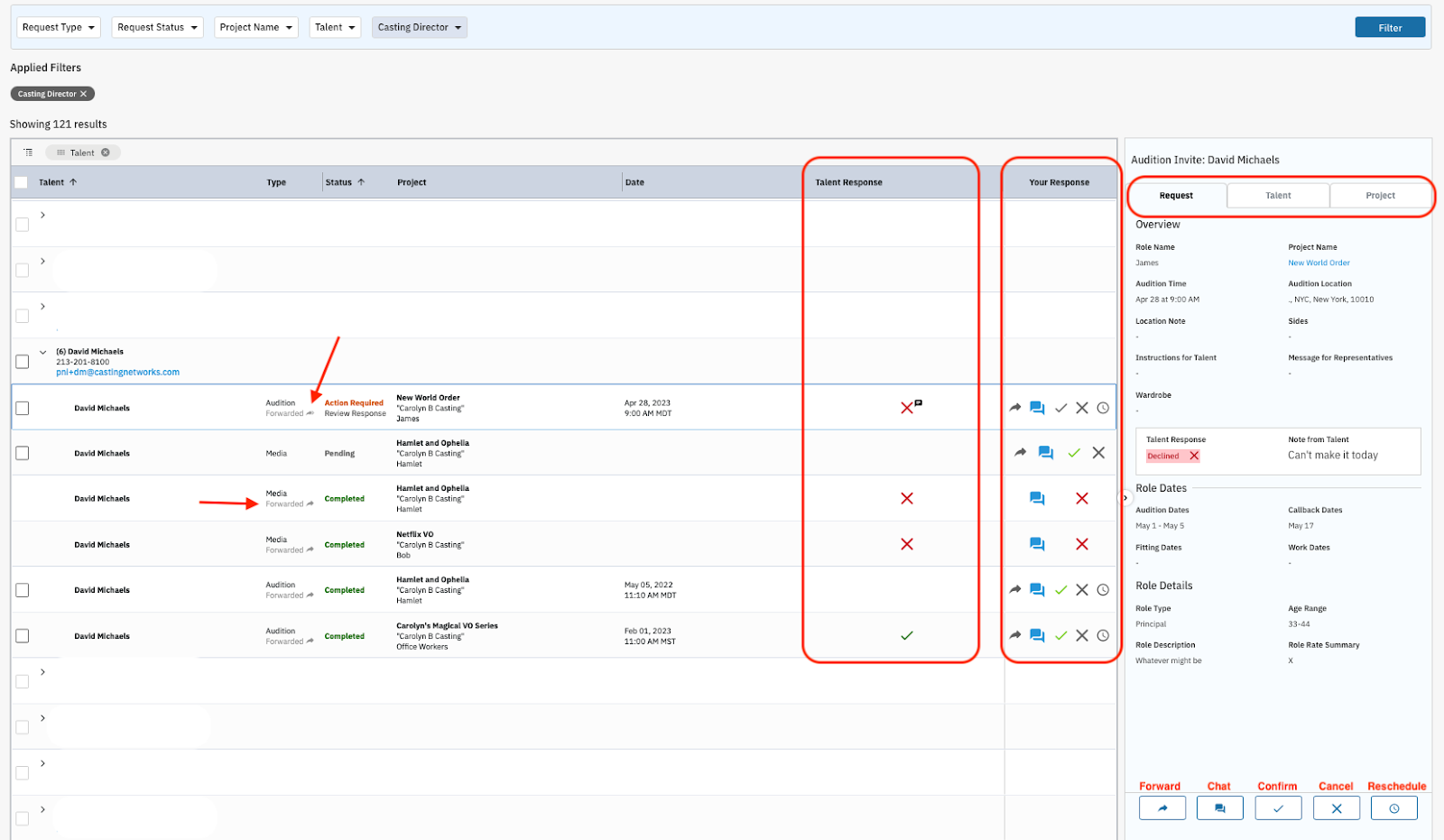
Once the representative has received the Request from casting they need to distribute the Request to the appropriate talent. To do so, select the talent by clicking on the appropriate row.
The row will be outlined by a blue box
Details will populate on the right
Forward the notice to talent by clicking on the Forward icon
5.5 - Talent Response
If talent “Confirms” a Media, Audition or Callback request, the confirmation goes directly to the casting office.
If talent “Cancels” a Media request, that cancellation goes directly to the casting office.
If talent “Cancels” an Audition or Callback request, that cancellation DOES NOT go directly to the casting office.
Reasoning, we want the representative to be aware of the cancellation as it might be an opportunity they do not want the talent to miss.
5.6 - Your Response
The representative has the ability to Confirm, Cancel or ask for a timeframe on behalf of the talent.
5.7 - Worksheet Icons
Forward a Request:
Representatives can forward to an individual talent or to a group.

Once the request has been forwarded once, a indication will appear under the Type. If the request has been forwarded multiple times, additional little arrows will appear. Additionally, in a hover state, you can see the specific number of times sent.

Chat with Casting:
Chat is between the casting office and the representative. When there is a communication a little red bubble will appear with the number of messages . Once the message has been read, the number will disappear.


Representatives can opt into receiving notifications about new chat messages sent from casting regarding schedule or media requests.
This can be found within Account Settings, and Notification Settings.
Confirm & Cancel a Request:
Reschedule an Audition or Callback request:
If talent can not make the scheduled time and is requesting a different time.


Talent can add a note as to why they are requesting a reschedule.