Section Four: Submitting Talent to a Role
To access a Project/Role you wish to submit talent to, from the Projects page click on the name of the project.
4.1 - Project Overview
Specifics about the project; rate, usage/run, etc.
4.2 - Roles Accepting Submissions
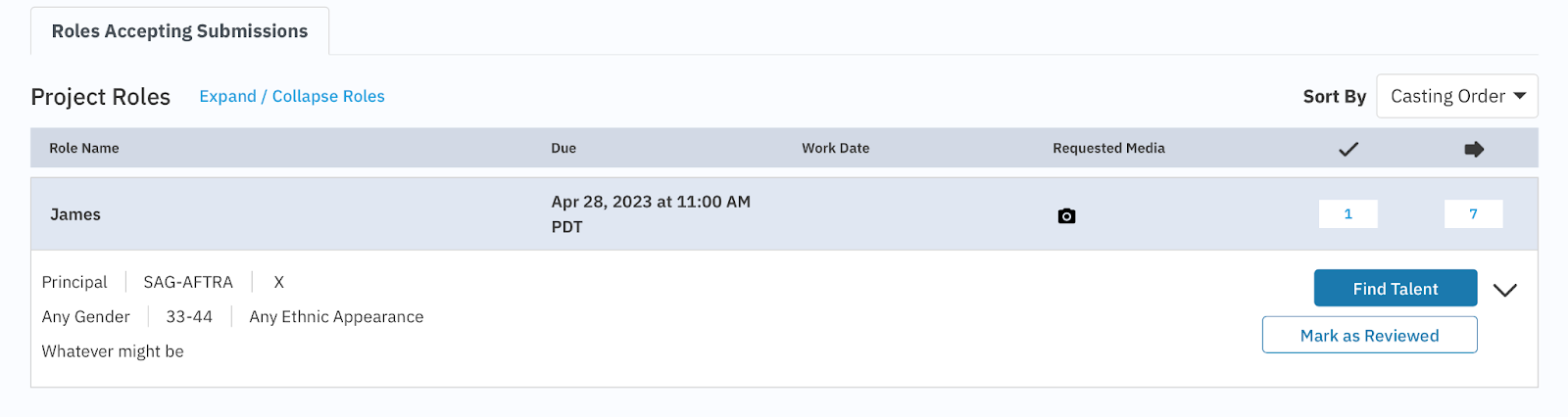
Sort By
Casting Order; the order in which casting published the roles
Newest First
Oldest First
Role Name
Due
When Casting is requesting submission.
Work Date
Actual working dates for the project/role.
Requested Media
Casting has the ability to request media at the time of submission. If they have done so, then a little media related icon will appear.
Submission media only, does not indicate a media request.
# of Talent Selected
Number of talent selected for the role, these talent have not yet been submitted
# of Talent Submitted
Number of talent submitted for the role.
Please be advised, talent can be unsubmitted from a role as long as Casting has not viewed the submission.
4.3 - Submitting Talent
To submit talent to a role, click “Find Talent”
This will bring the representative into the Select and Submit section. This is where they can view more details on the role, Rate Details specific to the Role, Dates and Location information, and Submission information; such as Requested Media type and Media Instructions.
Initially, the entire roster will load, you can then. “Auto Fill by Role Criteria” or filter however you need.
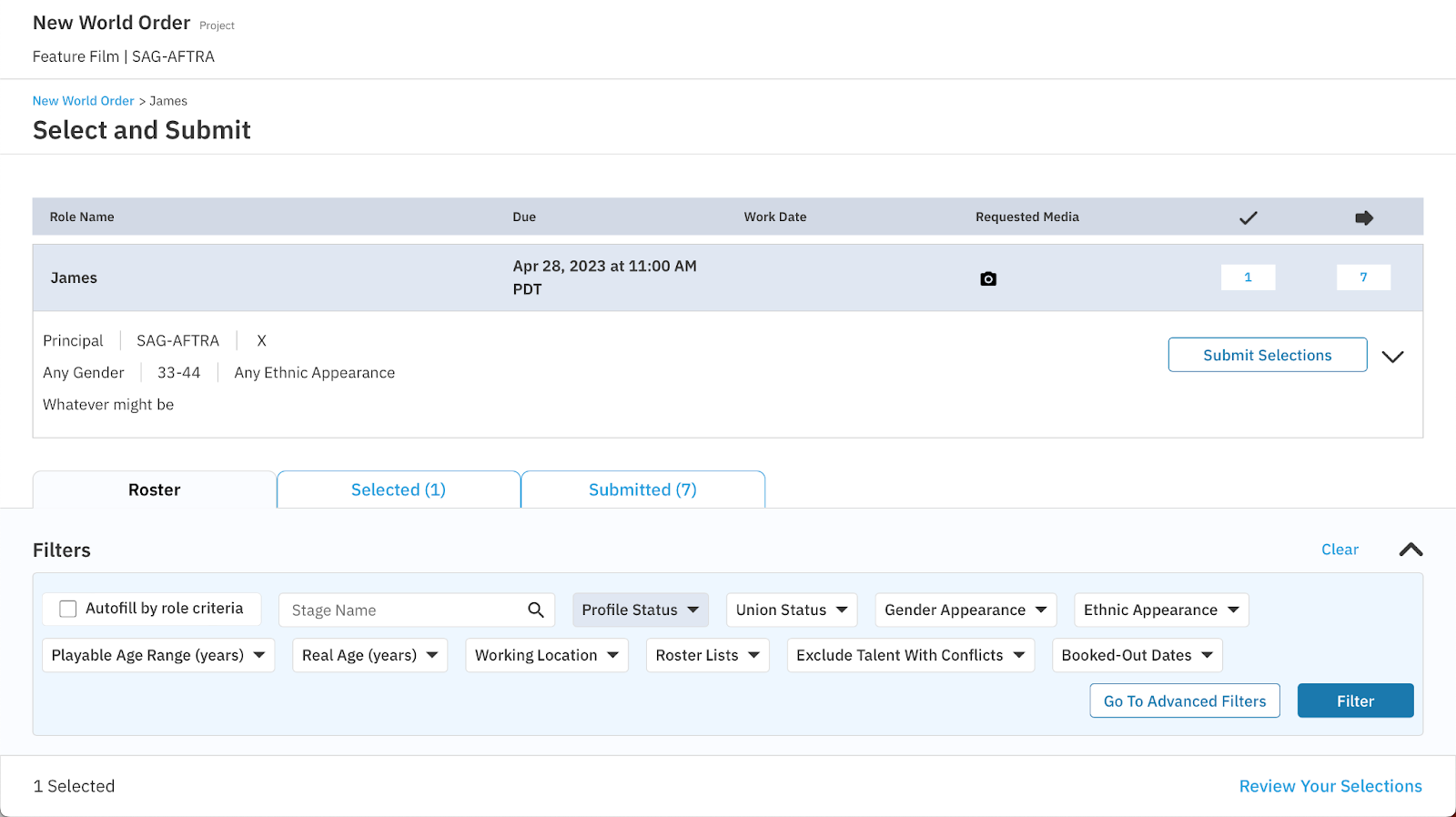
Autofill by Role Criteria; this adds filters for specifics Casting is looking for
Project Union Status
Playable Age Range
Working Location
Gender or Ethnic Appearance
If a representative wishes to NOT use Autofill by Role Criteria, they can Filter any way they would like or not filter at all and see their entire roster.
Looking for specific Skills or sizes? Using ‘Advanced Filters’ is a great way to search for them.
Once a representative has selected talent to Submit, they’ll have the ability to “Customize” each submission before submitting to Casting.
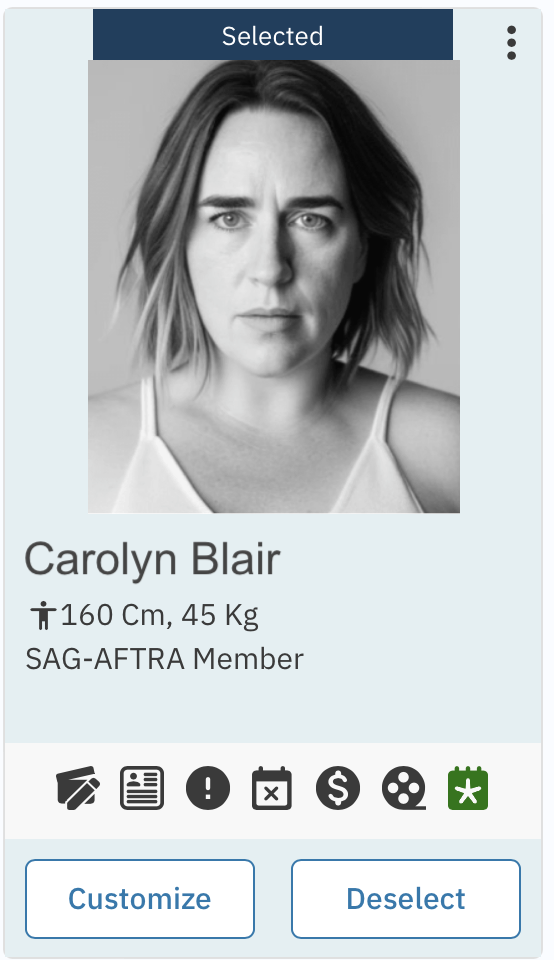
These customizations will only apply to the current submission, the talent’s profile will not be affected.
Customizations;
Media options; Set a primary photo, include or hide media you don’t wish casting to see
Add Requested Media
Add or edit a Submission note
Indicate Overscale Status
Now that the representative has Selected talent and Customized submissions, click “Review Your Submissions” to see all talent selected for the role.
When ready to submit the Role, click “Submit Selections.”
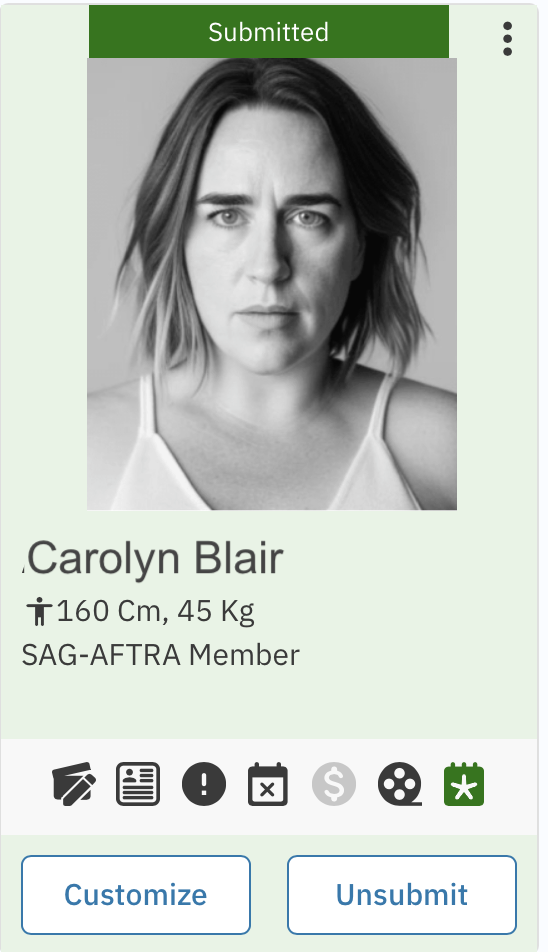
Once the profiles have been submitted, they will appear on the Submitted tab, with a ‘Submitted’ green banner
Please be advised that talent can be unsubmitted from a role as long as casting has not viewed the submission.