
TALENT REPRESENTATIVES: Where are my account settings and how do I switch between different company divisions?
This article will guide you through using the Account Navigation Menu to switch between divisions and access your detailed Account Settings, where you can manage personal details, notifications, and organizational permissions.
What is the Account Navigation Menu?
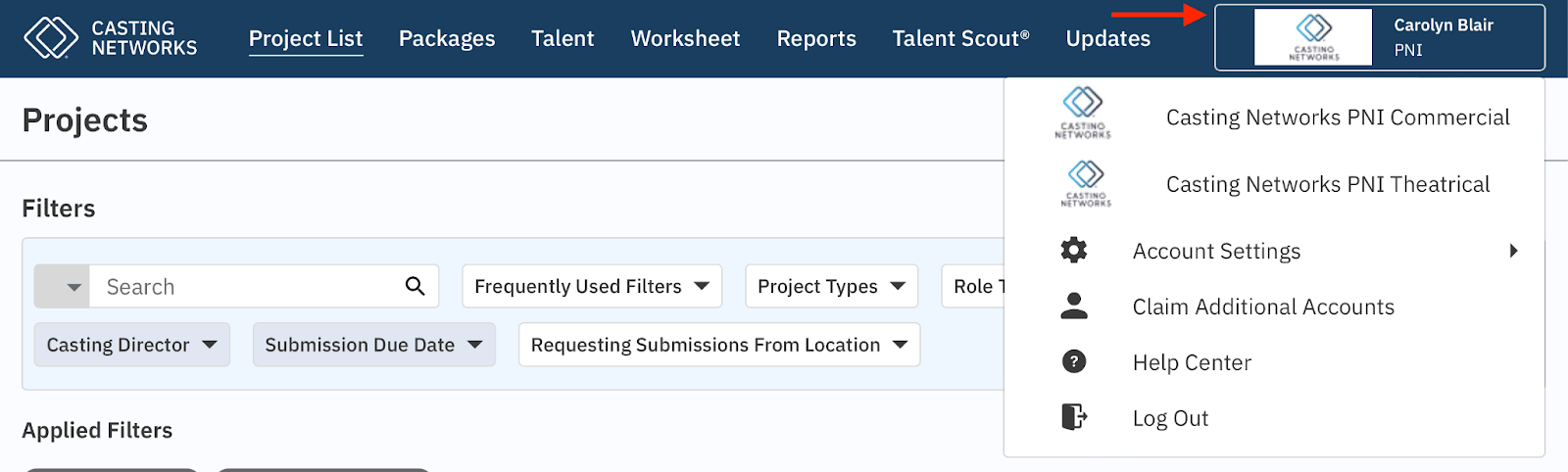
The Account Navigation Menu is a consistent feature in the top navigation bar, regardless of which page you are currently viewing.
It is where a representative or user who has access to multiple divisions can switch between those divisions.
This menu also provides access to your Account Settings and the Help Center.
What is included in Account Settings?
Within Account Settings, you will find options to manage your account details and notification preferences:
Account Details: This section contains your specific user account information.
Notification Settings: This is where you can choose what kind of notifications you wish to receive via email, including:
Project Notifications
Communication from casting directors about projects
What are the Administrative settings?
Administrative settings are only visible and editable by users with Admin permissions. These settings affect the entire organization, not just the individual user, and include:
Gate Media Requests (Media Only):
When this option is selected, any talent responses to forwarded Media Requests must be reviewed by someone in your organization.
Note: If the Request is a Question Request, the representative must copy and paste the response back to casting. This workflow for a Question Request remains the same regardless of whether Media Gating is on or off.
Profile Management:
Lock Age Range: When selected, talent will not have the ability to view or update the age range on their represented profile.