
TALENT REPRESENTATIVE: What kinds of reports are available & how do I generate a report?
This article is for Talent Representatives who need to generate reports on projects and talent. It provides a breakdown of the different reports available and step-by-step instructions on how to create and view them.
What kinds of reports are available & how do I generate a report?
You can generate several types of reports to track project submissions and manage your roster's media. The main categories are Project Reports and Talent Reports.
Project Report
Project Overview Report
Choose Project Report from the Report Type dropdown menu.
Select Project Overview Report.
Select the desired project from the Project dropdown menu.
Customize your report by choosing a talent status (Selected Talent or Submitted Talent) and selecting one or more roles.
When you are ready, click the View Report button.
Project Submission Report
Choose Project Report from the Report Type dropdown menu.
Select Project Submission Report.
Select the desired project from the Project dropdown menu.
Customize your report by choosing a talent status (Selected Talent or Submitted Talent) and selecting one or more roles.
When you are ready, click the View Report button.
Theatrical Project Overview Report
The Theatrical Project Overview Report presents project information in the standardized format used across the Film & Television industry.
The report includes project details at the top and individual role details below.
Only roles that are visible to you at the time of generation will appear in the report.
Once generated, the report opens in a new tab.
Here is how you will access it:
Choose Project Report from the Report Type dropdown menu.
Select the Theatrical Project Overview radio button.
Select the desired project from the Project dropdown menu.
When you are ready, click the View Report button.
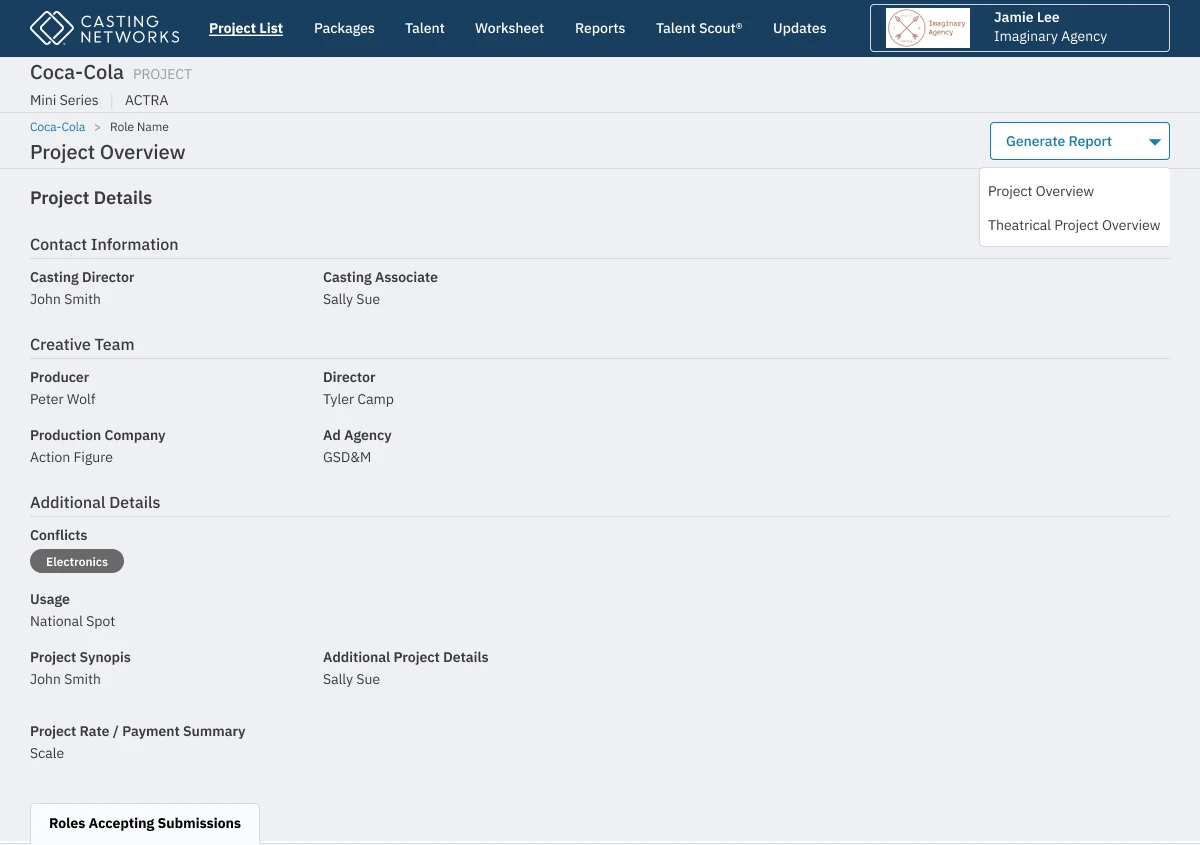
You will also be able to access this report directly from any project's Overview page, where it will appear as a selectable report option alongside the Project Overview Report.
Talent Report
Choose Talent Report on the Report Type dropdown.
Type the talent's stage name in the Stage Name search box to find the talent.
Select the date range for the report.
When you are ready, click the View Report button.
Roster Media Usage Report
This report shows the media upload usage and availability for all active talent on your roster, based on each talent's membership level. This includes hidden profiles but excludes former clients.
The report will display the following information for each active talent:
Stage Name
Talent Account Email (displayed beneath the stage name)
Media Allocation: For Premium or Essential members, this displays "Unlimited Media". For Free/Basic members, it shows credits used out of the total available (e.g., "2/2 Photos, 1/1 Videos, 1/1 Audio").
Media Uploads Remaining: This is broken into separate columns for Photo, Video, and Audio. For Premium or Essential members, this displays "Unlimited". For Free/Basic members, it shows the number of remaining uploads for each media type.