
TALENT REPRESENTATIVE: How do I add a default submission note for my talent?
This article explains how talent representatives can add a default submission note to a talent's profile on Casting Networks. Setting a default note ensures that specific information is automatically included with every submission, helping you save time while ensuring consistency. You will still have the option to edit this note for individual roles if needed.
Steps to Add a Default Submission Note
To set up a standard note for your talent, please follow the instructions below:
Click Talent in the top navigation bar.
Enter the talent’s stage name and click Filter.
Click Edit Profile below the talent’s photo.
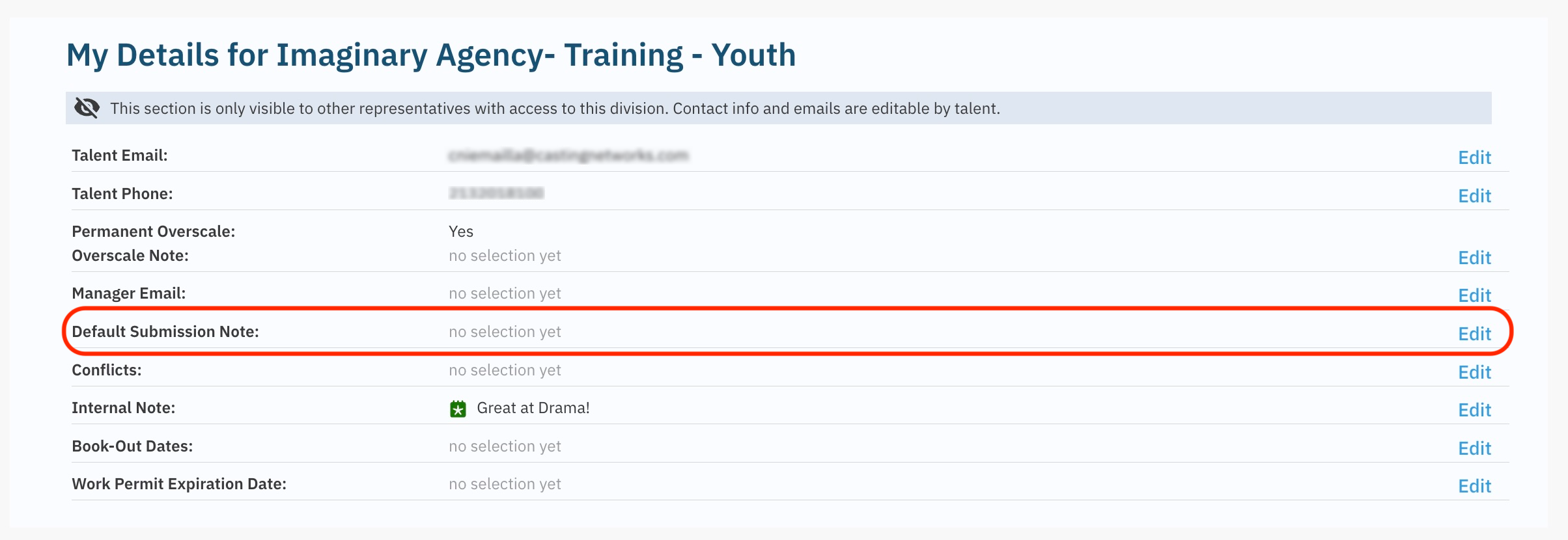
Scroll down to the section labeled Details for (your company’s name).
Click Edit to the right of Default Submission Note.
Enter in the submission note and click Update Profile.
Helpful Tips and Shortcuts
Automatic Inclusion: If a profile has a default submission note, this note will automatically be sent with each submission.
Customization per Role: You can change the default note for a specific role while customizing the submission. For more details, please refer to our article on how to customize submissions.
Quick Access: You can also edit a talent’s profile when selecting or submitting talent. Click the overflow menu (⋮) for any talent and select Edit Profile.