
TALENT REPRESENTATIVE: How do I manage Talent's details such as conflicts, booked out dates, and overscale status?
Keeping your roster up to date is crucial for a smooth workflow. This article explains how Talent Representatives can update specific profile details for their clients, including logging conflicts, scheduling booked out dates, and setting permanent overscale status. These tools help you keep track of your talent's availability and requirements efficiently.
How can I indicate my client's conflicts?
To indicate conflicts on a talent’s profile, follow these steps:
Click Talent in the top navigation bar.
Click Filter.
Enter the talent’s stage name and click Search.
Click Edit Profile below the talent’s photo.
Scroll down to the section titled Details for (your company’s name).
Click Edit to the right of Conflicts.
Select the appropriate options from the Conflicts drop-down menu.
Click Save Changes.
Note: You can also edit a talent’s profile when selecting or submitting talent. Click the overflow menu (⋮) for any talent and select Edit Profile.
How can I indicate that my client is booked out?
You can manage your roster's availability by using the booked out feature. Talent marked as booked out will still appear in your roster and will not be hidden.
Click Talent in the top navigation bar.
Click Filter.
Enter the talent’s stage name and click Search.
Click the booked out icon (calendar icon) below the talent's main photo.
Choose a date range or individual date to book out talent. Multiple dates or date ranges can be added to a talent’s profile.
Select + Add Date.
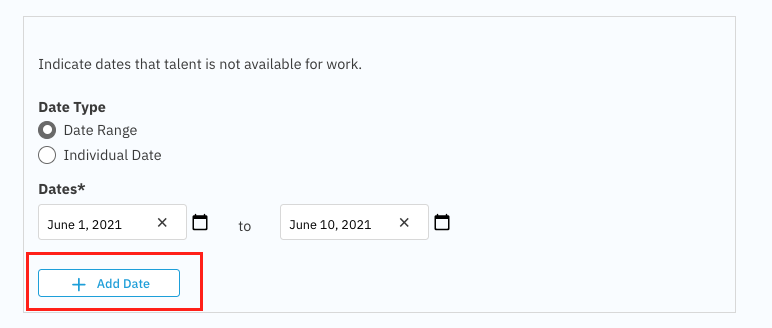
When you have finished adding all dates, select Done.
To view a talent's booked out dates, simply hover over the calendar icon.
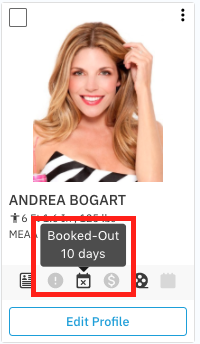
Important details regarding Booked Out status:
Book-out dates on a profile are for your internal reference only.
Casting Directors will not see these book-out dates.
You will still be able to submit talent to projects.
Talent profiles will still appear in searches even if they are marked as booked out.
How can I indicate that my client is permanently overscale?
If your talent should be marked overscale for every role when submitted, you can set this on their profile.
Click Talent in the top navigation bar.
Click Filter.
Enter the talent’s stage name and click Search.
Click Edit Profile below the talent’s photo.
Scroll down to the section titled Details for (your company’s name).
Click Edit to the right of Permanent Overscale.
Select Yes. (You also have the opportunity to add a note here.)
Click Update Profile.
Note: Talent who are marked as permanently overscale will be marked overscale for every submission automatically. However, this can be updated manually when customizing a specific submission.