
TALENT REPRESENTATIVE: How do I create, manage, and filter Roster Lists?
This article is for Talent Representatives who want to better organize their roster. It explains how to create custom lists of talent, add or remove talent from those lists, and use them to filter for submissions or messaging. Creating Roster Lists helps you group specific talent together for easier management.
How do I create a new list and add talent?
To create a roster list, follow the steps below:
Go to the Talent tab and select Roster Lists.

Select + Create a New List.
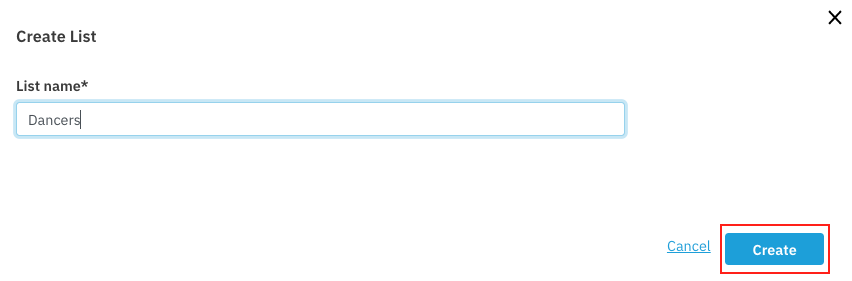
Name your list, then select Create.
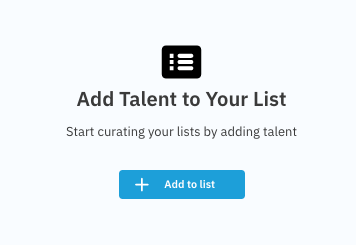
Click into the list you have created, and select + Add to list to start adding talent.
Under the talent's photo, select Add to List.

How do I add or remove talent from an existing list?
To add or remove talent from an existing list, follow the steps below:
Go to your Roster List and select the name of the list you want to edit.
To add more talent:
Click on the Add Talent to List button on the top right corner.

To remove talent:
Click on the Remove from List button below a talent's photo.

How do I filter by a list for a submission?
Use the Filter button to filter your roster for a submission. You are able to filter by a list or multiple lists by using the "Roster List" dropdown.
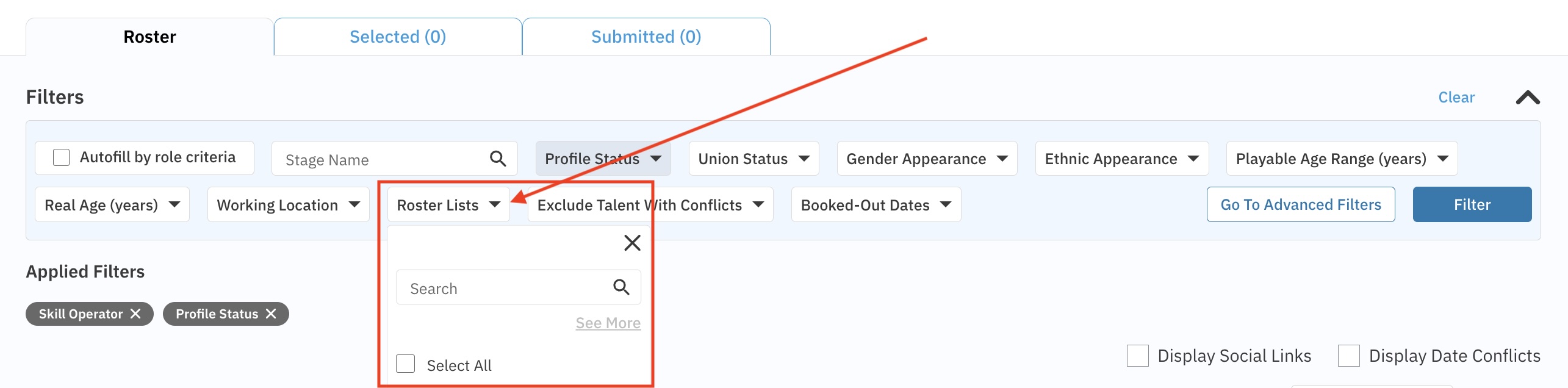
Once you have chosen the list(s) you wish to filter by, select Filter.
How do I filter by a list to contact talent?
To contact talent in a list, follow the steps below:
Go to your Talent Roster.

Select the Filter button and go to Roster Lists. Using the dropdown, choose which list(s) you want to filter by and select Filter.

Once your roster is filtered, check off the Select All button or select talent individually. Once selected, press the Contact Selected Talent button on the bottom right corner.

Type in your message and press Send when ready!