
TALENT REPRESENTATIVE: How do I submit and manage talent for roles?
This article is for Talent Representatives on Casting Networks. Here, we'll walk you through the complete process for submitting your talent to roles, customizing their submissions, and managing those submissions (including how to unsubmit, if necessary).
How to Submit Talent
Follow these steps to submit talent from your roster to a role:
Click Find Talent next to the role details. Your talent roster will appear.
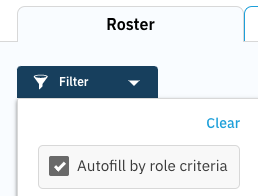
(Optional) You can filter your roster by clicking the blue Filter button to enter specifications or select the Autofill by role criteria button to quickly find matching talent.
Add talent to your selection by clicking the Select button beneath their photo.
Once you’ve finished selecting talent, click the Selected tab or Review Your Selections in the bottom right of your screen.
(Optional) On the Selected tab, you can click Customize below a talent’s photo. This allows you to choose their primary photo, hide other photos, and add details relevant to the project or role.
When you have selected and customized your selections, click Submit Selections to send them to casting.
How to Submit All Selections at Once
Navigate to the Project Details page for the project you're working on.
Proceed with your normal talent filter/review process.
Once talent has been selected in one or multiple roles, locate the "Submit All Selections" button at the top (or bottom) of the roles section.
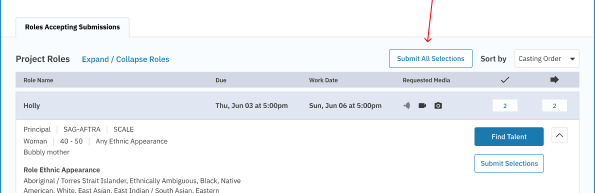
Clicking the button, a confirmation dialog will appear with the message: "You will be submitting all selected talent in all roles in this project."
Confirm the submission.
That's it! All pending selections across every role in the project will be submitted to Casting at the same time.
How to Unsubmit Talent
If you need to remove a talent's submission, follow these steps:
Navigate to the Submitted tab for the role.
Click Unsubmit below the talent’s profile.
Confirm you’d like to remove the talent by selecting Yes, Unsubmit.
Please Note: Submissions can only be removed if casting has not already viewed the profile, marked the talent as selected, or added them to a request or schedule of any kind.
Frequently Asked Questions
Can I submit talent to more than one role on the same project?
Yes, talent can be submitted for multiple roles.
Can I make changes or submit more talent *after* I submit?
Yes. You can always submit more talent to a role while casting is still accepting submissions. You can also make additional customizations to a talent's profile after they have been submitted.
What's the difference between the "Selected" and "Submitted" columns on my Projects List?
When viewing your Projects List, you’ll notice these two columns. You will see a check mark in these columns if you have at least one talent in that specific status (i.e., "Selected" by you but not yet sent, or "Submitted" to casting).
Does the "Submit All Selects" button submit talent for every role, even ones I haven't finished reviewing? The button submits all selected talent across all roles that have pending (unsubmitted) selections. Make sure your selections are finalized across all roles before clicking. Once submitted, those selections are sent directly to Casting.