
TALENT REPRESENTATIVES: How do I customize my submissions?
This article is for Talent Representatives on Casting Networks. It explains how to customize an individual submission for your talent, including how to add notes, attach specific media, and upload a new primary photo for a single submission.
How to Customize a Submission
You can customize a talent's submissions after you have selected them for a role and before officially submitting to Casting. Any changes you make will only apply to that specific submission and will not permanently alter your talent's main profile.
Navigate to the Selected tab on the project.
Find the talent whose submission you want to customize.
Under your talent’s photo, click Customize.
Customization Options
In the customization window, you have several options:
Confirm working location: If your talent has more than one working location on their profile, you can select the correct one for this role.
Attach media: Add specific photos, videos, or audio clips if requested by Casting.
Set a primary media clip: Choose which photo, video, or audio clip should appear first.
Hide media: You can hide certain photos, videos, or audio from this specific submission.
Add a submission note: Include a note for the casting director that is relevant only to this submission.
Indicate Overscale Status: Mark if your talent is overscale and add an overscale note.
Note: If your talent has a permanent submission note or is marked as permanently overscale on their profile, those fields will automatically be filled in. You can still edit them for this individual submission without changing the permanent default settings.
Changing or Uploading a Primary Submission Photo
You can either choose an existing photo from your talent's profile to be the primary photo for the submission, or you can upload a brand new one just for this submission. 📸
Changing the Primary Photo to an Existing Photo
In the "Review Profile Media" section, simply click on the photo you'd like to feature as the primary image for this submission. It will be highlighted to indicate it's the new primary photo.
Uploading a New Primary Photo for a Submission
This feature allows you to upload a new headshot or photo that is perfectly tailored to the role without adding it to your talent's permanent profile.
At the end of the photos in the "Review Profile Media" section, find the card that says Add New Primary Photo.
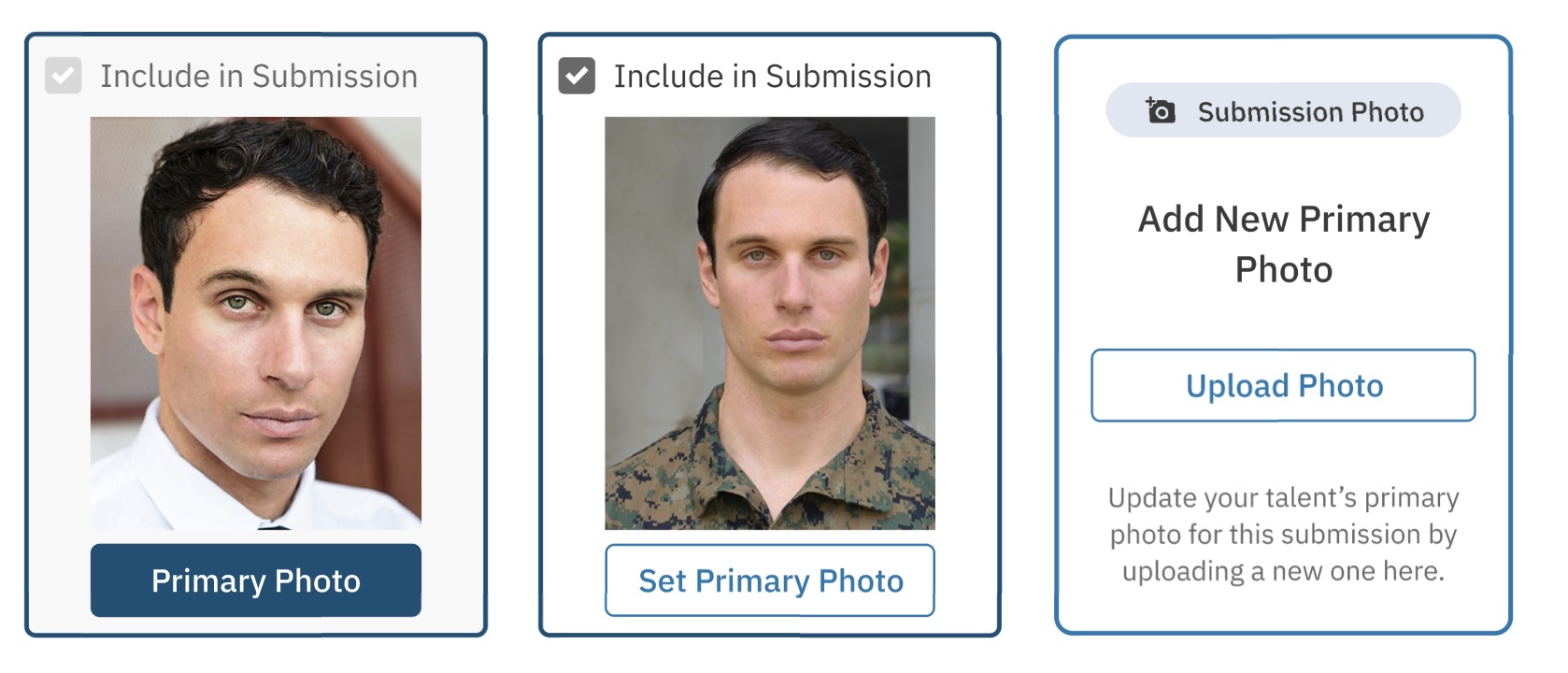
Click the Upload Photo button.
Select and upload the new photo from your device.
Important Notes About Uploading a New Photo
The uploaded photo will have a "This Submission Only" tag and will be highlighted to show it is the primary photo.
This photo will not be saved to your talent’s main media library. It only exists for this one submission.
Once you've uploaded a submission-specific photo, you cannot select a different photo to be primary unless you first delete the one you just uploaded by clicking the trash can icon.
If you delete the submission-specific photo, the primary photo will revert to the previous selection, and the "Upload Photo" option will reappear.
Frequently Asked Questions (FAQ)
Will customizing a submission change my talent's main profile?
No. All changes made in the "Customize" window—including notes, hidden media, and newly uploaded primary photos—are temporary and apply only to that single submission. Your talent's profile will not be affected.
What happens if I upload a new primary photo and then delete it before saving?
If you delete the newly uploaded photo, the primary photo designation will revert back to whichever photo was selected before. You will then be able to choose a different existing photo as the primary or upload another new one.
Where does the newly uploaded submission photo get saved?
It doesn't get saved to your talent's permanent media library or your agency's "All Talent Media" page. The photo is only attached to that specific submission.
What does the asterik next to Customize mean?
The asterisk on the Customize button indicates that the profile has been customized for the submission. Additional customizations can be made if necessary until casting has reviewed the submission.