
TALENT REPRESENTATIVES: What is requested media on a role?
This article explains how to submit requested media on a casting role when submitting talent.
What is Requested Media?
Casting Directors have the ability to request specific media directly on a published role. This requested media can include:
Photos
Video clips
Audio clips
If any media has been requested, you will see a media icon (or icons) under the “Requested Media” column for that role.

Please note: If there are no icons under the ‘Requested Media’ column, casting has not requested any media for that role.
How to Add Requested Media to a Submission
Once you’ve selected a talent to submit, click the Selected tab.
Select Customize under the talent’s photo.
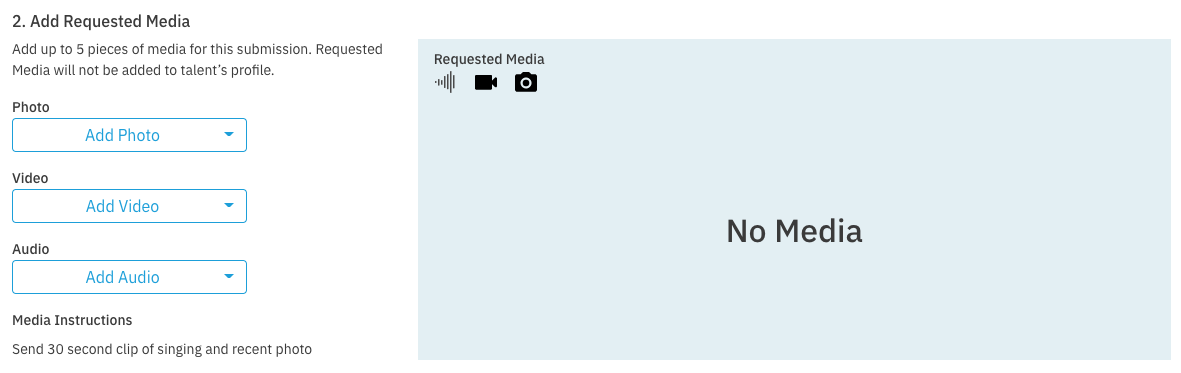
You are able to upload media directly to the submission under the ‘Add Requested media’ section.
Submission Media Limits
You are able to add up to 5 pieces of media to a single submission.
The media you upload to the submission will not be added to the talent’s profile.