
TALENT REPRESENTATIVE: How do I manage my project and role email notifications?
This article is for Talent Representatives and explains how you receive email notifications for new roles and projects. We'll cover what triggers a notification and how you can customize these settings to control which emails you get.
How You Receive Notifications
You are notified about new roles and projects by email. You can receive two main types of notifications:
An email will be sent to your email address when a new role has been released to your division.
An email will also be sent when a new role is added to an existing project.
The notification email you receive will make it clear which role (or roles) have been newly added.
How to Update Your Project Notification Settings
You can control your email notification settings, including turning them off completely or customizing which types of projects you're notified about.
Important: This will only affect your email notifications and will not change the projects you see on your Project List page.
Log in to your account and select your name in the top-right corner.
From the drop-down menu, select "Account Settings."
On the Account Settings page, select "Notification Settings."
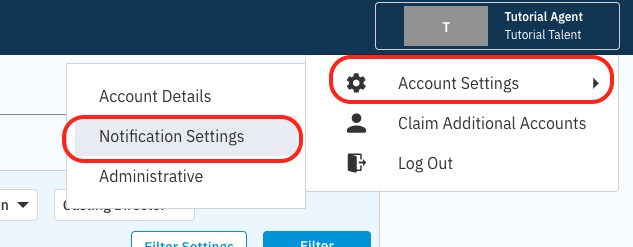
On the Notification Settings page, you have two options:
To Turn All Project Notifications On or Off
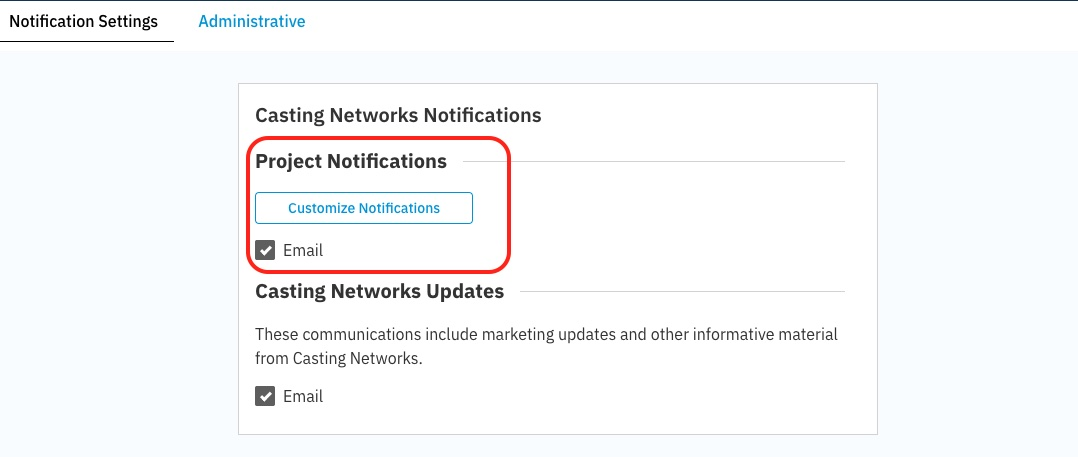
Find the "Project Notifications" section.
To turn off all project email notifications, uncheck the "Email" box.
To turn on email notifications, make sure the "Email" box is checked.
To Customize Your Project Notifications
Confirm that the "Email" box under Project Notifications is checked.
Select the "Customize Notifications" option.
A new window will appear. Scroll through the project type filters and set your preferred choices.
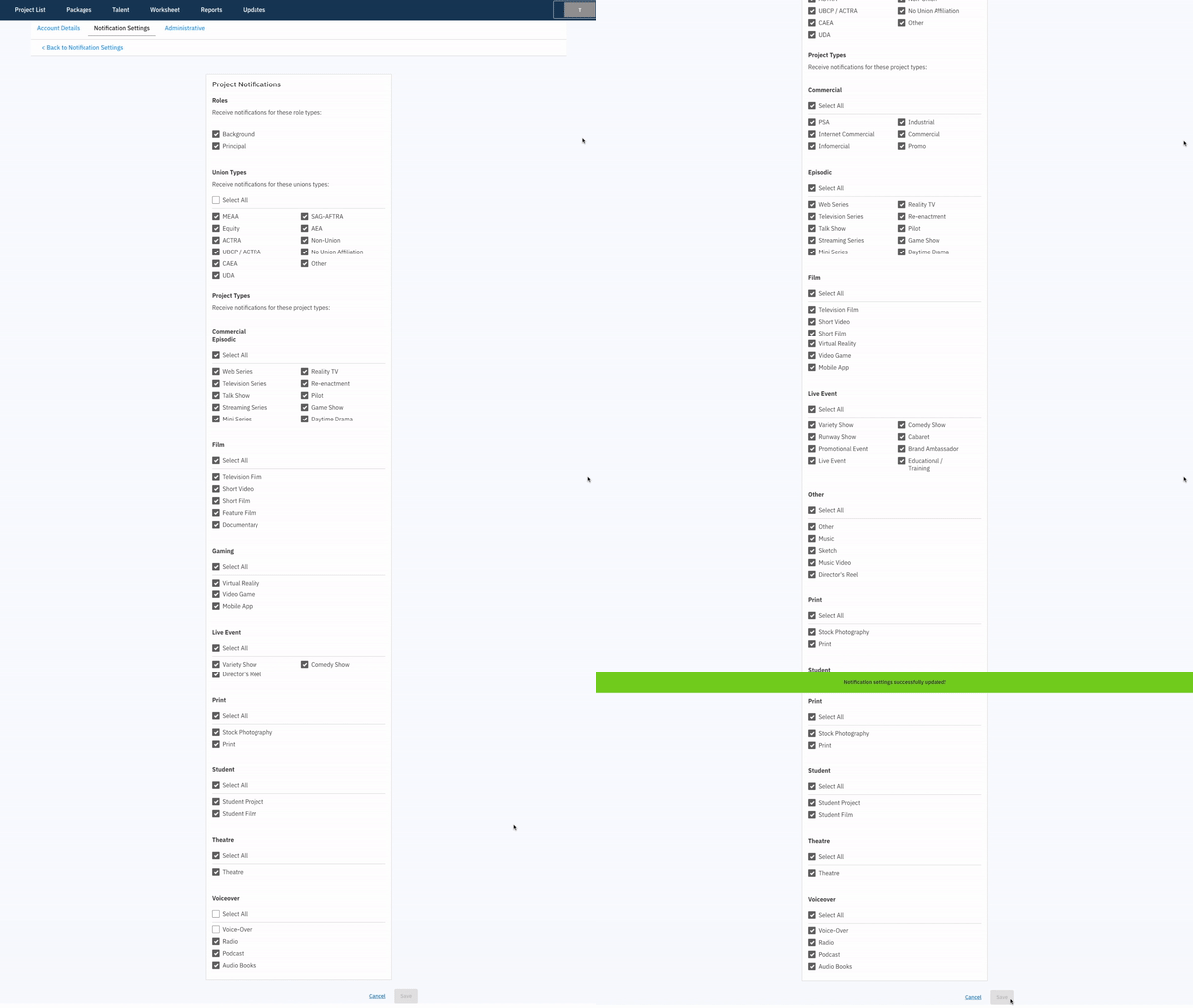
Click "Save" to finish.
You will now only receive email notifications for projects that match the criteria you selected.