
TALENT REPRESENTATIVE: How do I submit my talent to a voice-over role?
This article is for Talent Representatives. It explains the workflow for submitting your talent to voice-over roles, which includes a feature to request audio files (like MP3s or AACs) from your talent prior to sending their submission to Casting.
How to Submit Talent for Voice-Over Roles
When reviewing your talent selections for a voice-over role, you can request and review audio files before submitting them to the project.
After making your talent selections, navigate to the "Selected" tab.
To get an audio file from your talent first, select the box to the left of the talent's photo, then click “Request media”.
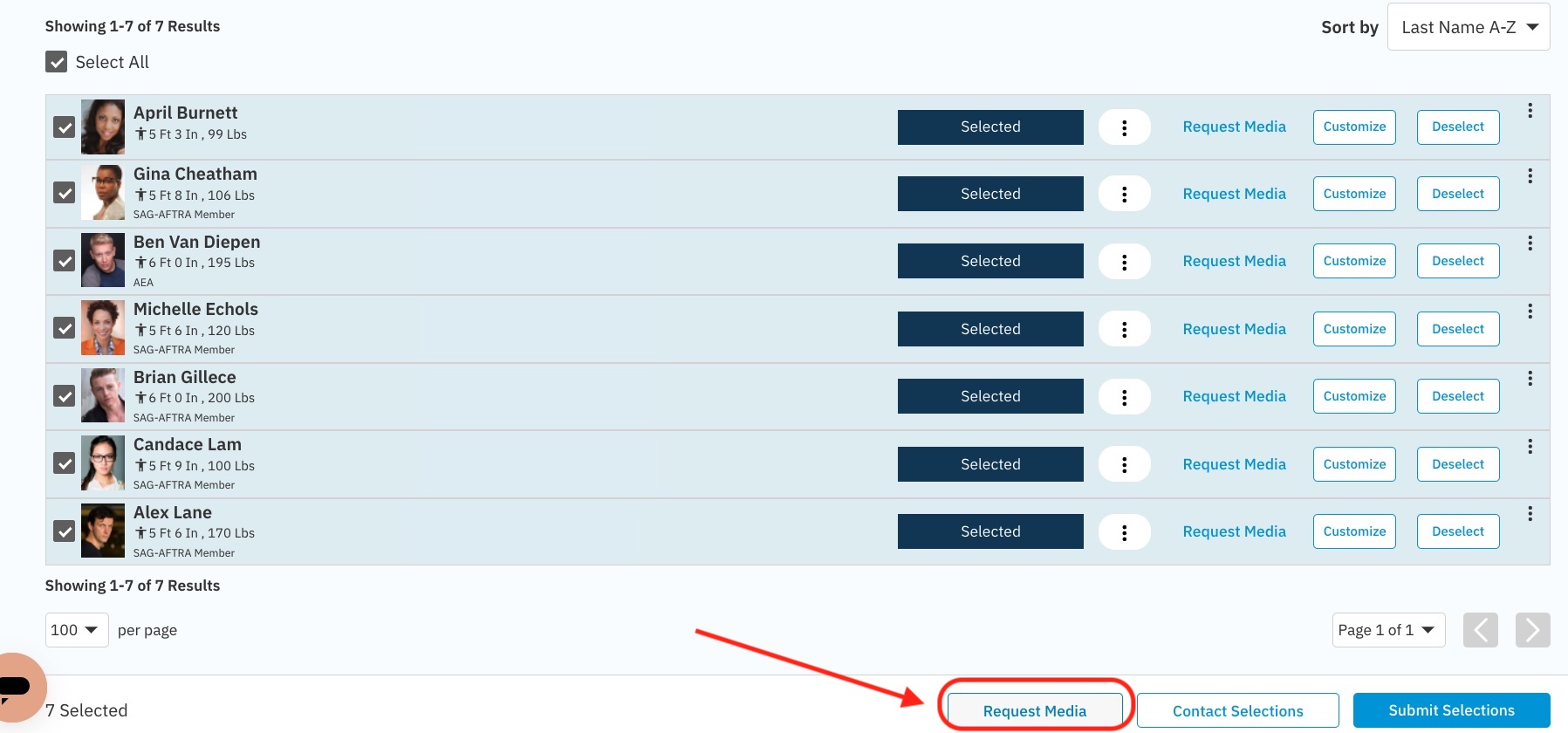
The media instructions from the Casting Director will automatically populate in the message. Review it, then select “Send To Talent”.
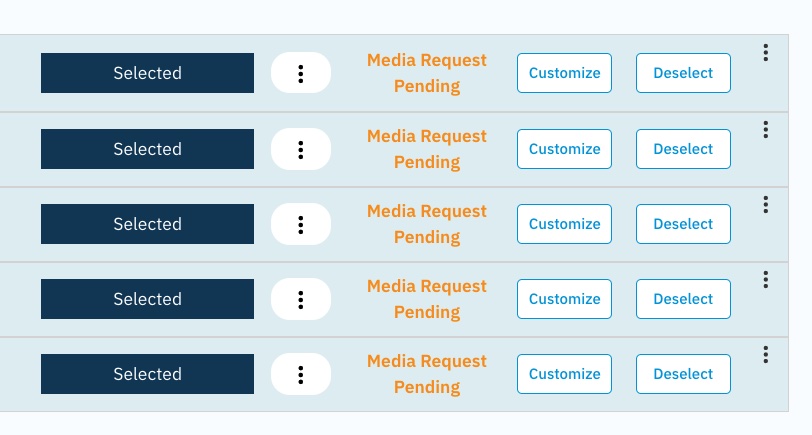
Once the request is sent, orange text stating “Media Request Pending” will be displayed. Talent will receive this request in their alerts inbox.
When the talent completes the audio request, you can go back into the project to review it. The talent's line will read “Media received.” You can click “view media” to listen to the audio file.

You can then further customize the submission or proceed.
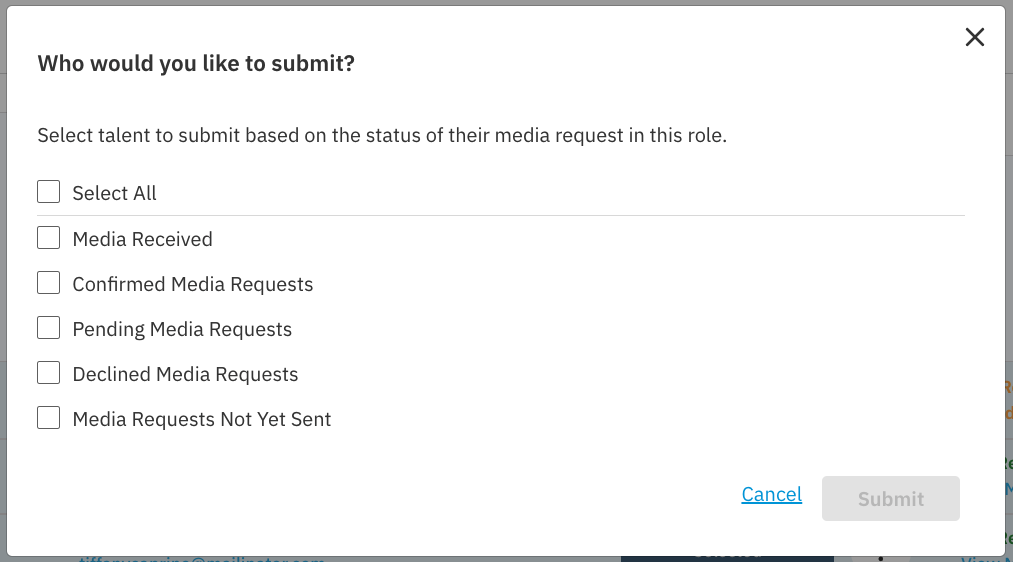
Once you select the talent you wish to submit (whether they provided media or not), select “Submit selections".
You will then see an option to submit the talent who added media, confirmed the request, still have a pending request, declined the request, or were not sent a request.
Understanding Media Request Statuses
While managing your submissions, you may see several statuses for your talent:
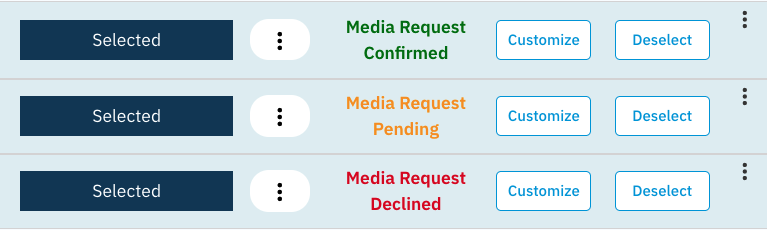
Media Request Pending: You have sent the request, but the talent has not yet responded.
Media received: The talent has successfully uploaded their audio file. You can click “view media” to listen.
Media Request Confirmed: The talent has acknowledged the request but has not uploaded an audio file.
Media Request Declined: The talent has declined the request to upload media.
You can still submit talent whose status is "Confirmed" or "Declined," but they will be submitted without the requested audio file if you wish.

Important Notes About This Workflow
If you submit a talent with a "Declined" or "Confirmed" media request, the Casting Director will not see that status. They will simply receive the talent's submission with no media attached.
If you submit a talent whose status is "Confirmed" and the talent uploads the audio after you have submitted them, this new audio file will not be sent to Casting.
IF YOU ARE UPLOADING MEDIA FOR YOUR TALENT: Note that the status notices (like "Media received") are based on the Talent taking action. If you add media for the talent, the media uploaded status will not update, because the talent didn't upload it.
Audio File Requirements
Maximum file size: 50 MB
Accepted file types: AAC, MP3 or OGG